Home / Clocks
User Manual for AcuRite 13019W2 Intelli-Time Alarm Clock
Quick guide for the AcuRite 13019W2 Intelli-Time Alarm Clock. Learn how to set the time, adjust the alarm, replace the backup battery, and troubleshoot common issues.
Table of contents
Quick guide from the manual
The AcuRite 13019W2 Intelli-Time Alarm Clock comes pre-programmed with the correct time and date. To get started, simply plug the unit into a power outlet and select your time zone using the switch on the bottom of the clock. If your area observes Daylight Savings Time, ensure the DST switch is set to ON.
Getting Started
Before using the clock, remove the protective film from the LCD screen. Plug the power cord into a standard power outlet. The clock uses a CR2032 coin-cell battery (pre-installed) to maintain time and date settings during power outages.
Setting the Time & Date
If you need to adjust the time or date settings:
- Press and hold the TIME SET button for 3 seconds to enter SET MODE.
- The current setting will blink on the display.
- Press and release the TIME SET button to confirm and move to the next preference.
- The order is: CLOCK HOUR (note the PM indicator), CLOCK MINUTE, CALENDAR YEAR, CALENDAR MONTH, CALENDAR DATE.
- The clock will automatically exit SET MODE if no buttons are pressed for 30 seconds.
Using the Alarm Clock
Setting the Alarm:
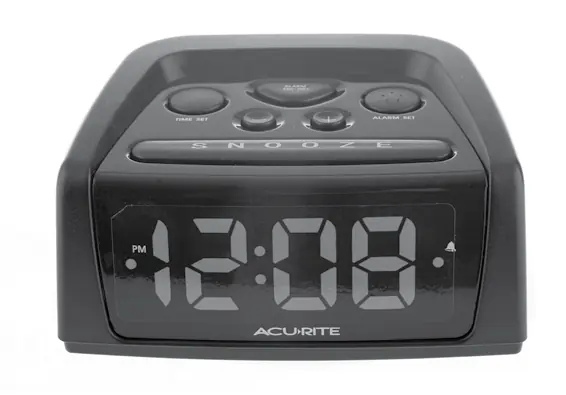
- Press the ALARM SET button once to review the current alarm time.
- Press the ALARM SET button again to enter ALARM SET MODE.
- Use the + or - buttons to adjust the flashing item.
- Press ALARM SET to save and move to the next preference (Hour, then Minute).
Alarm Functions:
- On/Off: Press the ALARM ON/OFF button until the ALARM ON icon appears or disappears from the screen.
- Snooze: When the alarm sounds, press the SNOOZE button on the top of the clock for a 9-minute snooze.
Maintenance
Clock Care: Clean with a soft, damp cloth. Do not use caustic cleaners or abrasives. Keep ventilation ports clear.
Replacing the Intelli-Time Battery:
- Locate the battery compartment door on the back of the clock.
- Unscrew and remove the cover.
- Insert 1 x CR2032 coin cell battery with the positive (+) terminal facing OUT.
- Replace the cover and screw it in.
Troubleshooting
If the clock is too dark, hard to read, or does not work, perform a factory reset by pressing the RESET button located on the bottom of the clock. Note that this will erase your custom time and date settings, which will need to be re-entered.
Manufacturer information
AcuRite
Practical help
Common problems
Clock display is too dark or hard to read
Adjust the display brightness using the Dimmer HI/LO switch located on the back of the clock.
Clock is not working or frozen
Press the RESET button on the bottom of the clock to restore factory settings. You will need to re-enter the time and date.
Before use
- Remove the protective film from the LCD screen.
- Plug the power cord into a power outlet.
- Select your time zone using the switch on the bottom of the clock.
- Set the DST switch to ON if your area observes Daylight Savings Time.
Specs in practice
- Backup Battery
- CR2032 3V coin cell battery used to store time and date settings.
Images and diagrams
- The top panel features the SNOOZE, TIME SET, ALARM SET, and +/- buttons.
- The back panel contains the DST switch, Time Zone switch, Reset button, Dimmer/Volume switches, and the battery compartment.
Model compatibility
- Intelli-Time technology is pre-programmed to the correct time and date.

Manual page author
David Miller
Documentation analyst
Organizes user manual content into clear summaries, with attention to model details, product context, and everyday usability.