Electronics / Monitors
AcuRite 06102M Iris (5-in-1) Direct-To-Wi-Fi Display User Guide
Quick setup guide for the AcuRite 06102M Iris (5-in-1) weather station display, covering sensor battery installation, Wi-Fi configuration, and system settings.
Table of contents
Quick guide from the manual
This document provides essential steps to set up your AcuRite Iris (5-in-1) Direct-To-Wi-Fi Display. It covers initial hardware setup, sensor synchronization, and connecting the device to your local Wi-Fi network to enable online weather data access.
Installation of sensor batteries
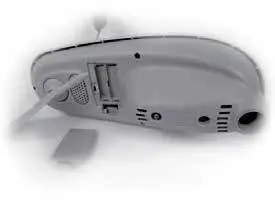
Open the outdoor sensor battery compartment and install four AA alkaline or lithium batteries. Lithium batteries are recommended for temperatures below -4°F (-20°C). Ensure the small A-B-C switch inside the battery compartment matches the setting on your display unit (default is A).
Display setup and configuration
Plug in the power adapter to turn on the display. Configuration starts automatically. Use the Up and Down buttons to navigate options and the Checkmark button to confirm settings, including:
- Clock (Hour/Minute/Daylight Saving Time)
- Date (Month/Day/Year)
- Units of Measurement (U.S. Standard/Metric)
- Wi-Fi Configuration
You can adjust these settings at any time by pressing the Gear button and selecting General Setup.
Mounting the sensor
For accurate readings, mount the AcuRite Iris sensor at least 5 ft. (1.5 m) off the ground, away from heat and humidity sources. Ensure the front solar cell faces south and the unit is level using the built-in bubble level. If using a Lightning Detection Sensor, mount it 5-8 ft. (1.5-2.4 m) off the ground in a sheltered area.
Connecting to Wi-Fi
- On your phone or computer, connect to the Wi-Fi network named AcuRite.
- Open a web browser and navigate to 192.168.4.1.
- Select your personal 2.4 GHz Wi-Fi network, enter the password, and save.
- Once the Wi-Fi icon on the display turns solid gray, reconnect your device to your home network and complete the setup via the My AcuRite app or myacurite.com.
Historical records and settings
Press the Records Folder button to view recent weather data on the display. Use the Gear button to access advanced configuration options or to perform a Factory Reset if needed.
Official resources from the manual
Manufacturer information
AcuRite
Practical help
Common problems
Wi-Fi setup page does not load
Ensure you are connected to the 'AcuRite' Wi-Fi network, or unplug the display and plug it back in to restart the setup process.
Wi-Fi icon shows 'NOT SETUP'
The display is not yet configured. Repeat the Wi-Fi connection steps 1-3.
Wi-Fi icon shows a red X
The credentials entered may be incorrect. Re-enter your Wi-Fi network name and password.
Before use
- Ensure you have 4 AA batteries for the sensor.
- Verify your Wi-Fi network is 2.4 GHz (5 GHz is not supported).
- Check that the A-B-C switch on the sensor matches the display.
- Remove the rain gauge stabilizer from the sensor.
- Have a phone, tablet, or computer ready for Wi-Fi configuration.
Specs in practice
- 2.4 GHz Wi-Fi
- The display only supports 2.4 GHz wireless networks; it will not function on 5 GHz networks.
- A-B-C Switch
- A channel selector that must be identical on both the sensor and the display to ensure communication.
Images and diagrams
- The A-B-C switch is located inside the sensor battery compartment.
- The Gear button is used to access the General Setup menu.
- The Records Folder button allows navigation through historical weather data.
Model compatibility
- Compatible with Amazon Alexa and Google Assistant via the AcuRite skill.
- Requires My AcuRite app or website for full online data access.

Manual page author
David Miller
Documentation analyst
Organizes user manual content into clear summaries, with attention to model details, product context, and everyday usability.