Power / Portable Power Stations
User Manual for AgfaPhoto PPS 100Pro Portable Power Station
Quick guide for the AgfaPhoto PPS 100Pro portable power station. Learn how to charge, use AC/DC/USB outputs, and maintain your device safely.
Table of contents
Manual images
Click an image to enlargeQuick guide from the manual
The AgfaPhoto PPS 100Pro is a portable power station designed to provide energy for electronic devices. It features a capacity of 88.8 Wh and supports various output types including AC, USB, and DC. Always ensure the device is fully charged before use and stored in a dry, dust-free environment.
Device Overview
The unit includes several ports and buttons for operation:
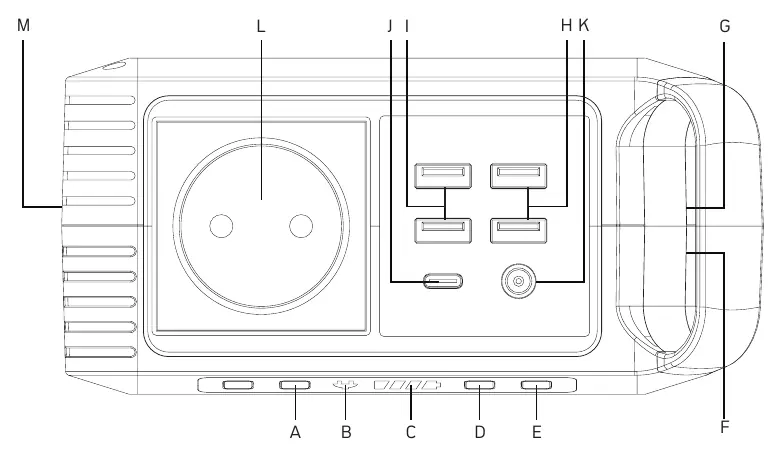
- AC Output: Standard AC socket for appliances.
- USB Ports: Includes standard USB and Type-C ports for mobile devices.
- DC Input: 3.5mm port for charging via AC adapter or solar panel.
- LED Light: Built-in light panel for emergency use.
- Battery Indicator: Displays remaining charge.
Charging the Power Station
You can charge the unit using the included AC wall charger or a solar panel.
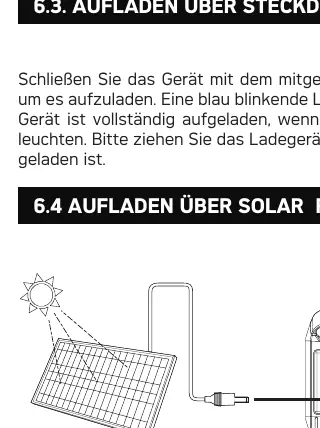
- AC Charging: Plug the included AC charger into a wall outlet. The blue LED battery indicators will blink while charging and remain solid when fully charged.
- Solar Charging: Connect a solar panel to the DC input port. Ensure the panel is placed in direct sunlight.
Using the Power Station
The PPS 100Pro supports multiple output types:
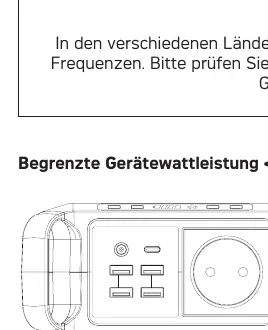
- AC Appliances: Connect your device to the AC outlet and press the AC output button. Note that the maximum continuous power is 80W.
- USB/Type-C Devices: Connect your cables to the respective ports. The unit supports simultaneous charging of multiple devices.
- DC 12V Appliances: Use the 5.5mm DC output port for compatible 12V devices like fans or car kits.
Safety and Maintenance
Follow these guidelines to ensure safe operation:
- Do not disassemble or modify the unit.
- Keep the unit away from water, fire, and high temperatures.
- Do not use the unit if it is damaged or if the power cord is broken.
- Store the unit in a dry place and recharge at least once every three months if not in use.
- The unit is not suitable for devices with AC motors (e.g., refrigerators) that require pure sine wave output.
Troubleshooting
If the device is not functioning correctly:
- Ensure the unit is switched on and the battery indicator shows sufficient charge.
- If the battery is at 20% or below, recharge the unit immediately.
- Verify that your appliance is compatible with the output port's power limits.
- If the unit gets wet, turn it off immediately and allow it to dry completely before attempting to use it again.
Technical Specifications
- Capacity: 88.8 Wh
- AC Output: 230V/50Hz, 80W continuous, 120W peak
- Operating Temperature: -10°C to +40°C
- Weight: 1.04 kg
- Certifications: CE, FCC, UN38.3
Practical help
Common problems
Device not charging
Ensure the unit is switched on and the battery indicator shows remaining charge. If at 20% or below, recharge the unit.
Device not powering appliances
Check if the appliance is compatible and within the 80W continuous power limit. Ensure the correct output button (AC/DC) is activated.
Unit gets wet
Turn off the unit immediately and wait until it is completely dry before turning it back on.
Before use
- Charge the unit fully before first use.
- Check the device for any damage or cracks.
- Ensure the ambient temperature is between -10°C and +40°C.
- Verify that your appliance's power consumption is under 80W.
Specs in practice
- Operating Temperature
- -10°C to +40°C.
Images and diagrams
- The device features an AC outlet, multiple USB ports (including Type-C), and a DC input for charging.
Model compatibility
- Not suitable for devices with AC motors (e.g., refrigerators, fans) that require pure sine wave.
- Supports Qualcomm QuickCharge 3.0 on specific USB ports.

Manual page author
David Miller
Documentation analyst
Organizes user manual content into clear summaries, with attention to model details, product context, and everyday usability.