Power / Portable Power Stations
App Operation Guide for V-TAC 1000W Power Station VT-10003
Quick guide for connecting and configuring the V-TAC 1000W Power Station (VT-10003) using the Smart Life app. Learn how to pair via WiFi/Bluetooth, adjust charging limits, set inverter frequency, and manage device parameters.
Table of contents
Manual images
Click an image to enlargeQuick Start Guide
This guide covers the operation of the V-TAC 1000W Power Station (VT-10003) via the Smart Life app. Ensure your mobile device has Bluetooth and location permissions enabled to facilitate the connection process.
Connecting to the App
To connect your power station to the Smart Life app, follow these steps:
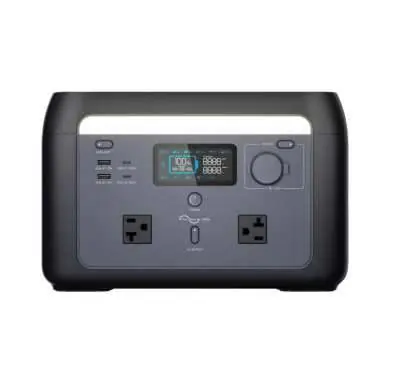
- Download and install the Smart Life app from your app store or by scanning the QR code provided in the manual.
- Open the app and select Add Device in the main interface.
- Follow the prompts to enable Nearby Devices permission and Bluetooth.
- The app should automatically detect the device. If not, find the device in the Add Device interface and click Add.
- Enter your WiFi information to complete the binding.
Note: If you are unsure if the machine has been paired by others, you can reset the WiFi pairing. Press the two buttons indicated in the manual simultaneously; the WiFi icon will flicker on the screen to confirm the operation is successful.
Device Settings and Parameters
Once connected, you can access the settings interface by clicking the icon in the upper right corner of the device screen in the app. Available settings include:
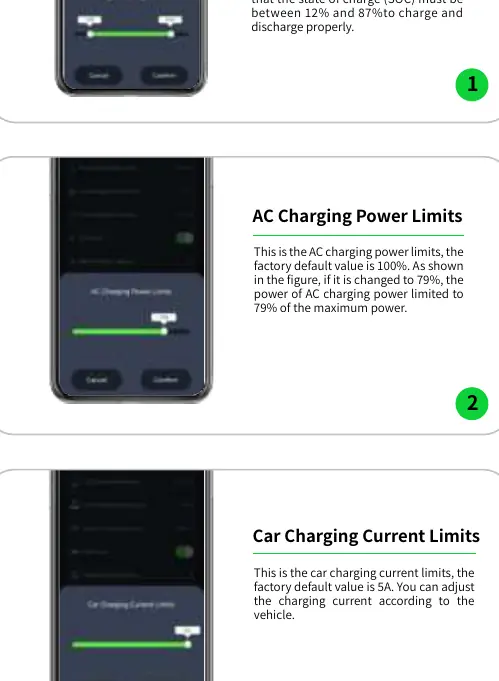
- Charge & Discharge Limits: Adjust the state of charge (SOC) range (default 0%-100%).
- AC Charging Power Limits: Limit the AC charging power as a percentage of the maximum.
- Car Charging Current Limits: Adjust the charging current (default 5A).
- Inverter Output Frequency: Switch between 50Hz and 60Hz.
- Key Sound: Toggle the device sounds on or off.
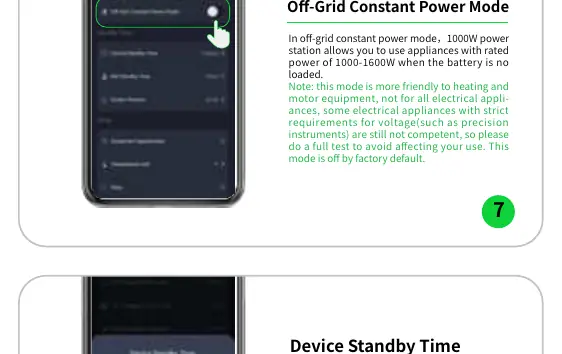
- Off-Grid Constant Power Mode: Allows the use of appliances with a rated power of 1000-1600W when the battery is not loaded. Warning: This mode is not suitable for all appliances, especially those with strict voltage requirements like precision instruments. Test before use.
- Standby Times: Configure Device Standby Time (default 2 hours) and INV Standby Time (default 1 hour).
- Screen Timeout: Set the duration before the screen turns off (default 5 minutes).
- Temperature Unit: Switch between Celsius and Fahrenheit.
Battery Monitoring
The app provides a detailed battery work screen, displaying:
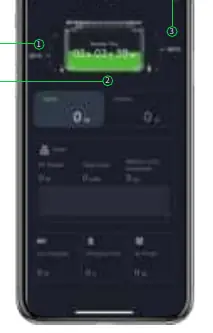
- State of Charge (SOC): Current battery percentage.
- Battery Temperature: Real-time temperature monitoring.
- Input/Output Power: Real-time monitoring of solar input, car charging input, AC input, and total output power.
- Estimated Time: Displays estimated full charge time when charging, or remaining time when discharging.
Practical help
Common problems
WiFi pairing fails or device not found
Ensure Bluetooth and 'Nearby Devices' permissions are enabled on your phone. If the device was previously paired, reset the WiFi by pressing the two buttons shown in the manual simultaneously until the WiFi icon flickers.
No shared WiFi available
You can use your mobile phone to open a hotspot and connect the power station to that WiFi network to complete the binding.
Before use
- Download the Smart Life app.
- Enable Bluetooth and location permissions on your smartphone.
- Ensure the power station is powered on.
- Verify if the WiFi icon is flickering (ready to pair) or steady (already connected).
Specs in practice
- Off-Grid Constant Power Mode
- Allows running appliances rated 1000-1600W. Not for all appliances; test with precision instruments first.
- INV Standby Time
- The time after which the AC output automatically shuts down if no load is detected.
Images and diagrams
- WiFi Icon Ever Bright: Connection is successful.
- WiFi Icon Flicker: Device is in pairing mode.
Model compatibility
- Off-Grid Constant Power Mode is not suitable for all electrical appliances, particularly those with strict voltage requirements.

Manual page author
David Miller
Documentation analyst
Organizes user manual content into clear summaries, with attention to model details, product context, and everyday usability.