Electronics / Gaming Consoles
User Guide for Dual Mode Wireless Mouse
A comprehensive user guide for the Dual Mode Wireless Mouse, covering Bluetooth pairing, 2.4GHz USB receiver connection, button functions, and safety precautions.
Quick answers from the manual
Quick answer
- To pair the mouse via Bluetooth, switch the bottom button to the Bluetooth icon and hold for 3 seconds until the LED indicator flashes, then select the mouse in your device's Bluetooth settings. p. 1
Key actions
- Pairing via Bluetooth p. 1
- Connecting via 2.4GHz p. 1
First start
- Insert battery and choose connection mode (Bluetooth or 2.4GHz). p. 1
Problems and fixes
Pairing mode not active
Hold the switch to the Bluetooth icon for 3 seconds.
p. 1Where to find it in the PDF
- Product Overview and Pairing Instructions p. 1
Table of contents
Quick Guide from the Manual
This document provides instructions for operating the Dual Mode Wireless Mouse. The device supports two connection modes: Bluetooth and 2.4GHz wireless. Ensure the mouse is charged or has a battery installed before attempting to connect. If you encounter pairing issues, ensure the device is in pairing mode (indicator flashing) and that your host device's Bluetooth is enabled.
Device Overview
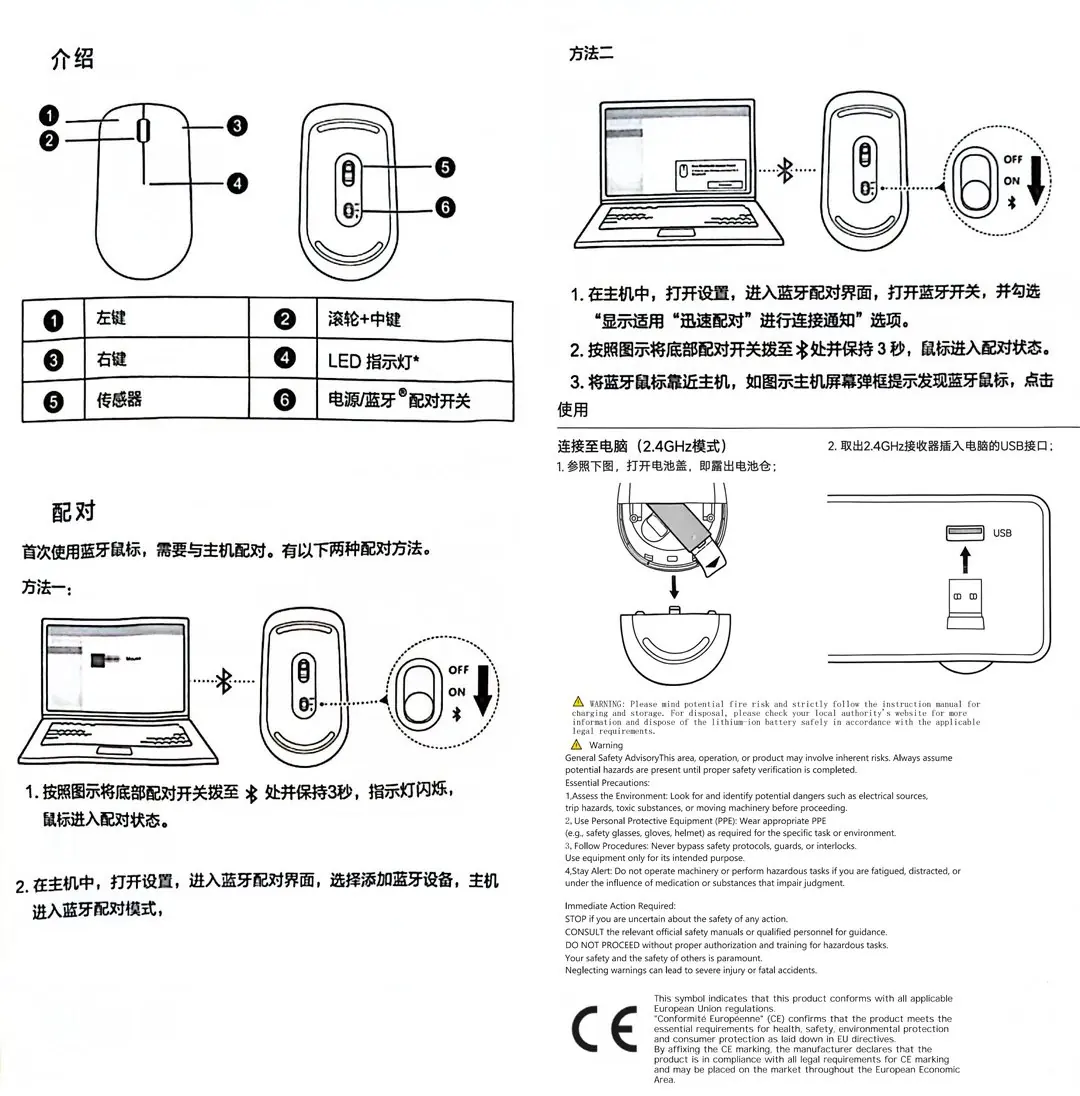
- 1. Left Click: Primary selection button.
- 2. Scroll Wheel + Middle Click: Used for scrolling and middle-click functions.
- 3. Right Click: Secondary context menu button.
- 4. LED Indicator: Shows status, including pairing mode.
- 5. Sensor: Optical tracking sensor.
- 6. Power/Bluetooth Pairing Switch: Used to toggle power and initiate Bluetooth pairing.
Pairing via Bluetooth
There are two methods to pair the mouse via Bluetooth:
- Method 1: Switch the power button on the bottom to the Bluetooth icon position. Hold the switch for 3 seconds until the LED indicator flashes, indicating the mouse is in pairing mode. On your host device, open Bluetooth settings and select the mouse to pair.
- Method 2: On Windows devices, switch to the Bluetooth icon position. When the "Swift Pair" notification appears on your screen, click it to connect.
Connecting via 2.4GHz Mode
To use the mouse with the 2.4GHz USB receiver:
- Open the battery cover on the bottom of the mouse.
- Remove the 2.4GHz USB receiver.
- Plug the USB receiver into an available USB port on your computer.
Safety Information
Please observe the following safety precautions:
- Avoid fire risks and follow instructions for charging and storage.
- Dispose of lithium-ion batteries in accordance with local regulations.
- Use personal protective equipment if required for specific tasks.
- Do not bypass safety protocols or interlocks.
- If you are fatigued or distracted, do not operate machinery or perform hazardous tasks.
Practical help
Common problems
Mouse not pairing via Bluetooth
Ensure the switch is held in the Bluetooth position for 3 seconds until the LED indicator flashes.
2.4GHz connection not working
Ensure the USB receiver is securely plugged into the computer's USB port and the battery is installed correctly.
Before use
- Check that the battery is installed correctly.
- Ensure the power switch is set to the desired mode (Bluetooth or 2.4GHz).
- For Bluetooth, ensure the host device has Bluetooth enabled.
- For 2.4GHz, ensure the USB receiver is removed from the battery compartment and plugged into the computer.
Specs in practice
- Bluetooth Mode
- Wireless connection without a USB receiver, requires pairing.
Images and diagrams
- The diagram illustrates the button layout (Left, Right, Scroll Wheel).
- The diagram shows the location of the Power/Bluetooth switch on the bottom.
- The diagram demonstrates the process of removing the USB receiver from the battery compartment.
Model compatibility
- Compatible with devices supporting Bluetooth or standard USB ports.

Manual page author
David Miller
Documentation analyst
Organizes user manual content into clear summaries, with attention to model details, product context, and everyday usability.