HVAC / Water Heaters
Ariston Clima App WiFi User Guide for Dehumidifiers
Quick start guide and user manual for the Ariston Clima WiFi app, covering setup, configuration, and control panel functions for DEOS 16S NET and DEOS 21S NET dehumidifiers.
Table of contents
Quick guide from the manual
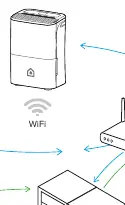
This document provides instructions for configuring the Ariston Clima app to control your dehumidifier remotely. The system connects your mobile device and the dehumidifier indirectly via external servers. Ensure your dehumidifier is plugged in and your mobile device has a data connection before starting.
Technical specifications
- Wi-Fi protocols: IEEE 802.11 b/g/n
- Wi-Fi frequency: 2.4 GHz
- Operating temperature: 0 to 45°C
- Operating humidity: 10 to 85%
- Input Power: DC 5V/300 mA
Precautions
- The Wi-Fi module is installed inside the dehumidifier; do not attempt to remove, modify, or repair it.
- Do not use the product near medical equipment (pacemakers, defibrillators) or automatic control/firefighting devices.
- Avoid getting the Wi-Fi module wet.
- Compatible with iOS 6.0+ and Android 4.0+.
Configuration
Follow these steps to connect your device:
- Download the Ariston Clima app from your device's store.
- Register an account within the app.
- On the homepage, select Add Device (ensure GPS is enabled on Android).
- Choose Dehumidifier from the product list.
- Activate AP Mode: Turn on the dehumidifier and press the WIRELESS button (DEOS 16S NET) or MODE button (DEOS 21S NET) for 3 seconds. The "AP" indicator will appear for 8 minutes.
- Associate: Either scan the QR code on the back of the product or use the manual setup (connect to the Net_a1_XXXX Wi-Fi network using the default password 12345678).
- Select your home Wi-Fi network in the app and enter the password to complete the configuration.
Control panel
The app allows you to manage the following functions:
- ON/OFF: Start or shut down the unit.
- Standard Mode: Adjust desired humidity using the on-screen slider.
- Auto: Automatically sets relative humidity between 45% and 55%.
- Continuous Mode: Maximum dehumidification without time limits.
- Fan Speed: Select LOW, MEDIUM, or HIGH.
- Laundry: Automatically adjusts fan speed and humidity based on ambient temperature.
- Air Purifier (DEOS 21S NET only): Requires HEPA filter installation.
- Anti-mould (DEOS 21S NET only): Sets fan speed and operation time (up to 4h) based on humidity.
Maintenance
To modify your profile information, access the homepage, touch your personal logo, and edit your photo, name, or password. Click Save to apply changes.
Manufacturer information
Ariston
Practical help
Common problems
Configuration unsuccessful
Repeat the configuration procedure or ensure the home Wi-Fi network is functioning correctly.
Cannot scan QR code
Ensure your mobile device camera has at least 5MP resolution and that the app has permission to access the camera.
Wi-Fi network name or password changed
You must repeat the entire configuration procedure from the start.
Multiple dehumidifiers
The configuration procedure must be repeated for each individual unit to manage them with the same device.
Before use
- Ensure the dehumidifier is plugged into a power source.
- Ensure your smartphone or tablet has an active data connection.
- Enable GPS on your mobile device (required for Android).
- Ensure the Ariston Clima app has permission to access location and camera.
- Verify that your home Wi-Fi network is active and functioning.
Specs in practice
- Wi-Fi Frequency
- The device operates on the 2.4 GHz band; ensure your router supports this frequency.
- Operating Temperature
- The device functions within a range of 0 to 45°C.
Images and diagrams
- The configuration diagram illustrates that the mobile device and the dehumidifier are connected indirectly via external servers, allowing remote control.
Model compatibility
- Compatible with iOS 6.0 and later.
- Compatible with Android 4.0 and later.
- Air Purifier and Anti-mould functions are available only on the DEOS 21S NET model.

Manual page author
Michael Turner
Technical manual editor
Reviews PDF manuals for structure, safety notes, and practical product details so readers can find the right information quickly.