Computers / Storage
User Manual for Sabrent 2-Port USB Type-C KVM Switch
Quick user guide for the Sabrent 2-Port USB Type-C KVM Switch (USB-KCPD). Learn how to connect your computers, peripherals, and HDMI display, and how to use the Power Delivery feature.
Quick answers from the manual
Quick answer
- This device allows you to control two computers using a single keyboard, mouse, and monitor. It supports 60W Power Delivery and 4K video output. p. 2
Key actions
- Connect PCs to ports C, peripherals to B, display to A, and optional power to D. p. 2, 3
First start
- Connect all cables, turn on computers, and press the button to switch. p. 2
Technical specifications
| Parameter | Value | Meaning | Pages |
|---|---|---|---|
| Resolution | 4K@60Hz | Maximum video output resolution | p. 2 |
| Power Delivery | 60W | Maximum charging power per computer | p. 2 |
Where to find it in the PDF
- Product Overview p. 1
- Features and Connection Guide p. 2
- Unit Layout p. 3
Table of contents
Quick guide from the manual
This guide provides instructions for setting up and using the Sabrent 2-Port USB Type-C KVM Switch. This device allows you to control two computers using a single mouse, keyboard, and monitor. It supports Power Delivery up to 60 watts and video output up to 4K at 60Hz.
System Requirements
- Windows 10 or Mac OS X 10.10 or higher.
- Computers must be capable of outputting video over USB Type-C (Alternate Mode).
- Computers capable of recharging via Power Delivery (optional).
Connection Guide
- Connect both computers to the PC1 and PC2 USB Type-C ports (designated with the letter C on the unit). Use the provided USB Type-C cables.
- Connect your keyboard and mouse to the USB 2.0 Type-A ports (designated with the letter B).
- Optional: Connect your Power Delivery adapters to the Power Input ports (designated with the letter D) to charge your computers.
- Connect your HDMI display to the HDMI port (designated with the letter A).
- Turn on your computers.
- Press the button on the remote unit to switch between computers.
Unit Layout
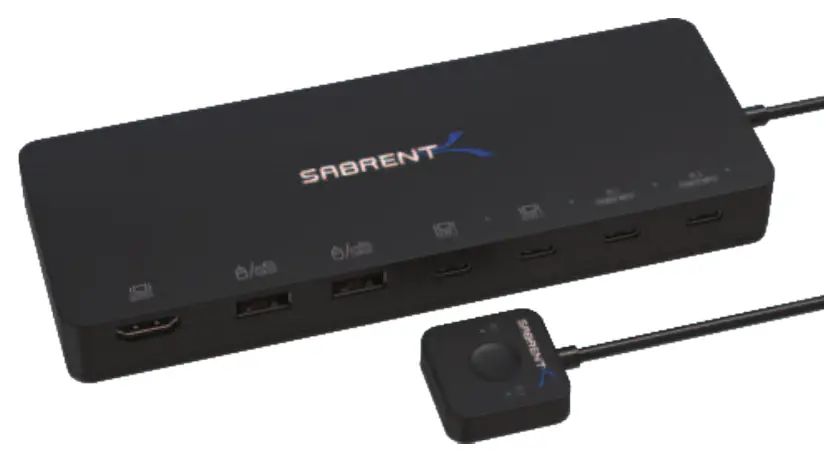
The device features the following ports and indicators:
- A: HDMI port for display connection.
- B: USB 2.0 Type-A ports for keyboard and mouse.
- C: USB Type-C ports for PC1 and PC2 connection.
- D: USB Type-C power input ports for optional Power Delivery adapters.
- E: PC1 and PC2 connection status LEDs.
- F: Power input 1 and Power input 2 status LEDs.
- G: PC1 or PC2 blue LED indicator showing which computer is active.
- H: Selection button to switch between computers.
Package Contents
- Sabrent 2-port USB Type-C KVM Switch
- Mounting bracket
- 2 x USB Type-C to Type-C cables (1 meter / 39 inches)
- Quick connection guide
Manufacturer information
Sabrent
Practical help
Common problems
Power Delivery not working
Ensure your computer supports Power Delivery via USB-C and that you have connected the power adapter to the PD port (D).
Video not displaying
Ensure your computer supports USB-C Alternate Mode for video output.
Before use
- Verify your computer supports USB-C Alternate Mode for video output.
- Ensure you have the provided USB Type-C cables.
- Check if your operating system is Windows 10 or Mac OS X 10.10 or higher.
Specs in practice
- Power Delivery (PD)
- Allows charging of connected computers up to 60 watts.
- USB-C Alternate Mode
- Required for video output over the USB-C connection.
Images and diagrams
- A: HDMI port for display connection.
- B: USB 2.0 Type-A ports for keyboard and mouse.
- C: USB Type-C ports for PC1 and PC2 connection.
- D: USB Type-C PD ports for power adapters.
- G/H: Selection button and indicator for switching between computers.
Model compatibility
- Compatible with Thunderbolt 3.
- Requires computers capable of outputting video over USB Type-C.

Manual page author
Emily Carter
User documentation editor
Prepares concise manual descriptions and highlights the most useful setup, operation, and maintenance information for readers.