Computers / PC Components
User Manual for StarTech 2-Port USB DisplayPort KVM Switch SV211DPUA4K
Quick-start guide for the StarTech SV211DPUA4K 2-Port USB DisplayPort KVM Switch. Includes installation steps, connection diagrams, LED indicator meanings, and hotkey operation instructions.
Quick answers from the manual
Quick answer
- The SV211DPUA4K is a 2-port KVM switch that allows you to control two DisplayPort computers using a single keyboard, mouse, and monitor. It supports audio and includes a remote switch for easy toggling. p. 1
Key actions
- Switching computers using hotkeys p. 2
- Connecting computers p. 1
Problems and fixes
LED is flashing orange
A computer is selected but not detected.
p. 2Technical specifications
| Parameter | Value | Meaning | Pages |
|---|---|---|---|
| Resolution | 4K 60Hz | Maximum supported video resolution | p. 1 |
Where to find it in the PDF
- Quick-Start Guide p. 1
- Operation and Regulatory p. 2
Table of contents
Manual images
Click an image to enlargeQuick guide from the manual
The StarTech SV211DPUA4K is a 2-port KVM switch designed to control two DisplayPort-enabled computers using a single keyboard, mouse, and monitor. It supports 4K 60Hz resolution and includes audio support and a remote switch for convenient toggling between computers.
Product Overview
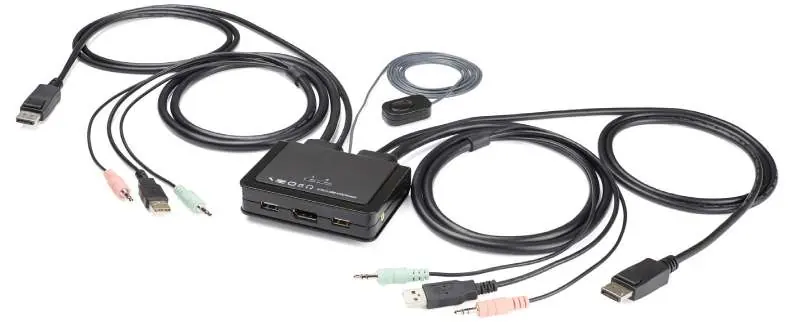
The device features built-in cables for connecting two computers, including DisplayPort, USB-A, and 3.5mm audio connectors. It also includes ports for connecting your console (keyboard, mouse, display, and audio devices) and a remote switch for manual control.
Installation
Connect the Computers:
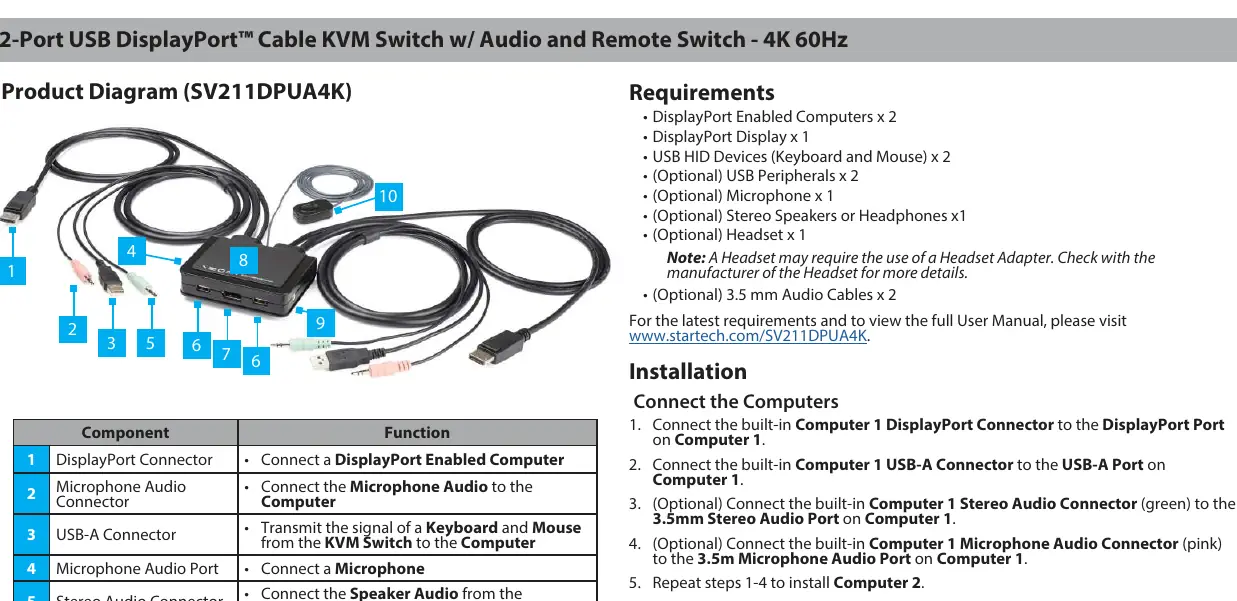
- Connect the built-in Computer 1 DisplayPort connector to the DisplayPort port on Computer 1.
- Connect the built-in Computer 1 USB-A connector to the USB-A port on Computer 1.
- Optionally, connect the built-in Computer 1 stereo audio connector (green) to the 3.5mm stereo audio port on Computer 1.
- Optionally, connect the built-in Computer 1 microphone audio connector (pink) to the 3.5mm microphone audio port on Computer 1.
- Repeat these steps for Computer 2.
Connect the Console:
- Connect your USB-A devices (keyboard, mouse, or peripherals) to the USB-A ports on the KVM switch.
- Optionally, connect your speakers or headphones to the speaker audio port (pink) on the KVM switch.
- Optionally, connect your microphone to the microphone audio port (pink) on the KVM switch.
Operation and Hotkeys
LED Indicators:
- Solid Orange: A computer is selected and a link has been established.
- Flashing Orange: A computer is selected but not detected.
Switching Computers:
- Windows Keyboard: Press the Scroll Lock key twice (Scroll Lock + Scroll Lock).
- Mac Keyboard (or Windows without Scroll Lock): Use the included software to define a new hotkey sequence.
Note: Each hotkey sequence keystroke must be pressed within two seconds.
Safety and Regulatory Information
The device complies with FCC and Industry Canada regulations for Class B digital devices. Ensure the device is not operated near sources of interference. If the product has an exposed circuit board, do not touch it while under power. For further support, visit www.startech.com/support.
Official resources from the manual
Practical help
Common problems
Computer not detected
Check if the LED is flashing orange; ensure all cables are securely connected to the computer.
Hotkey switching not working
Ensure the hotkey sequence (Scroll Lock + Scroll Lock) is pressed within two seconds.
Mac keyboard lacks Scroll Lock
Use the included software to define a new hotkey sequence.
Before use
- 2x DisplayPort enabled computers
- 1x DisplayPort display
- 2x USB HID devices (keyboard and mouse)
- Optional: Microphone
- Optional: Stereo speakers or headphones
- Optional: 3.5 mm audio cables
Specs in practice
- Scroll Lock + Scroll Lock
- Default hotkey combination to switch between computers.
Images and diagrams
- The KVM switch has built-in cables for two computers.
- The remote switch allows manual toggling between computers.
- LED indicators show the status of the selected computer.
Model compatibility
- Requires DisplayPort enabled computers.
- Headsets may require a headset adapter.

Manual page author
David Miller
Documentation analyst
Organizes user manual content into clear summaries, with attention to model details, product context, and everyday usability.