Electronics / Headphones Earbuds
User Manual for av:link 100.563UK True Wireless Earphones
Quick guide for av:link 100.563UK True Wireless Earphones. Learn how to pair, control music, charge, and reset your earbuds with this easy-to-follow manual.
Table of contents
Quick Guide
The av:link 100.563UK Ear Shots SE are true wireless earphones featuring Bluetooth 5.0, touch controls, and a charging case. Before first use, it is recommended to fully charge the device for approximately 1 hour. The earphones provide up to 3 hours of playback, with the charging case offering up to 9 additional hours.
Device Overview
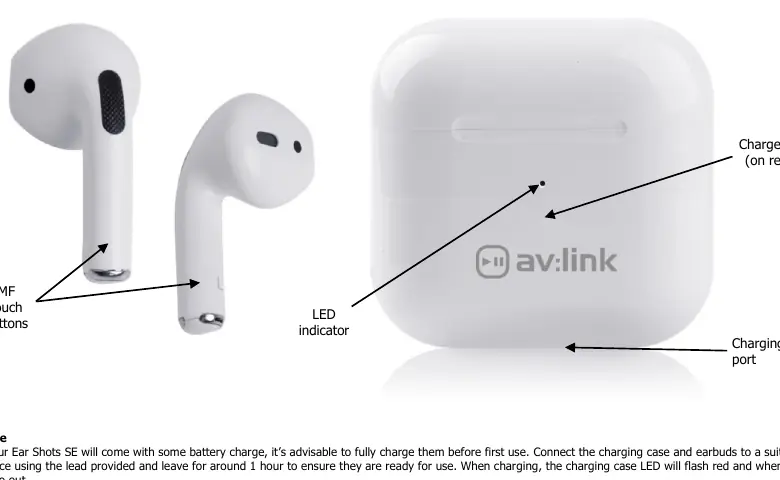
The system consists of two wireless earphones and a charging case. The earphones feature a multi-function (MF) touch button on the stalk for controlling playback and calls. The charging case includes an LED indicator, a charging port, and a charge button on the reverse.
Charging
To charge the earphones, place them into the magnetic ports of the charging case and close the lid. The LED indicator will glow red while charging and turn off when complete. To charge the case itself, connect it to a suitable USB power source using the provided cable. The LED on the front of the case will flash red while charging and turn off when fully charged.
Pairing
To enter pairing mode, open the lid of the charging case; the LED indicator will glow green. On your smart device, search for the pairing name AV:LINK Ear Shots SE in your Bluetooth settings. If prompted for a pairing code, enter 0000. Once paired, the earphones will reconnect automatically when the lid is opened.
Controls
The multi-function (MF) touch button on the earbud stalk allows for the following operations:
- Play/Pause: Press the button on either earbud once.
- Next Track: Press the button on the right earbud twice.
- Previous Track: Press the button on the left earbud twice.
- Increase Volume: Press the button on the right earbud three times.
- Decrease Volume: Press the button on the left earbud three times.
- Voice Assistant: Press and hold the button for approximately 3 seconds.
- Accept Call: Press the button on either earbud once.
- Reject Call: Press the button on either earbud twice.
- End Call: Press the button on either earbud again.
Resetting
If you encounter connection issues, perform a factory reset:
- Remove the earphones from your device's Bluetooth list by selecting Forget this device.
- Place the earbuds back into the charging case and close the lid.
- Follow the Pairing procedure again to reconnect.
Safety and Troubleshooting
Keep the device away from water, high humidity, and direct sunlight. Prolonged listening at high volumes may cause hearing damage. If the earphones will not pair, ensure they are in pairing mode and your device is set to discoverable. If the signal drops, ensure there is a clear line of sight between the earphones and your device, avoiding metallic objects or other wireless interference.
Practical help
Common problems
Earphones will not pair with the device.
Ensure the earphones are in pairing mode, Bluetooth is enabled on your device, and the device is set to 'discoverable'.
Connection drops within the 10m range.
Ensure a clear line of sight between the earphones and your device. Avoid large metallic objects or other wireless signals in the vicinity.
Earphones will not reconnect.
The device may be in a locked state. Perform a factory reset by forgetting the device in Bluetooth settings and re-pairing.
One earbud signal drops in and out.
Move your smart device closer to the earbuds or remove it from bags/pockets where the signal may be weakened.
Before use
- Fully charge the earphones and charging case for approximately 1 hour.
- Ensure you have a suitable USB power source for the charging cable.
- Verify that your smartphone or device has Bluetooth enabled.
Specs in practice
- Battery Life
- 3 hours for earphones, plus up to 9 hours of additional playback from the charging case.
- Bluetooth Range
- Up to 10 meters, assuming a clear line of sight.
- Bluetooth Version
- V5.0 for seamless connection.
Images and diagrams
- The charging case features an LED indicator on the front, a charging port, and a charge button on the reverse.
- The earbud stalk contains the MF (multi-function) touch button used for all playback and call controls.
Model compatibility
- Compatible with iOS and Android devices.
- Voice assistant functionality depends on the compatibility of the connected Apple or Android device.

Manual page author
Emily Carter
User documentation editor
Prepares concise manual descriptions and highlights the most useful setup, operation, and maintenance information for readers.