Home Appliances / Personal Care
Brookstone WiFi Hidden Security Camera User Manual
Quick guide for the Brookstone WiFi Hidden Security Camera. Learn how to set up the device, connect to the Brookstone Smart app, configure motion detection, and manage video recordings.
Table of contents
Manual images
Click an image to enlargeQuick Start Guide
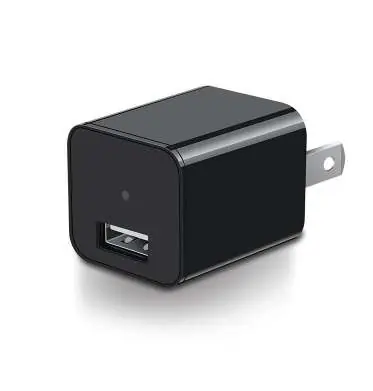
The Brookstone WiFi Hidden Security Camera is designed to look like a standard USB wall charger. To begin, download the Brookstone Smart app, register an account, and ensure your phone is connected to a 2.4GHz Wi-Fi network. Plug the camera into a wall outlet, reset the device if necessary, and follow the in-app instructions to pair the camera.
Product Configuration
The camera features a detachable face plate. Removing this plate provides access to the following components:
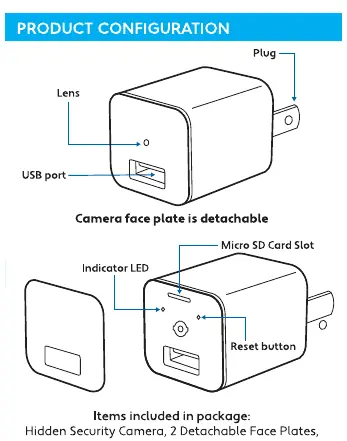
- Micro SD Card Slot: Supports storage up to 128GB.
- Reset Button: Used to reset the device for pairing.
- Indicator LED: Shows device status.
- USB Port: Located on the front for charging devices.
App Setup and Registration
Download the Brookstone Smart app from the Google Play Store or Apple App Store. Open the app, register a new account, and log in. Ensure your smartphone is connected to a 2.4GHz Wi-Fi network before proceeding with device setup.
Adding the Device
- Plug the camera into a wall outlet and wait about 15 seconds for the light to flash.
- If the light is not flashing rapidly, press and hold the reset button for 5 seconds, then release. Wait for the light to start blinking rapidly.
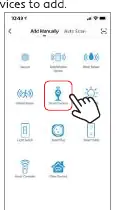
- In the app, tap the (+) symbol in the top right corner.
- Select Smart Camera from the list of devices.
- Follow the on-screen prompts to enter your Wi-Fi password and scan the QR code displayed on your phone screen with the camera lens.
- Wait for the connection process to complete.
App Functions
Once connected, you can access the following features via the app:
- Live Video: View real-time footage. You can toggle sound and switch between standard and high-definition video.
- Video Recording: Manually record clips by pressing the record button. Recordings are saved to the photo album or Micro SD card.
- Taking a Photo: Use the screenshot button to capture and save images to your phone.
Motion Detection
The camera uses infrared sensors to detect motion. To configure this:
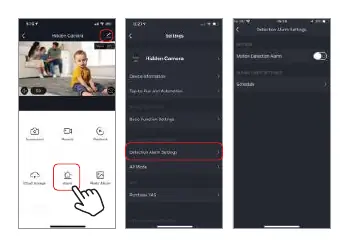
- Tap the camera settings button (top right on the main camera screen).
- Select Detection Alarm Settings.
- Toggle Motion Detection Alarm on or off and adjust sensitivity settings as needed.
Sharing the Device
To share access with another user:
- Go to the camera settings menu.
- Select Share Device.
- Tap Add Sharing.
- Enter the email address or phone number associated with the other person's Brookstone Smart account.
Specifications
- Model: BKWIFICAMWL1
- Resolution: 1920x1080
- Viewing Angle: 70 degrees
- Power Supply: AC100-240V
- Power Output: DC5V / 1A
- Wireless: 2.4GHz Wi-Fi
- Storage: Micro SD up to 128GB
Manufacturer information
Brookstone
Practical help
Common problems
Device will not connect to Wi-Fi
Ensure your phone is connected to a 2.4GHz network. The device does not support 5GHz networks.
Camera not in pairing mode
Press and hold the reset button for 5 seconds until the light flashes rapidly.
Before use
- Download the Brookstone Smart app
- Ensure 2.4GHz Wi-Fi network is available
- Plug the camera into a wall outlet
- Insert a Micro SD card (optional, up to 128GB)
- Register an account in the app
Specs in practice
- Power Output
- DC5V / 1A, suitable for charging standard USB devices.
- Wireless Type
- Requires 2.4GHz Wi-Fi connection.
Images and diagrams
- The face plate is detachable to reveal the Micro SD card slot and reset button.
Model compatibility
- Requires Android 8.0 or higher
- Requires iOS 7.0 or higher
- Supports 2.4GHz Wi-Fi only

Manual page author
Michael Turner
Technical manual editor
Reviews PDF manuals for structure, safety notes, and practical product details so readers can find the right information quickly.