Electronics / Security Cameras
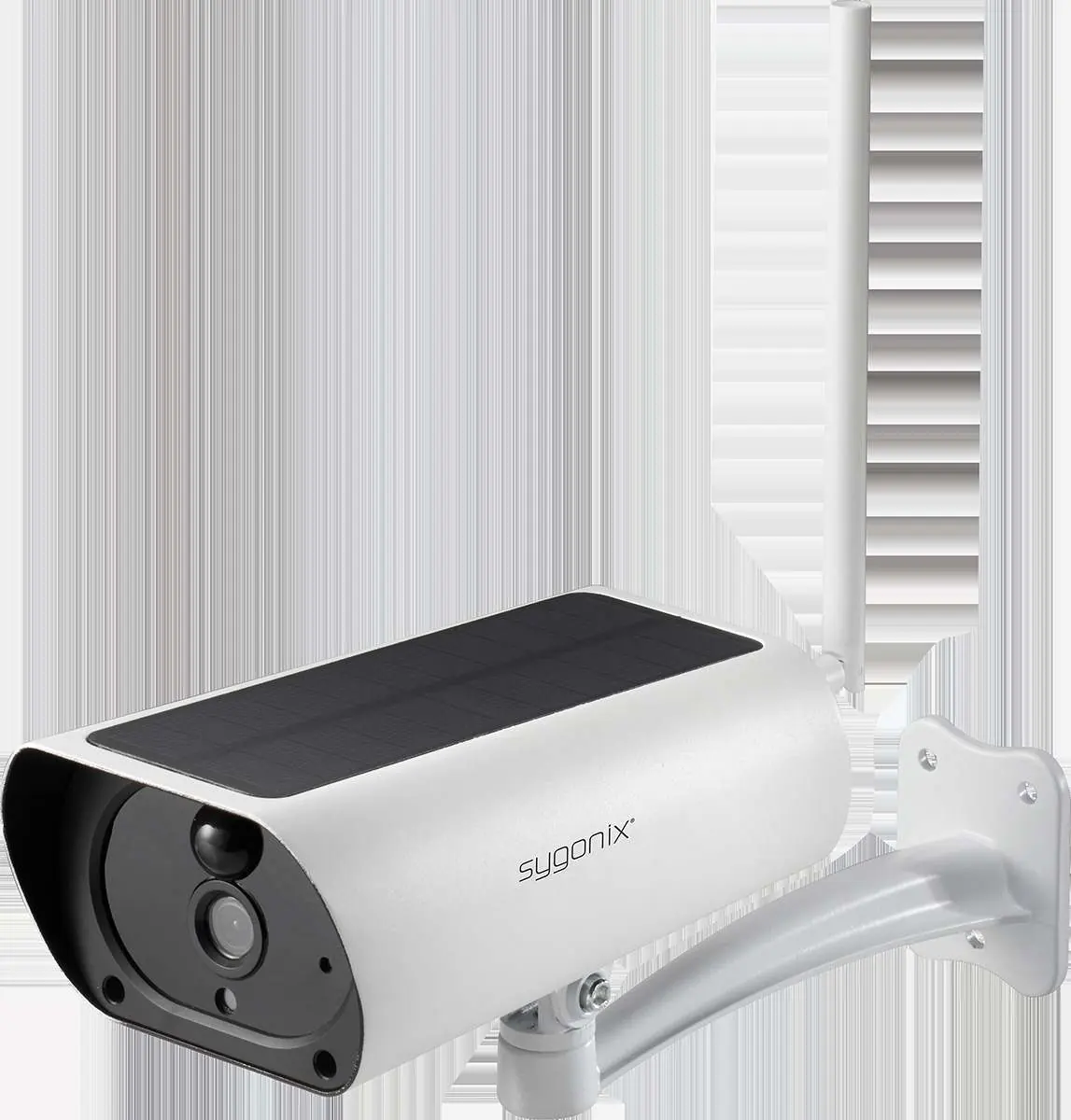
User manual for Sygonix Wi-Fi IP Bullet Camera 1080P
Quick guide for the Sygonix Wi-Fi IP Bullet Camera 1080P (Item No. 2207447). Learn how to set up the Smart Life app, connect the camera, configure motion detection, and troubleshoot connection issues.
Table of contents
Manual images
Click an image to enlargeQuick guide from the manual
This document provides instructions for setting up and using the Sygonix Wi-Fi IP Bullet Camera 1080P (Item No. 2207447) with the Smart Life - Smart Living mobile app. The camera requires a Wi-Fi connection for operation and management.
Requirements
- Network: The mobile device running the app and the camera must be connected to the same Wi-Fi network during setup.
- Security: It is recommended to use the most secure encryption option supported by your Wi-Fi router.
- App: Download the Smart Life - Smart Living app from the respective app store.
Getting started with the app
- Download and install the Smart Life - Smart Living app.
- Create a user account within the app.
- Log in to your account.
- Ensure your mobile device is connected to your Wi-Fi network.
Adding the device
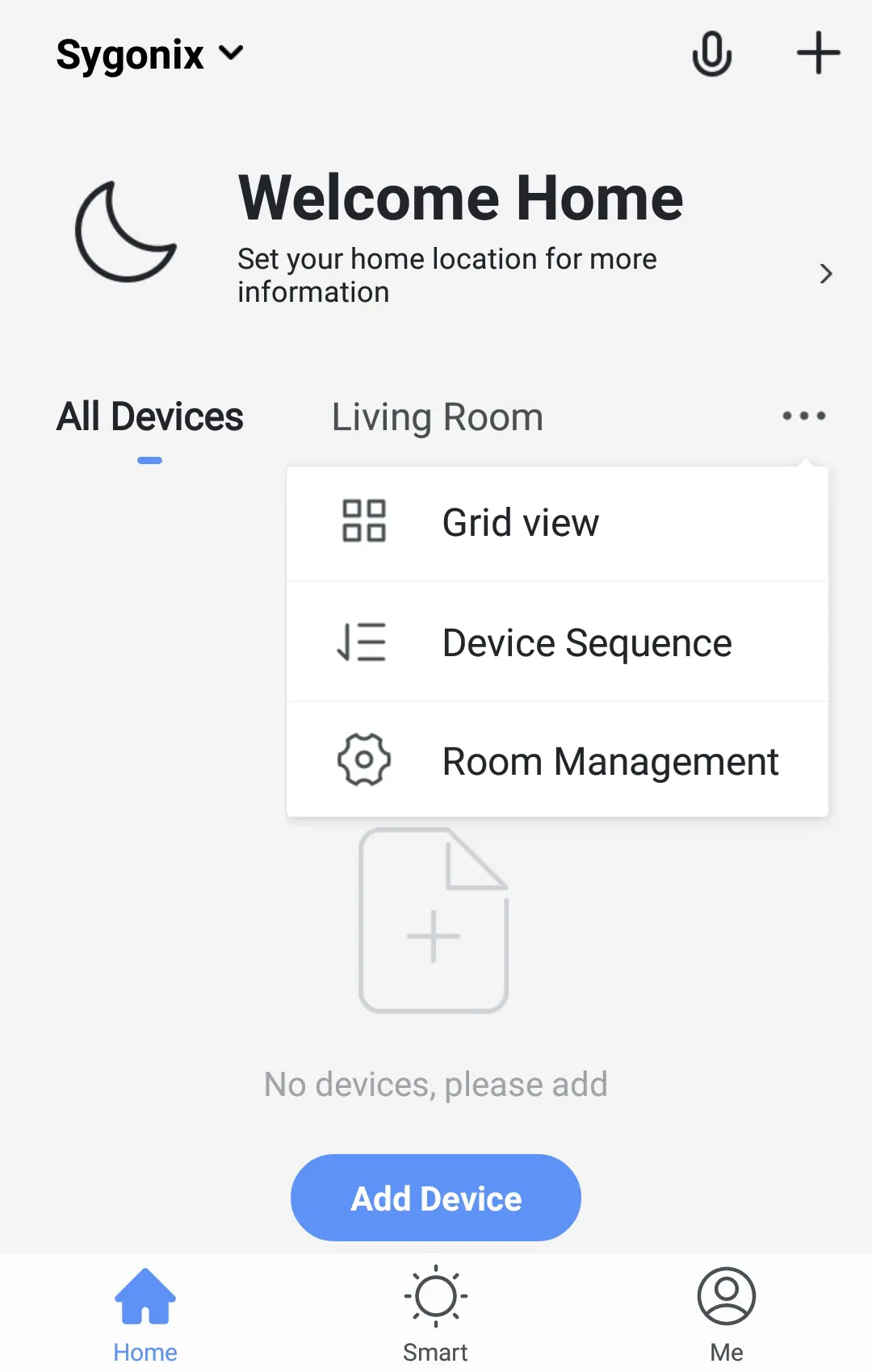
- Open the app and select Add Device or the + icon.
- Navigate to Video Surveillance and select Smart Camera.
- Follow the on-screen instructions to complete the pairing process.
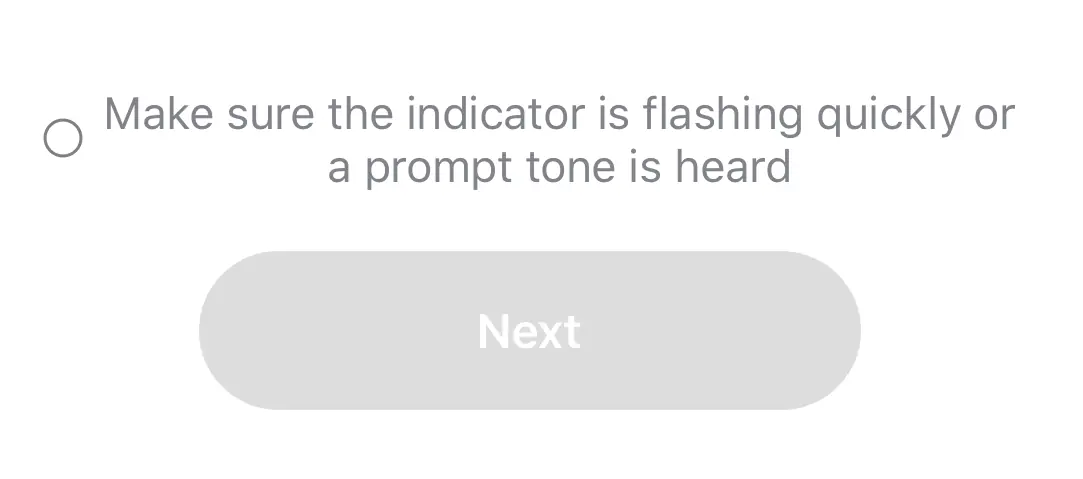
- Ensure the camera indicator is flashing quickly or a prompt tone is heard before proceeding.
App interface overview
The app provides a comprehensive interface for managing your camera:
- Live View: Access the live video feed.
- Controls: Capture images, record video, and use the microphone for two-way audio.
- Playback: View recorded video files.
- Settings: Access device-specific configurations.
Settings and features
- Device Name: Customize the camera name.
- Low Battery Alarm: Set a threshold for battery alerts.
- Motion Detection (PIR): Enable or disable motion detection and adjust sensitivity.
- Flip Screen: Rotate the image if the camera is mounted upside down.
- Talk Mode: Choose between one-way or two-way communication.
- Device Sharing: Share access with family members.
Troubleshooting
If you experience connection issues:
- Check that your internet connection is working and that the device is within range of your Wi-Fi access point.
- Be aware that other 2.4 GHz products (e.g., microwave ovens) may cause interference.
- If the device is battery-powered, check if the batteries need replacement.
- Resetting: If the camera behaves erratically, insert the included reset pin into the reset hole. Press down until you feel a click and hold for 4-5 seconds until you hear an audio prompt.
Manufacturer information
Sygonix GmbH
Practical help
Common problems
App cannot connect to device
Ensure the mobile device and camera are on the same Wi-Fi network, check for 2.4 GHz interference, or restart network devices.
Erratic behavior or connection issues
Perform a factory reset by inserting the reset pin into the reset hole, pressing until a click is felt, and holding for 4-5 seconds.
Low battery alerts
Configure the battery alarm threshold in the Power Management Settings within the app.
Before use
- Download the Smart Life - Smart Living app.
- Create a user account.
- Ensure your mobile device is connected to a 2.4 GHz Wi-Fi network.
- Have the reset pin ready for potential setup issues.
- Check that the camera is charged or powered.
Images and diagrams
- Home Page: Displays all connected devices, room management, and automation settings.
- Overview Screen: Shows live view, recording controls, playback, and settings access.
Model compatibility
- Requires 2.4 GHz Wi-Fi network.
- Compatible with Android and iOS mobile devices.

Manual page author
Emily Carter
User documentation editor
Prepares concise manual descriptions and highlights the most useful setup, operation, and maintenance information for readers.