Electronics / RFID Barcode Scanners
Deli 14970W Barcode Scanner User Manual
Quick guide for the Deli 14970W barcode scanner. Learn how to set up, pair via 2.4G or Bluetooth, configure scanning modes, and troubleshoot common issues.
Table of contents
Quick guide from the manual
The Deli 14970W is a versatile barcode scanner supporting wired, 2.4G wireless, and Bluetooth connectivity. Before first use, ensure the device is fully charged. The scanner features a multi-mode switching capability, allowing you to toggle between different connection types based on your needs. Configuration is primarily handled by scanning specific setup barcodes provided in this manual.
Component Description
The package includes the barcode scanner, a base station, a Type-B USB cable, and this user manual. The scanner features a scanning window, a trigger button, and LED indicators to show status and battery levels.
Receiver Installation
To use the scanner in 2.4G wireless mode, plug the receiver into the USB port of your computer. The system will automatically install the driver. Once installed, the scanner can communicate with the computer wirelessly.
Multi-Mode Switching
The scanner supports three modes:
- Wired Mode: Connect the scanner directly to the computer using the USB cable for data transmission and charging.
- 2.4G Wireless Mode: Use the base station for wireless data transmission.
- Bluetooth Mode: Pair the scanner with Bluetooth-enabled devices for wireless operation.
Usage and Configuration
To scan correctly, ensure the barcode is completely covered by the scanning light. The scanner should be held at an appropriate angle to the barcode. You can configure various settings, such as reading modes, Chinese character output, and sound settings, by scanning the corresponding configuration barcodes found in the manual.
LED Display and Alerts
The LED display provides information on signal strength, battery status, and connection mode. The device also features a vibrating alert for successful scans or specific status notifications.
Maintenance
Keep the scanning window clean to ensure optimal performance. If the window becomes dusty, wipe it gently with a soft, clean cloth. Do not use abrasive materials or harsh chemicals. The scanner shell can be cleaned with a soft cloth dampened with water.
Troubleshooting
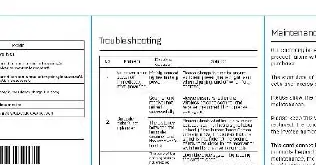
If the scanner fails to read barcodes, check the scanning angle and distance. If wireless connection fails, try re-pairing the device using the pairing setup codes. Ensure the battery is charged if the device does not power on.
Practical help
Common problems
Scanner does not read barcodes
Ensure the scanning window is clean and the barcode is fully covered by the scanning light. Adjust the angle and distance.
Wireless connection failure
Perform the pairing procedure again using the specific 'Wireless Transmission Pairing Settings' or 'Bluetooth Pairing Setup Code' barcodes.
Device not powering on
Connect the scanner to a power source using the USB cable to charge the battery.
Before use
- Unpack all components: scanner, base, and USB cable.
- Charge the scanner fully before first use.
- Identify the desired connection mode (Wired, 2.4G, or Bluetooth).
- Plug the receiver into the computer if using 2.4G mode.
- Keep the configuration manual handy for setting up specific modes.
Specs in practice
- Battery Capacity
- 2000mAh, providing long standby time.
- Connectivity
- Supports 2.4G wireless, Bluetooth, and wired USB connection.
Images and diagrams
- The manual includes specific QR/barcode patterns that must be scanned to change settings like 'Reading mode', 'Chinese Character Output', and 'Sleep Time'.
- LED indicators show signal strength and battery status.
Model compatibility
- Compatible with computers via USB receiver (Plug and Play).
- Bluetooth mode requires a Bluetooth-enabled host device.

Manual page author
David Miller
Documentation analyst
Organizes user manual content into clear summaries, with attention to model details, product context, and everyday usability.