Electronics / RFID Barcode Scanners
User Guide for Honeywell Voyager 1350g Corded Area-Imaging Scanner
Quick guide for the Honeywell Voyager 1350g corded area-imaging scanner. Includes setup, connection instructions, programming, data editing, and maintenance.
Table of contents
Manual images
Click an image to enlargeQuick guide from the manual
The Honeywell Voyager 1350g is a corded area-imaging scanner. This guide provides instructions for installation, programming, and maintenance. The scanner is factory-programmed for common settings; if changes are needed, you can program the device by scanning specific barcodes found in this manual.
Connecting the device
The scanner can be connected via USB or RS232 Serial Port.
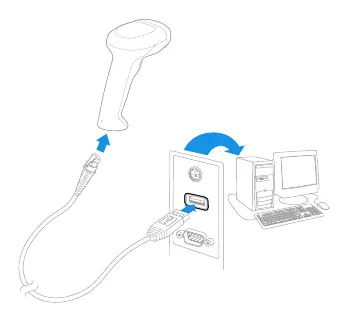
- USB Connection: Connect the interface cable to the scanner first, then to the computer's USB port. The scanner will beep. It defaults to USB PC Keyboard mode.
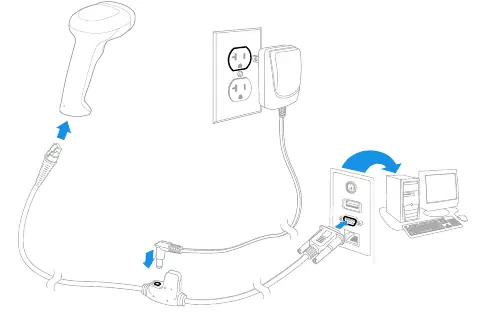
- RS232 Serial Port: Turn off the computer power. Connect the interface cable to the scanner and the serial port on the computer. Tighten the screws to secure the connector. Power up the computer. Note that a separate power supply may be required.
Reading techniques
The scanner projects an aiming dot. Center this dot over the barcode. The dot is smaller when the scanner is closer to the code and larger when farther away. For best results, hold the scanner close to small barcodes and farther away from large ones.
Programming the scanner
The scanner is programmed by scanning menu barcodes. You can set custom defaults by scanning the Set Custom Defaults barcode, followed by the desired settings, and finally the Save Custom Defaults barcode.
Data editing
You can build a message string by adding prefixes or suffixes to scanned data. This is useful for adding characters like a Tab or Carriage Return to the output. Use the Prefix/Suffix Overview section to configure these settings for specific or all symbologies.
Maintenance and troubleshooting
To clean the scanner, use a soft cloth dampened with water or a mild detergent-water solution. Do not submerge the scanner or use abrasive materials. If the scanner is not reading symbols well, ensure the room light level is sufficient and that the barcode is not damaged or highly reflective. If the barcode is displayed but not entered, you may need to program a suffix.
Security
Honeywell recommends several security practices, including installing virus protection, using digitally signed software, and implementing strong password policies. Keep software and firmware up to date to mitigate vulnerabilities.
Product specifications
The scanner operates on 4.4 to 5.5 VDC. It is designed to withstand 1.2m drops and has an IP40 sealant rating. The image size is 1280 x 800 pixels.
Manufacturer information
Honeywell International Inc.
Practical help
Common problems
Barcode not read
Check if the room light level is sufficient. If the barcode is highly reflective (e.g., laminated), tilt the scanner at an angle.
Scanner not working after USB Serial connection
Ensure the latest driver is downloaded from the Honeywell website. Uninstall older driver versions if necessary.
Barcode displayed but not entered into application
Program a suffix (such as CR or Tab) to automatically enter the data into your application.
Before use
- Check for damage during shipment.
- Verify items in the carton match your order.
- Save the shipping container for later storage or shipping.
- Ensure the correct interface cable is used for your terminal/computer.
Specs in practice
- Voltage Requirements
- 4.4 to 5.5 VDC at input connector.
- Mechanical Drop
- Withstands 1.2m drops (2 times).
- Sealant Rating
- IP40.
Images and diagrams
- USB Connection: Shows cable connecting to scanner and computer USB port.
- RS232 Connection: Shows cable connecting to scanner, power supply, and serial port.
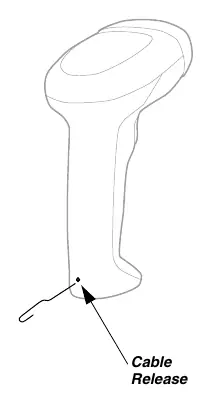
- Cable Release: Shows using a paper clip to release the cable retention tab on the handle.
Model compatibility
- Requires specific interface cables for different terminal types.
- USB Serial requires a driver download from the Honeywell website.

Manual page author
David Miller
Documentation analyst
Organizes user manual content into clear summaries, with attention to model details, product context, and everyday usability.