Music / Guitar Effects
User Manual for Honeywell Voyager XP 1470g Series Scanner
Quick start guide for the Honeywell Voyager XP 1470g series corded area-imaging scanner. Includes setup, connection instructions for USB, RS232, and RS485, reading techniques, and configuration barcodes.
Table of contents
Manual images
Click an image to enlargeQuick guide from the manual
This guide provides essential setup and configuration instructions for the Honeywell Voyager XP 1470g series corded area-imaging scanner. Always turn off the computer's power before connecting the scanner, and power up the computer only after the scanner is fully connected.
Connecting the scanner
The scanner supports multiple interface types. Ensure you use the correct cable and connection method for your system:
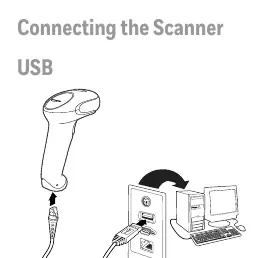
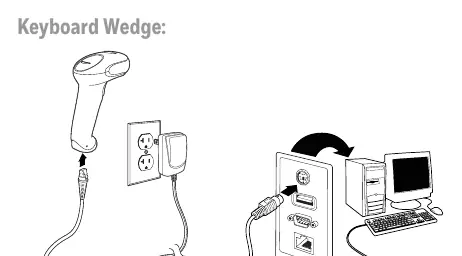
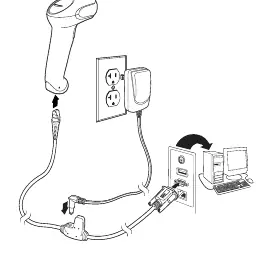
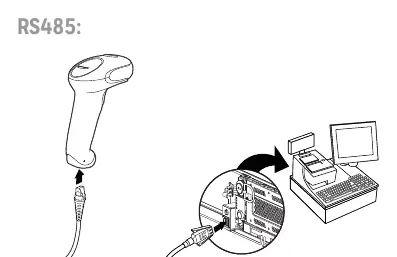
- USB: Connect the USB cable directly to the computer's USB port.
- Keyboard Wedge: Connect the scanner and power supply to the interface cable, then connect the cable to the computer's keyboard port.
- RS232 Serial Port: Connect the scanner and power supply to the serial port on the computer.
- RS485: Connect the scanner cable to the appropriate port on the terminal.
Reading techniques
To ensure a successful scan:

- The scanner projects an aiming dot. Center this dot over the barcode.
- The aiming dot size changes based on distance: hold the scanner closer for smaller barcodes and farther away for larger ones.
- If the barcode is highly reflective (e.g., laminated), tilt the scanner at an angle to avoid glare.
Configuration and programming
The scanner can be configured by scanning specific barcodes provided in this manual:
- Standard Product Defaults: Scan the 'Standard Product' barcode to reset all settings to factory defaults.
- Keyboard Country: Scan the barcode corresponding to your country to set the correct keyboard layout.
- Trigger Modes: Choose between 'Manual Trigger - Normal Mode' (requires button press) or 'Presentation Mode' (activates automatically when it detects a barcode).
- Suffixes: You can add a carriage return (CR) or a tab after the scanned data by scanning the respective 'Add Suffix' barcode.
- Data Format Editor: Follow the steps in the manual to enter custom data formats, using the provided Programming Chart for numeric values.
Software and support
For advanced configuration and additional features, use the EZConfig for Scanning software tool available on the Honeywell website. For technical support, knowledge base access, or warranty information, visit the official Honeywell support portal.
Practical help
Common problems
Scanner not reading barcodes
Ensure the aiming dot is centered on the barcode. If the barcode is reflective, tilt the scanner at an angle.
Incorrect keyboard layout
Scan the appropriate country code barcode from the 'Keyboard Country' section to match your keyboard layout.
Need to reset to factory settings
Scan the 'Standard Product' barcode found in the 'Standard Product Defaults' section.
RS485 interface not working with IBM POS
The interface defaults to port 5B. If using port 9B, scan the 'IBM Port 9B' barcode and power cycle the cash register.
Before use
- Turn off the computer before connecting the scanner.
- Verify the interface cable matches your connection type (USB, RS232, RS485).
- Assemble the power supply (if included) before plugging it into the wall outlet.
- Power up the computer only after the scanner is fully connected.
- Identify if your model supports 2D barcodes (1470g2D) or only 1D (1470g1D).
Specs in practice
- Manual Trigger - Normal Mode
- The scanner requires the user to press the button to initiate a scan.
- Presentation Mode
- The scanner remains active and automatically scans when it detects a barcode in its field of view.
- Add CR Suffix
- Adds a carriage return (Enter key) after the scanned data is transmitted.
Images and diagrams
- Power Supply Assembly: Shows how to attach the plug adapter to the power supply unit.
- USB Connection: Illustrates connecting the scanner cable to the computer's USB port.
- Keyboard Wedge: Shows the connection path between the scanner, power supply, and the computer's keyboard port.
- RS232 Serial Port: Shows the connection path between the scanner, power supply, and the serial port.
Model compatibility
- PDF and 2D barcodes can only be read by model 1470g2D.
- Model 1470g1D cannot read PDF or 2D barcodes.

Manual page author
Michael Turner
Technical manual editor
Reviews PDF manuals for structure, safety notes, and practical product details so readers can find the right information quickly.