Computers / Laptops
Setup and Specifications Guide for Dell Inspiron 13-5368
A comprehensive setup and specifications guide for the Dell Inspiron 13-5368 2-in-1 laptop. Includes instructions for initial setup, port layouts, operating modes, technical specifications, and keyboard shortcuts.
Quick answers from the manual
Quick answer
- The Dell Inspiron 13-5368 is a 2-in-1 laptop. To set it up, connect the power adapter, press the power button, and follow the on-screen instructions to configure your operating system. p. 5, 6
Key actions
- Force shut-down p. 9
- Toggle status light behavior p. 8
First start
- Initial setup procedure p. 5, 6
Problems and fixes
USB device not charging while computer is off
Connect the power adapter and enable the PowerShare feature in the BIOS setup program.
p. 9Maintenance and reset
- The computer does not have a specific maintenance reset procedure listed, but you can use SupportAssist to check and update your computer. p. 7
Technical specifications
| Parameter | Value | Meaning | Pages |
|---|---|---|---|
| Battery | 4-cell smart lithium-ion (56 WHr) | Approx. 4 hours charging time when off | p. 18 |
| Operating Temperature | 0°C to 35°C | Operating range for battery | p. 18 |
Where to find it in the PDF
- Specifications p. 14, 15, 16, 17
Table of contents
Manual images
Click an image to enlargeQuick Start Guide
To set up your Dell Inspiron 13-5368, follow these steps:
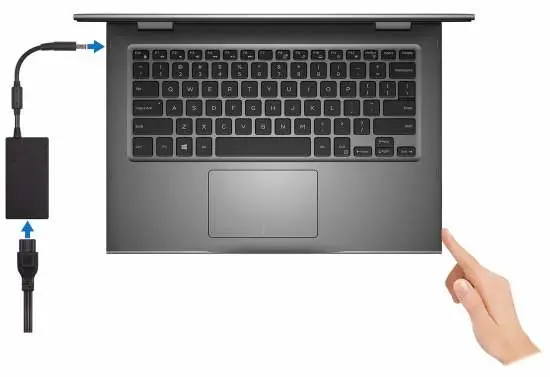
- Connect the power adapter to the power-adapter port on the left side of the computer.
- Press the power button to turn on the computer.
- Follow the on-screen instructions to finish the operating system setup (Windows or Ubuntu).
- For Windows, enable security and Dell updates, connect to a wireless network, and sign in to or create a Microsoft account.
Device Views
The computer features various ports and indicators:
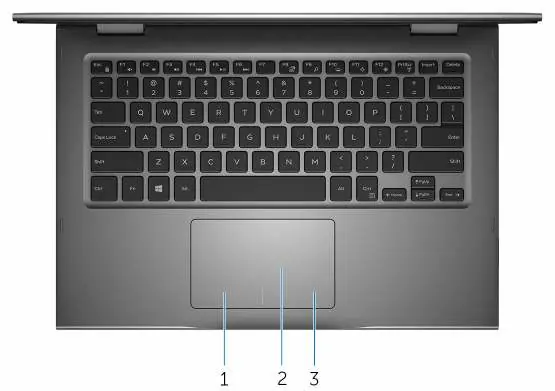
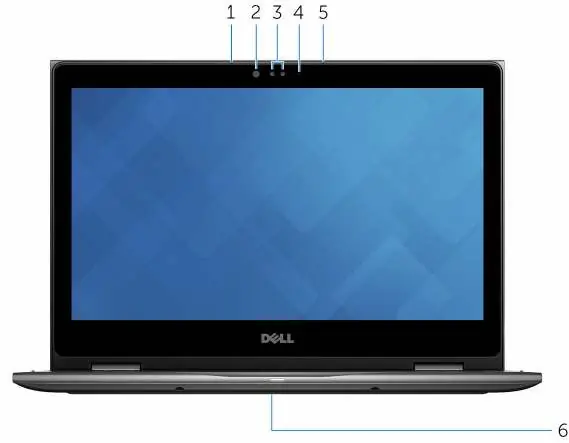
- Front: Contains the power and battery-status light/hard-drive activity light. You can toggle the light behavior using Fn+H.
- Left: Features the power-adapter port, HDMI port, two USB 3.0 ports (one with PowerShare), and a headset port.
- Right: Includes the power button, volume-control buttons, media-card reader, USB 2.0 port, and security-cable slot.
- Base: Features the touch pad with left and right-click areas.
- Display: Includes microphones, infrared emitter/camera (optional), camera, and camera-status light.
Operating Modes
The Inspiron 13 5000 Series 2-in-1 supports four distinct modes:
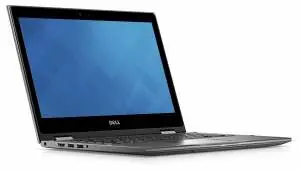
- Notebook: Standard laptop configuration.
- Tablet: Screen folded back for touch-only use.
- Stand: Keyboard face down, screen facing forward.
- Tent: Device shaped like a tent for media consumption.
Technical Specifications
Key hardware specifications include:
- Processor: 6th Generation Intel Core i3/i5/i7, Celeron, or Pentium.
- Memory: Two SODIMM slots, Dual-channel DDR4, up to 16 GB.
- Storage: SATA 6 Gbps interface, supporting 2.5-inch hard drives or solid-state drives.
- Display: 13.3-inch HD or Full HD WLED touch screen.
- Battery: 4-cell smart lithium-ion (56 WHr), approx. 4 hours charging time.
- Communications: Wi-Fi 802.11 ac, Bluetooth 4.0/4.1, Miracast.
Keyboard Shortcuts
The keyboard includes various shortcuts for system control:
- Media Controls: F1 (Mute), F2 (Decrease volume), F3 (Increase volume), F4 (Previous track), F5 (Play/Pause), F6 (Next track).
- System Controls: F8 (Switch display), F9 (Search), F10 (Keyboard backlight), F11/F12 (Brightness).
- Fn Combinations: Fn+PrtScr (Wireless), Fn+Insert (Sleep), Fn+H (Toggle status light).
Getting Help
For further assistance, use the following resources:
- Dell Help & Support app: Available on your desktop.
- SupportAssist: Use this tool to check and update your computer.
- Online Support: Visit www.dell.com/support for manuals, drivers, and troubleshooting.
- Contacting Dell: Visit www.dell.com/contactdell for sales and technical support.
Official resources from the manual
Manufacturer information
Dell Inc.
Practical help
Common problems
USB device not charging while computer is off
Ensure the power adapter is connected and the PowerShare feature is enabled in the BIOS setup program.
Power/Battery light is Amber
The computer is running on battery power and the battery charge is less than 5%.
Cannot type alternate characters
Press Shift and the desired key to type the alternate character.
Before use
- Connect the power adapter
- Press the power button
- Complete OS setup (Windows or Ubuntu)
- Connect to a wireless network
- Register your computer
Specs in practice
- Operating Temperature
- 0°C to 35°C (32°F to 95°F) for the battery and system.
Images and diagrams
- The front view diagram identifies the power and battery-status light.
- The left side diagram shows the power-adapter port, HDMI, and USB 3.0 ports.
- The right side diagram shows the power button, volume controls, and media-card reader.
Model compatibility
- Supports Windows and Ubuntu operating systems.
- Supports Wi-Fi 802.11 ac and Bluetooth 4.0/4.1.
- Power adapter input voltage: 100 VAC–240 VAC.

Manual page author
Michael Turner
Technical manual editor
Reviews PDF manuals for structure, safety notes, and practical product details so readers can find the right information quickly.