Computers / Laptops
User Manual for Dell Inspiron 7306 2-in-1 Silver
Get started with your Dell Inspiron 7306 2-in-1 Silver. This guide covers initial setup, port descriptions, keyboard shortcuts, device modes, and technical specifications.
Quick answers from the manual
Quick answer
- The Dell Inspiron 7306 2-in-1 Silver is a convertible laptop. To set it up, connect the power adapter, press the power button, and follow the on-screen Windows setup instructions. p. 4
Key actions
- Setup the device p. 4
- Use the privacy shutter p. 12
First start
- Connect power and follow Windows setup p. 4
Problems and fixes
Battery not charging
Ensure the power adapter is connected.
p. 4Maintenance and reset
- Force shut-down p. 7
Technical specifications
| Parameter | Value | Meaning | Pages |
|---|---|---|---|
| Processor | 11th Generation Intel Core i5-1135G7 / i7-1165G7 | Supported processor options | p. 13 |
| Memory | 8 GB / 16 GB | Supported memory configurations | p. 14 |
Where to find it in the PDF
- Specifications p. 13, 14, 15, 16
Table of contents
Manual images
Click an image to enlargeQuick guide from the manual
This document provides setup instructions and technical specifications for the Dell Inspiron 7306 2-in-1 Silver. Key actions include connecting the power adapter, completing the Windows setup, and utilizing the privacy shutter for the camera. The device supports multiple modes including Notebook, Tablet, Stand, and Tent.
Setup
To set up your computer:
- Connect the power adapter and press the power button. Note that the battery may be in power-saving mode during shipment.
- Follow the on-screen instructions to complete the Windows setup.
- Connect to a network for Windows updates.
- Sign in with or create a Microsoft account.
- Enter your contact details on the Support and Protection screen.
- Locate and use Dell apps like My Dell and SupportAssist from the Windows Start menu.
Views of the device
The device features various ports and components:
- Right side: Includes a microSD-card slot, headset port, and USB 3.2 Gen 1 port.
- Left side: Includes a power-adapter port, power and battery-status light, HDMI port, and Thunderbolt 4 USB Type-C port with Power Delivery.
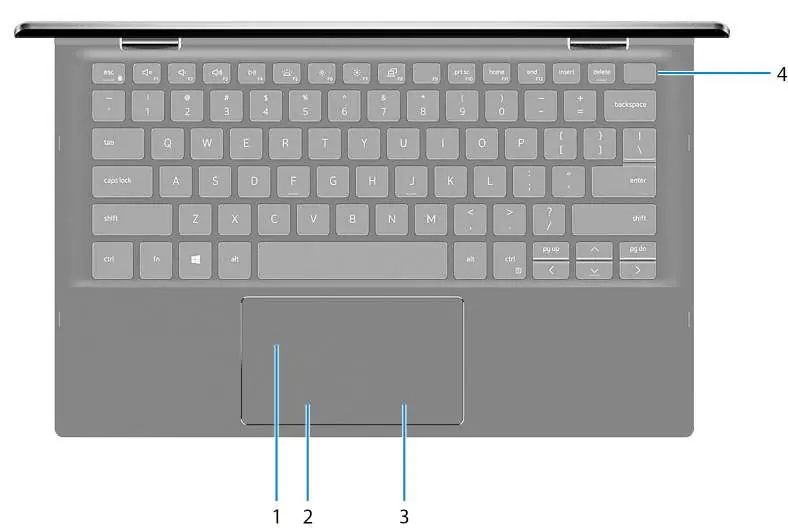
- Base: Features a touchpad with left/right-click areas and a power button with an integrated fingerprint reader.
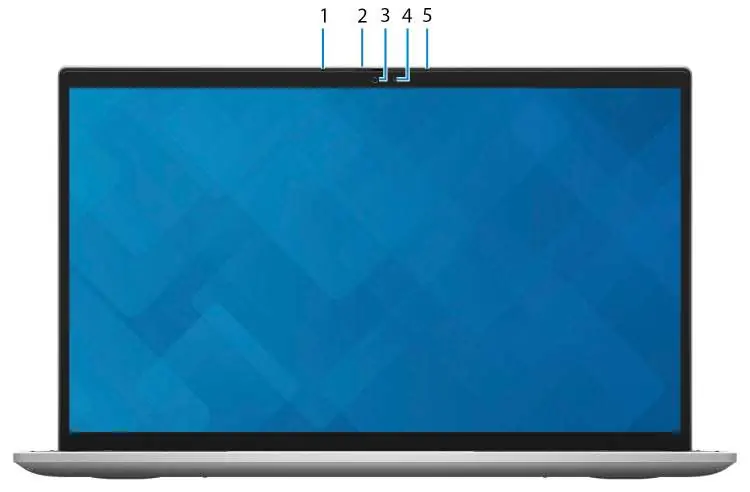
- Display: Includes microphones, camera, privacy shutter, and camera-status light.
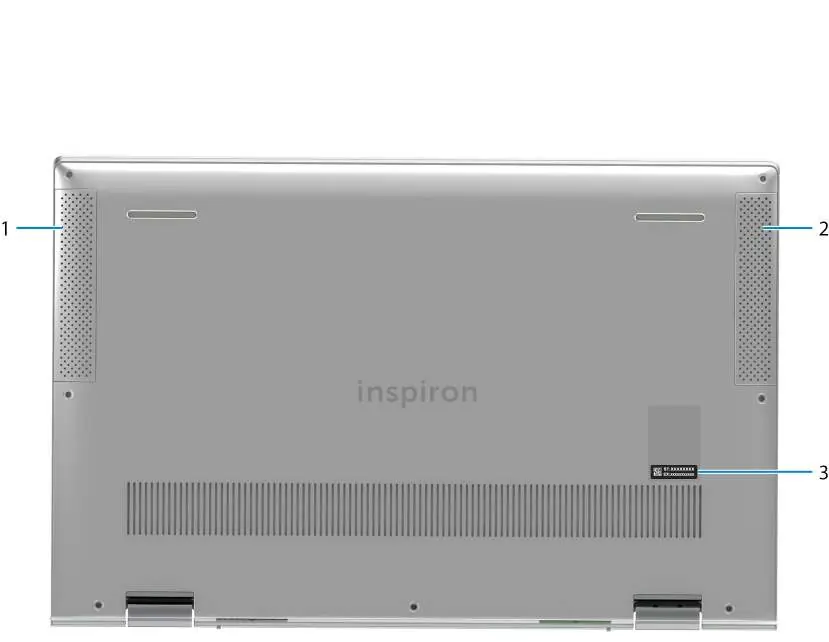
- Bottom: Features speakers and the Service Tag label.
Using the privacy shutter
The device is equipped with a privacy shutter to protect your privacy when the camera is not in use:
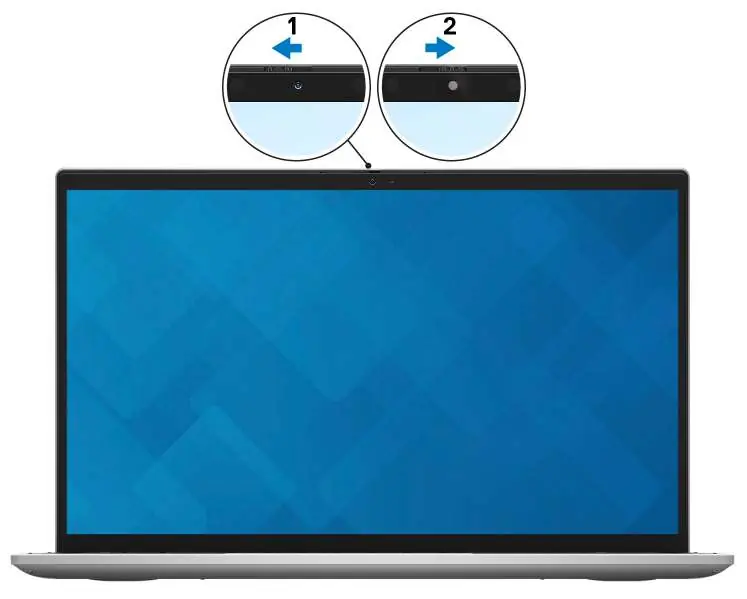
- Slide the privacy shutter to the left to access the camera lens.
- Slide the privacy shutter to the right to cover the camera lens.
Modes
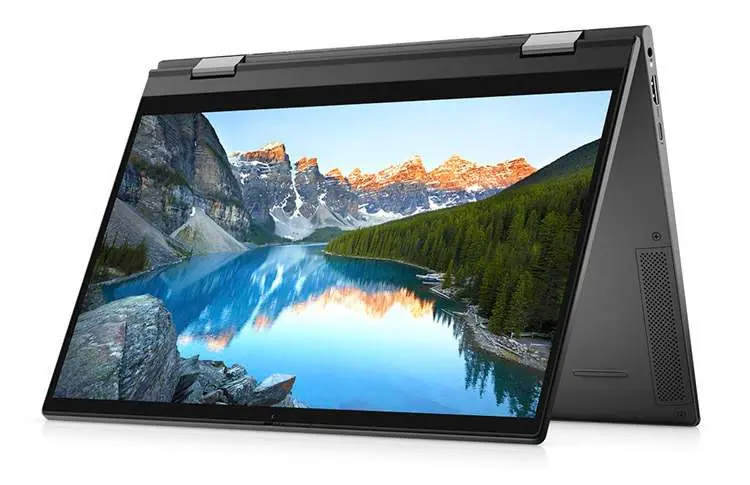
The 2-in-1 design allows for flexible usage in different modes:
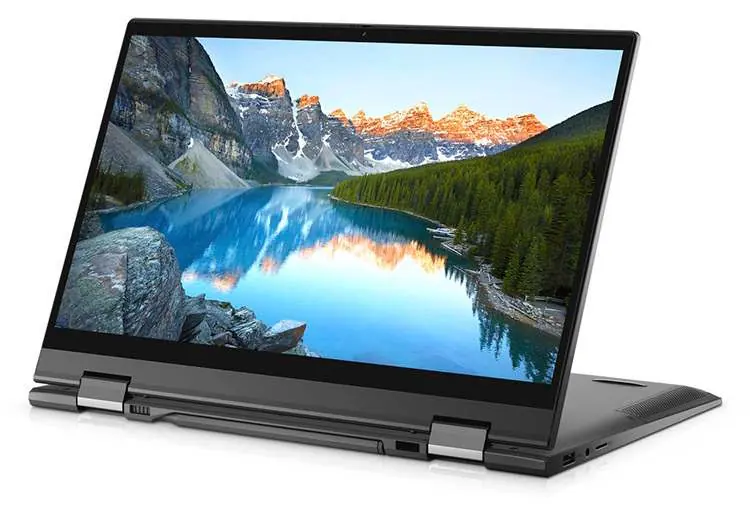
- Notebook: Standard laptop configuration.
- Tablet: Screen folded back for handheld use.
- Stand: Keyboard face down, screen facing forward.
- Tent: Device in an inverted V-shape.
Keyboard shortcuts
The keyboard supports various shortcuts using the Fn key:
- F1-F12: Function keys for multi-media control. Press Fn + Esc to toggle multi-media functionality.
- Media controls: Mute audio, volume adjustment, play/pause, brightness control, and switching to external display.
- System functions: Pause/Break, Sleep, Toggle scroll lock, System request, and Page up/down.
Specifications
The device supports 11th Generation Intel Core i5/i7 processors, LPDDR4x memory, and various storage configurations including M.2 solid-state drives and Intel Optane Memory H10. The display is a 13.3-inch Full High Definition (FHD) screen with Wide-Viewing Angle (WVA) technology.
Getting help
For support, use the My Dell app or visit www.dell.com/support. You can find troubleshooting information, drivers, and manuals on the support website. To contact Dell, visit www.dell.com/contactdell.
Official resources from the manual
Manufacturer information
Dell Inc.
Practical help
Common problems
Battery not charging
Ensure the power adapter is connected to the computer.
Cannot connect to secured wireless network
Enter the password for the wireless network access when prompted during setup.
Camera not working
Check if the privacy shutter is covering the camera lens; slide it to the left to open.
Before use
- Connect the power adapter.
- Press the power button to turn on the device.
- Follow on-screen Windows setup instructions.
- Connect to a network for Windows updates.
- Sign in with or create a Microsoft account.
Specs in practice
- Thunderbolt 4
- Supports data transfer up to 40 Gbps and two-way power delivery.
- MicroSD-card slot
- Supports micro-Secure Digital (mSD), mSDHC, and mSDXC cards.
- Fingerprint reader
- Located on the power button for secure login.
Images and diagrams
- Right side: microSD slot, headset port, USB 3.2 Gen 1 port.
- Left side: Power-adapter port, HDMI port, Thunderbolt 4 port.
- Base: Touchpad, power button with fingerprint reader.
- Display: Privacy shutter, camera, microphones.
Model compatibility
- Supports Windows 10 Home and Pro (64-bit).
- Requires USB Type-C to DisplayPort adapter for DisplayPort devices.
- Supports Dell Docking Station via Thunderbolt 4 port.

Manual page author
David Miller
Documentation analyst
Organizes user manual content into clear summaries, with attention to model details, product context, and everyday usability.