Computers / Laptops
SIM/eSIM Setup Guide for Windows
A comprehensive setup guide for configuring SIM and eSIM on Dell computers running Windows 10 and 11. Includes instructions for physical SIM installation, eSIM profile setup, locating device identifiers (IMEI, ICCID, eID), and updating...
Quick answers from the manual
Quick answer
- This guide provides instructions for installing a physical SIM card, setting up an eSIM, locating device identifiers (IMEI, ICCID, eID), and updating cellular drivers on Dell computers running Windows 10 or 11. p. 4, 5, 6, 8
Key actions
- Install physical SIM p. 4
- Set up eSIM p. 5
- Update drivers p. 8
Problems and fixes
Cellular connection issues
Check cellular settings in Windows or update drivers via Dell Support.
p. 7, 8Where to find it in the PDF
- SIM Installation p. 4
- eSIM Setup p. 5
- Device Identifiers p. 6
- Driver Installation p. 8
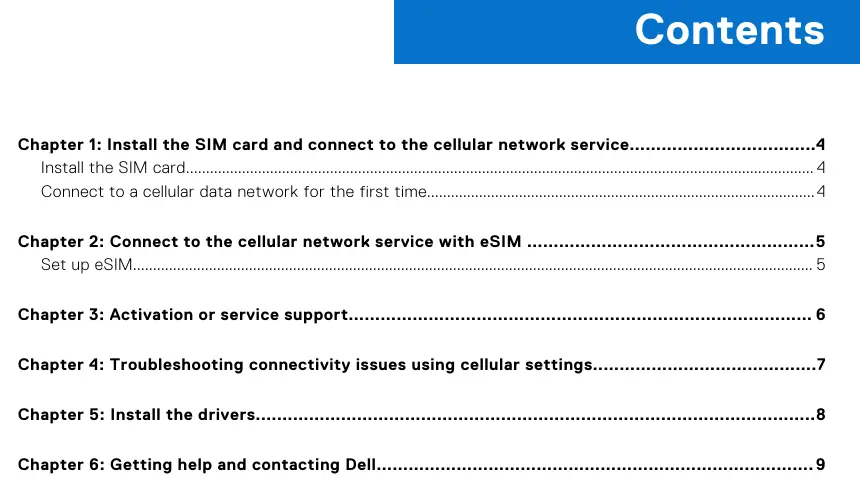
Table of contents
Quick guide from the manual
This document provides instructions for configuring cellular connectivity on Dell computers. It covers the installation of physical SIM cards, the setup of eSIM profiles, and how to locate necessary device identifiers for mobile operator activation. It also includes steps for updating cellular drivers to ensure proper functionality.
Installing the SIM card
Before installing or removing a SIM card, ensure the computer is powered off to prevent damage. Caution: Do not touch the SIM-card connectors to avoid electrostatic discharge damage.
- Turn off the computer.
- Insert the SIM card into the SIM-card slot.
- Turn on the computer.
- Navigate to Start > Settings > Network & Internet > Cellular.
- The mobile operator name should appear next to the cellular network icon. If the system supports dual SIM interfaces and the operator is not displayed, select the SIM option from the drop-down list.
Setting up eSIM
An eSIM allows for cellular connectivity without a physical SIM card. Ensure your device supports eSIM functionality.
- Navigate to Start > Settings > Network & Internet > Cellular.
- Select the eSIM option from the drop-down list (only available on dual SIM capable devices).
- Add an eSIM profile to your device, typically using a QR activation code provided by your carrier.
Finding device identifiers
Mobile operators may require specific device identifiers for activation. These can be found in the Windows settings:
- IMEI: Found in Settings > Network & Internet > Cellular > Advanced Options (Windows 10) or Mobile operator settings (Windows 11).
- ICCID: Found in the same location as the IMEI.
- eID: Found in Settings > Network & Internet > Cellular > Manage eSIM profiles (Windows 10) or eSIM profiles (Windows 11).
Installing drivers
Updating drivers is essential for cellular functionality.
- Visit www.dell.com/support.
- Enter your computer's Service Tag.
- Click Drivers & downloads and then Find Drivers.
- Select your operating system.
- Locate the driver for your mobile broadband card under the Modem/Communication category.
- Download and run the installer.
Official resources from the manual
Manufacturer information
Dell Inc.
Practical help
Common problems
Cellular network not detected
Ensure the SIM card is inserted correctly while the system is powered off. Verify the mobile operator name in Settings > Network & Internet > Cellular.
eSIM option is missing
The eSIM option is only available on devices that support dual SIM interfaces or eSIM functionality. If not displayed, your device may not support it.
Cannot find IMEI or ICCID
Navigate to Settings > Network & Internet > Cellular > Advanced Options (Windows 10) or Mobile operator settings (Windows 11) to view these identifiers.
Before use
- Ensure your computer supports cellular/WWAN functionality.
- Have your SIM card ready (if using physical SIM).
- Ensure you are running Windows 10 or 11.
- Have your mobile operator's activation details or QR code ready.
Model compatibility
- Information is only applicable to computers with cellular enabled platforms.
- Requires Windows 10 or Windows 11.
- Not all devices support eSIM.

Manual page author
Michael Turner
Technical manual editor
Reviews PDF manuals for structure, safety notes, and practical product details so readers can find the right information quickly.