Electronics / Networking
Digitus DN-70184 Concurrent 11AC WiFi Repeater/AP/Router User Manual
Quick setup and configuration guide for the Digitus DN-70184 Concurrent 11AC WiFi Repeater, AP, and Router. Learn how to set up wireless modes, manage settings, and troubleshoot connection issues.
Table of contents
Manual images
Click an image to enlargeQuick guide from the manual
The Digitus DN-70184 is a versatile device that functions as a WiFi Repeater, Access Point (AP), or Router. It supports both 2.4GHz and 5GHz wireless connections, helping to extend signal coverage in large areas. Before starting, ensure you have the device, the included RJ-45 networking cable, and access to a wall socket.
Hardware Overview
The device features several indicators and controls:
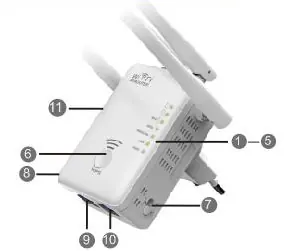
- LED Indicators: Power, LAN, WAN/LAN, and WPS status.
- Buttons: WPS button for easy connection and a Reset button (hold for 3 seconds to restore factory defaults).
- Ports: LAN port and WAN/LAN port.
- Mode Selector: Physical switch to select between AP, Repeater, and Router modes.
Getting Started
To set up the device, first use the physical Mode Selector switch to choose your desired operation mode (AP, Repeater, or Router). Plug the device into a wall socket. The device supports three main modes:
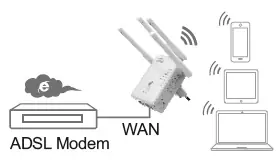
- Wireless AP Mode: Connects to a wired network to provide wireless access.
- Wireless Repeater Mode: Extends the range of an existing wireless signal.
- Router Mode: Connects to a DSL or cable modem to share internet access.
Configuring the Device
Configuration can be performed via the WPS button or a web browser:
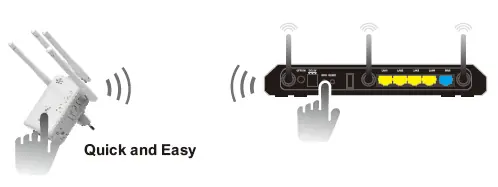
- WPS Configuration (Repeater Mode): Press the WPS button on the device for 6 seconds until the LED flashes. Within 2 minutes, press the WPS button on your existing wireless router.
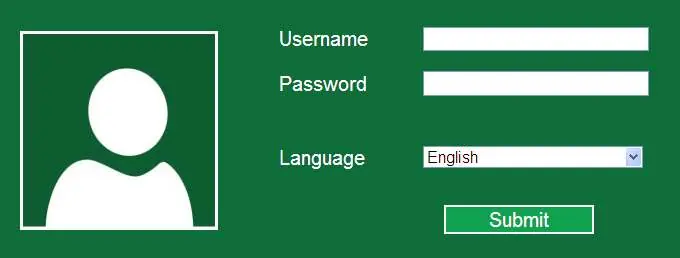
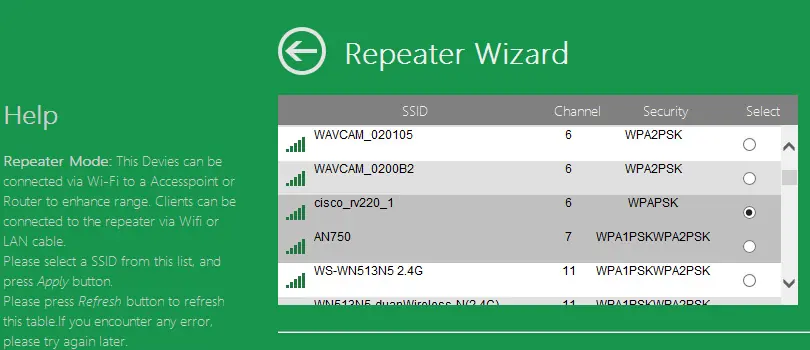
- Web Browser Configuration: Connect your computer to the device (wirelessly or via RJ-45 cable). Open a browser and navigate to http://192.168.10.1 or http://ap.setup. Log in using the default credentials (username: admin, password: admin). Use the built-in Wizards (Repeater Wizard, AP Wizard, or Router Wizard) to complete the setup.
Management and Settings
Access the web management interface to perform advanced tasks:
- Change Password: Navigate to Management -> Password to secure your device.
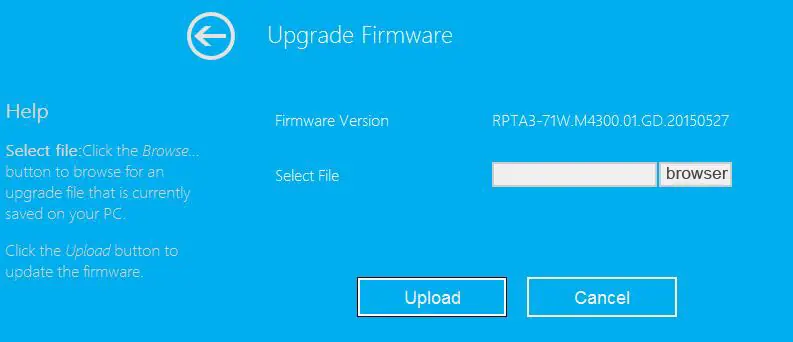
- Firmware Upgrade: Use Management -> Upgrade Firmware. Download the latest file from the manufacturer's website. Do not interrupt this process.
- Backup/Restore: Use Save/Reload setting to back up your configuration or restore factory defaults.
Connecting Devices
Once configured, you can connect computers or mobile devices to the network. If using the WPS method, ensure your end device supports WPS. For wired connections, use the provided RJ-45 cable to connect your computer directly to the LAN port of the device.
Official resources from the manual
Practical help
Common problems
Cannot access the web configuration page (192.168.10.1)
Ensure the device is connected to your computer. If issues persist, reset the device by holding the reset button for 3 seconds and try again.
WPS connection fails
Ensure your main router supports WPS. If it fails, use the manual web browser configuration method instead.
Firmware upgrade interrupted
Never close the browser or disconnect the device during the upgrade. If interrupted, the device may fail and require professional service.
Before use
- Verify package contents: 1x WiFi AP/Router, 1x RJ-45 cable, 1x Quick Installation guide.
- Identify the required operation mode (Repeater, AP, or Router).
- Ensure the device is plugged into a wall socket.
- Have your existing WiFi network name (SSID) and password ready if using Repeater mode.
Specs in practice
- Default Login
- admin
- Default Password
- admin
Images and diagrams
- Hardware Overview: Identifies the location of LEDs, ports, and the mode selector switch.
- Mode Setup: Illustrates the physical connections required for AP, Repeater, and Router modes.
Model compatibility
- Supports 2.4GHz and 5GHz wireless signals.
- Compatible with standard web browsers for configuration.

Manual page author
Emily Carter
User documentation editor
Prepares concise manual descriptions and highlights the most useful setup, operation, and maintenance information for readers.