Electronics / Routers
User Manual for Digitus Full HD Webcam DA-71901
Quick guide for the Digitus Full HD Webcam DA-71901. Learn how to install, connect, and configure your webcam on Windows and macOS, including system requirements and troubleshooting tips.
Table of contents
Manual images
Click an image to enlargeQuick guide from the manual
The Digitus Full HD Webcam is a plug-and-play device. Simply connect the USB cable to your computer's USB 2.0 port to begin. If the camera is not recognized, try a different USB port or restart your computer. To use the built-in microphone, ensure you select the webcam as the USB Audio input in your application settings.
Product Description
This high-resolution webcam features a CMOS sensor with autofocus and a wide-angle lens. It supports 1080p video at 30 frames per second. The device includes an integrated stereo microphone and an adjustable base for flexible mounting.
Installation
The webcam supports multiple installation methods:
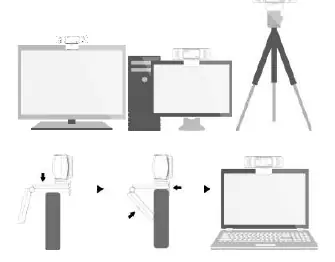
- Monitor/TV: Use the rubberized clamp mount to hang the camera on your screen.
- Flat Surface: The base allows the camera to be laid flat on a desk.
- Tripod: Use the integrated 1/4 inch screw thread on the base to attach the camera to a mini tripod.
The camera can be rotated 360 degrees horizontally and tilted upwards or downwards for optimal positioning.
System Requirements
To ensure proper operation, your system should meet the following minimum requirements:
- Processor: 1 GHz Intel Core 2 Duo or above (3.0 GHz recommended for 1080p recording).
- RAM: 512 MB or more (2 GB recommended for 1080p recording).
- Storage: 200 MB of hard drive space.
- Connectivity: USB 2.0 port and internet connection.
- OS: Windows XP/7/8/10 or OS X 10.7+.
Usage
Windows: Use the built-in Camera app to preview images and record video. If using other applications, ensure you enable camera access in Windows Settings (Privacy > Camera).
macOS: Use Photo Booth for quick previews. For higher-quality video using full resolution, use iMovie or QuickTime Player. Ensure you grant camera access in System Preferences (Security & Privacy).
Caution
- If the webcam becomes hot after prolonged use, stop using it for a period.
- Avoid touching the lens with fingers or coarse materials; use a clean, soft cloth for cleaning.
- Do not use the device in hot, cold, dusty, or humid locations.
- Avoid dropping the camera to prevent damage to the lens or internal components.
Practical help
Common problems
Computer does not recognize the camera
Try plugging the camera into a different USB port. If that fails, restart the computer.
Microphone is not working
Select the webcam as the USB Audio input device in your application's settings.
Webcam becomes hot
Stop using the camera for a period to allow it to cool down.
Before use
- Ensure a free USB 2.0 port is available
- Verify system meets minimum requirements (1GHz CPU, 512MB RAM)
- Position the camera on a monitor or tripod
- Check application privacy settings to allow camera access
Specs in practice
- Video Resolution
- Maximum 1920x1080 (2 Megapixels) at 30fps
Images and diagrams
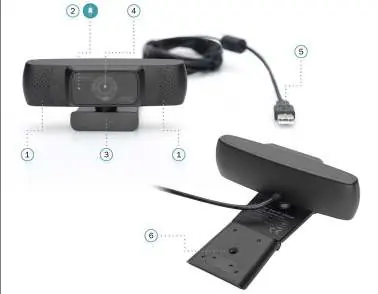
- 1: Integrated stereo microphone
- 2: Indicate light
- 3: Adjustable multifunctional anti-skid base
- 4: AF HD Lens
- 5: USB connection
Model compatibility
- Compatible with Windows XP/7/8/10
- Compatible with macOS 10.7 and later
- Requires USB 2.0 port

Manual page author
David Miller
Documentation analyst
Organizes user manual content into clear summaries, with attention to model details, product context, and everyday usability.