Electronics / Networking
User Manual for Digitus Wireless 150N USB 2.0 Adapter
Quick installation guide for the Digitus Wireless 150N USB 2.0 Adapter. Learn how to install drivers, connect to wireless networks, and configure security settings.
Table of contents
Manual images
Click an image to enlargeQuick guide from the manual
This document provides instructions for installing and configuring the Digitus Wireless 150N USB 2.0 Adapter. The process involves inserting the hardware, installing the necessary drivers from the provided CD, and using the utility software to connect to a wireless network.
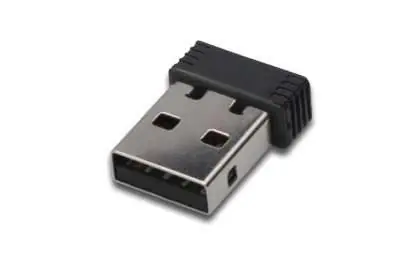
Driver Installation
Follow these steps to install the device drivers:
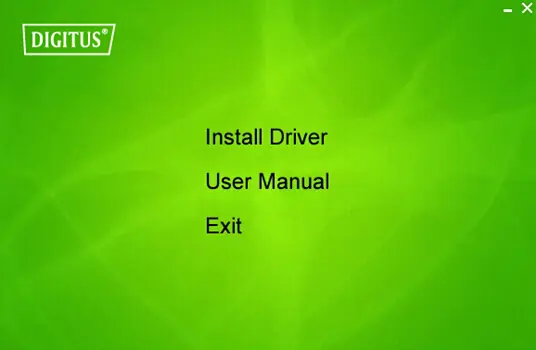
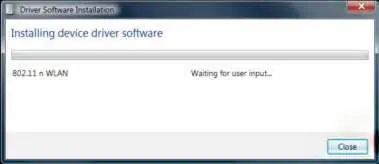
- Insert the USB wireless network card into an empty USB 2.0 port on your computer while it is switched on. Do not use force; if it feels stuck, flip the card over and try again.
- If a Windows installation message appears, click Cancel / Close.
- Insert the driver CD into your CD-ROM drive. The autorun screen should appear automatically. If it does not, double-click autorun.exe on the CD.
- Click Install Driver to begin the procedure.
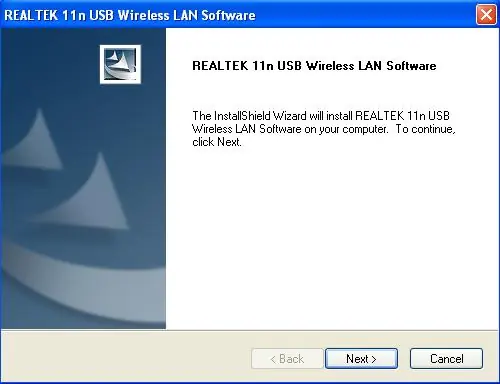
- Follow the on-screen instructions in the InstallShield Wizard by clicking Next.
- Once installation is complete, you will be prompted to reboot your computer. Click Finish to restart.
Connecting to a Wireless Network
After the driver is installed and the computer has rebooted:
- The system will detect the new hardware automatically.
- Open the adapter utility from your taskbar or programs folder.
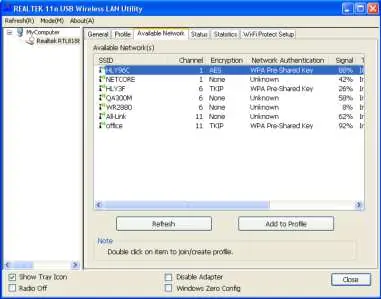
- Click Available Networks to view a list of nearby access points.
- Select the desired wireless network and click Add to Profile.
- If required, enter the security information (such as the network key) and click OK to connect.
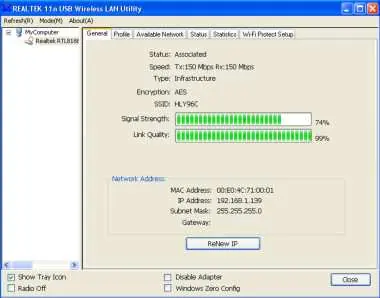
- Once connected, the status screen will display your connection details, including signal strength and link quality.
Technical Specifications
- Frequency Range: 2412MHz-2472MHz (802.11b, g, n/HT20) and 2422MHz-2462MHz (802.11n/HT40).
- Transmit Power: < 20 dBm EIRP.
- Hardware Version: V 1.0.
- Software Version: 1030.38.
Manufacturer Contact
Assmann Electronic GmbH, Auf dem Schüffel 3, 58513 Lüdenscheid, Germany. Website: www.assmann.com.
Official resources from the manual
Practical help
Common problems
Driver installation screen does not appear automatically
Insert the driver CD and manually double-click 'autorun.exe' located on the disc.
USB adapter feels stuck when inserting
Do not use force. Flip the card over and try inserting it again.
Before use
- Ensure the computer is switched on.
- Locate an available USB 2.0 port.
- Have the provided driver CD ready.
- Ensure you have administrative rights to install software.
Specs in practice
- Frequency Range
- The radio frequency bands used for communication (2.4GHz range).
- Transmit Power
- The strength of the wireless signal output, measured at < 20 dBm EIRP.
Images and diagrams
- The installation wizard screens guide you through the standard Windows driver setup process.
- The utility interface allows you to scan for available networks and manage connection profiles.
Model compatibility
- Designed for USB 2.0 ports.
- Compatible with Windows 7, 8, and 10.

Manual page author
Michael Turner
Technical manual editor
Reviews PDF manuals for structure, safety notes, and practical product details so readers can find the right information quickly.