Lighting / Controllers & Dimmers
User Manual for EcoDim Smart Dimmer Switch 200W LED
Quick guide for the EcoDim Smart Dimmer Switch 200W LED. Learn how to install, wire, pair with Zigbee hubs, adjust MIN/MAX settings, and reset the device.
Quick answers from the manual
Quick answer
- The EcoDim Smart Dimmer Switch 200W LED is a Zigbee-compatible dimmer. Installation requires connecting Live and Neutral wires. Pairing is initiated via the reset button. p. 1
Key actions
- MIN/MAX Adjustment p. 1
First start
- Switch on the power and the device will enter pairing mode automatically. p. 1
Problems and fixes
Device not pairing
Reset the device by holding the reset button for 10 seconds and try again.
p. 1Maintenance and reset
- Press and hold the reset button for 10 seconds. p. 1
Technical specifications
| Parameter | Value | Meaning | Pages |
|---|---|---|---|
| Input voltage | 220-240V AC, 50Hz | Standard mains power | p. 1 |
| Load | 0-200W LED | Maximum LED power capacity | p. 1 |
Where to find it in the PDF
- Installation and Operation p. 1
Table of contents
Quick guide from the manual
The EcoDim Smart Dimmer Switch 200W LED is a Zigbee-compatible dimmer designed for LED lighting. Before installation, ensure the main power is switched off. The device requires a Live (L) and Neutral (N) connection. Pairing with a Zigbee hub is initiated via the reset button. You can fine-tune the dimming range using the MIN/MAX adjustment screw on the front of the device.
Installation
Installation must be performed by a qualified professional in accordance with local regulations. Ensure the power is switched off before starting.
- Connect the Live (L) wire to the dimmer.
- Connect the Neutral (N) wire to the dimmer.
- Connect the load (light) to the dimmer.
- Secure the dimmer in the wall box.
MIN/MAX adjustment
To ensure the lights dim smoothly without flickering, you can adjust the minimum and maximum brightness levels:
- Turn the lights on.
- Use a screwdriver to turn the MIN/MAX adjustment screw on the front of the dimmer.
- Turn the screw until the light is stable at the desired minimum or maximum brightness level.
Pairing
To pair the dimmer with your Zigbee hub:
- Switch on the dimmer. The device will automatically enter pairing mode.
- If the device is already paired or you need to re-pair, press the reset button for 5 seconds. The indicator light will start blinking, indicating it is in pairing mode.
- Follow the instructions in your Zigbee hub app to complete the connection.
Settings and Reset
If you need to reset the dimmer to factory settings:
- Press and hold the reset button for 10 seconds.
- The indicator light will blink, confirming the reset process.
Technical specifications
- Input voltage: 220-240V AC, 50Hz
- Load: 0-200W LED
- Dimming type: R, C phase cutting
- Operation: Push/turn button
Compatibility
The dimmer is compatible with various Zigbee hubs, including Google Assistant, Homey, Philips Hue, Trust, and WINK.
Manufacturer information
EcoDim B.V.
Practical help
Common problems
Dimmer not pairing
Ensure the device is in pairing mode by pressing the reset button for 5 seconds. Check if the Zigbee hub is ready to add new devices.
Lights flickering
Adjust the MIN/MAX settings using the screw on the front of the dimmer to find a stable dimming range.
Before use
- Turn off the main power supply before installation.
- Verify that the total LED load is between 0-200W.
- Ensure you have a Neutral wire available in the wall box.
- Confirm compatibility with your specific Zigbee hub.
Specs in practice
- Input voltage
- Requires standard 220-240V AC mains power.
- Dimming type
- Uses R, C phase cutting technology for smooth dimming.
Images and diagrams
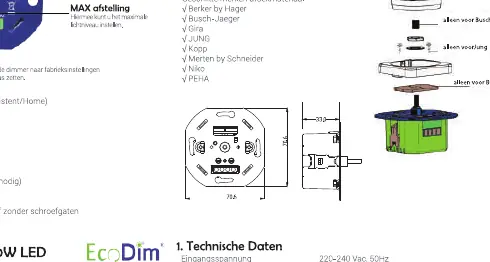
- The wiring diagram illustrates the connection of Live (L) and Neutral (N) wires to the dimmer and the load.
Model compatibility
- Compatible with Google Assistant, Homey, Philips Hue, Trust, and WINK.

Manual page author
Emily Carter
User documentation editor
Prepares concise manual descriptions and highlights the most useful setup, operation, and maintenance information for readers.