Electronics / Security Cameras
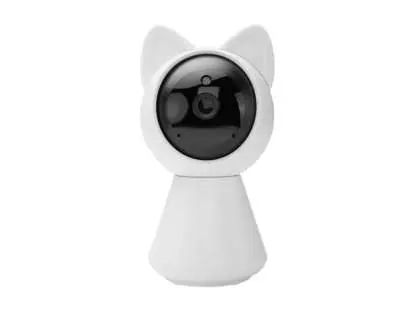
EKO 1080p WiFi Pet Camera
Quick setup guide for the EKO 1080p WiFi Pet Camera. Learn how to connect to the YCC365 Plus app, configure WiFi, use PTZ controls, and manage cloud storage.
Table of contents
Manual images
Click an image to enlargeQuick Guide from the Manual
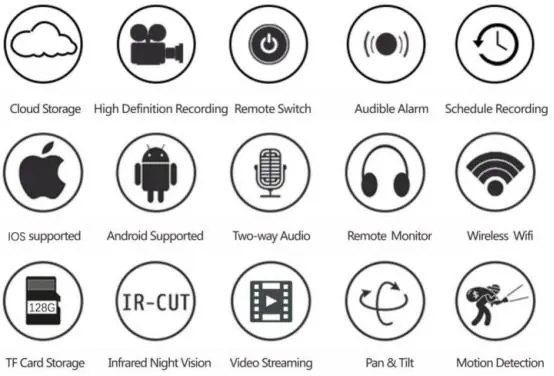
The EKO 1080p WiFi Pet Camera is a smart security device designed for remote monitoring. It features pan, tilt, and zoom (PTZ) capabilities, two-way audio, motion detection, and night vision. The camera requires a 2.4GHz WiFi connection and is managed via the YCC365 Plus application.
App Installation
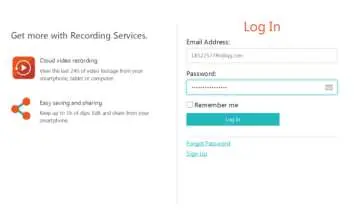
To begin using the camera, you must install the YCC365 Plus application. You can find it on the Apple App Store or Google Play Store. Alternatively, scan the QR code provided in the manual to download the app directly. Upon first use, you must register an account using an email address (phone registration is limited to Vietnam). Passwords must be 6-30 characters long and contain a mix of letters and numbers.

Camera Setup Methods
Before adding the camera, ensure your router is set to 2.4GHz WiFi and your phone is connected to it. There are several ways to add the camera:
- QR Code Scan: Connect your phone to WiFi, select 'Scan QR code to add' in the app, restart the camera, and follow the voice prompts. Align the QR code on your phone screen with the camera lens at a distance of about 10cm.
- Ethernet Cable: Connect the camera to your router via an Ethernet cable, select 'Addition by connecting to network cable' in the app, and scan the QR code on the device.
- AP Hotspot: If the camera is already powered on, select 'addition of AP hotspot' in the app. Follow the on-screen instructions to connect to the camera's temporary hotspot.
- AP Direct Link: A special mode for direct connection. Hold the camera button for 2 seconds until you hear 'Enter direct AP access mode after reboot'. Connect your phone to the 'CLOUDCAM_XXXXXX' WiFi network, then use the app to connect using the default login 'YCC365' and password '0123456'.
Using the Camera
The camera supports PTZ (Pan, Tilt, Zoom) functionality, allowing you to control the viewing angle remotely. You can set presets to quickly jump to specific camera angles. To manage presets, tap the preset icon in the camera view, then add or delete points as needed.
Video Playback and Management
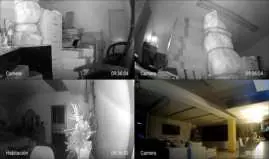
The app allows you to view live video and recorded footage. Recorded videos are color-coded: dark blue indicates motion-detected events, while light blue indicates continuous recording (if using an SD card). You can clip videos, download them, or share them directly from the app. The 'Message' section allows you to view notifications and alerts.
Settings and Cloud Service
Access the camera settings by tapping the preview screen. Key settings include:
- Video Mode: Configure storage settings. MicroSD cards (8-128GB, Class 10) must be formatted before use.
- Notification Settings: Enable sound and motion alarms to receive push notifications.
- Other Functions: Adjust image quality (HD/SD), toggle the microphone, set night vision modes (Off, On, Auto), and rotate the video feed 180 degrees (useful for ceiling mounting).
- Cloud Service: A 30-day free trial is available. After the trial, you can subscribe to cloud storage plans via PayPal.
Practical help
Common problems
Camera not connecting to WiFi
Ensure your router is broadcasting a 2.4GHz signal. The camera does not support 5GHz networks.
Forgot password
Use the 'Forgot password' option on the login screen of the YCC365 Plus app to reset it.
Cannot hear voice prompts
Reset the camera and ensure it is powered on correctly before attempting the setup process again.
Before use
- Download the YCC365 Plus app.
- Ensure a 2.4GHz WiFi network is available.
- Format your MicroSD card (8-128GB, Class 10) before inserting it into the camera.
- Keep your phone within 10cm of the camera lens during QR code setup.
- Register an account using an email address.
Specs in practice
- MicroSD Card
- Local storage for video recordings; supports 8GB to 128GB, Class 10.
Images and diagrams
- App interface icons: A-Option, B-Photo, C-Full screen, D-Video playback, E-Tilt reset, F-Preset, G-Pan/Tilt, H-Message, I-Video quality, J-Talk, L-Sound, K-More.
Model compatibility
- Requires YCC365 Plus app.
- Supports iOS and Android devices.
- Cloud service requires a paid subscription after the 30-day trial.

Manual page author
Emily Carter
User documentation editor
Prepares concise manual descriptions and highlights the most useful setup, operation, and maintenance information for readers.