Computers / Keyboards Input
User Guide for Epomaker Split 65 Mechanical Keyboard
Comprehensive user guide for the Epomaker Split 65 mechanical keyboard. Includes instructions for Bluetooth and 2.4GHz wireless pairing, function key combinations, battery status checks, and detailed steps for replacing keycaps and...
Quick answers from the manual
Quick answer
- To pair the Epomaker Split 65, toggle the switch to the wireless position. For Bluetooth, hold Fn+Q/W/E for 3-5 seconds until the indicator blinks. For 2.4GHz, hold Fn+R for 3-5 seconds and insert the dongle. p. 2, 3
Key actions
- Reset to factory settings p. 2
- Check battery level p. 3
First start
- Ensure the toggle switch is set to the correct mode (Wired/Wireless) and charge the battery. p. 2, 3
Problems and fixes
Switch not working
Remove the switch, check for bent pins, straighten if necessary, and reinstall.
p. 4Maintenance and reset
- Hold Fn + Backspace for 3 seconds to reset the keyboard to factory settings. p. 2
Technical specifications
| Parameter | Value | Meaning | Pages |
|---|---|---|---|
| Battery Capacity | 3000mAh | Internal battery capacity | p. 3 |
| Connectivity | Type-C Wired, Bluetooth, 2.4G | Supported connection methods | p. 3 |
Where to find it in the PDF
- Quick Start & Pairing p. 1, 2, 3
- Switch Replacement p. 4
Table of contents
Quick Start Guide
The Epomaker Split 65 is a 65% gasket-mounted mechanical keyboard featuring hot-swappable switches and triple-mode connectivity (Wired, Bluetooth 5.0, and 2.4GHz). Before first use, ensure the keyboard is fully charged and the toggle switch on the back is set to the desired connection mode.
Pairing Instructions
Bluetooth Pairing:
- Toggle the switch to the left side to enter wireless mode.
- Hold Fn + Q/W/E for 3-5 seconds until the indicator light blinks fast.
- Search for "Split65-1/Split65-2/Split65-3" on your Bluetooth device and connect.
- Tap Fn + Q/W/E to toggle between paired devices.
2.4GHz Pairing:
- Toggle the switch to the right side to enter wireless mode.
- Hold Fn + R for 3-5 seconds until the indicator light blinks fast.
- Insert the 2.4G dongle into your device. The connection is established when the indicator light stops flashing.
Function Key Combinations
The keyboard supports various shortcuts using the Fn key:
- Fn + Backspace (hold 3s): Reset to factory settings.
- Fn + A: Windows Mode.
- Fn + S: Mac Mode.
- Fn + B: Battery check (keys 1-0 light up to show percentage).
- Fn + Win: Lock/Unlock Windows key.
- Fn + Del: Insert.
- Fn + PgUp/PgDn: Home/End.
Battery and Indicators
The keyboard features an indicator light system:
- Ctrl Key: Red light indicates F-row is active.
- Win Key: Red light indicates Windows key is locked.
- Fn Key: Red light blinking indicates low battery; backlight on indicates fully charged.
- Wireless Sleep Mode: The keyboard enters deep sleep after 30 minutes of inactivity. Backlight turns off after 5 minutes of inactivity.
Replacing Keycaps and Switches
The keyboard is hot-swappable, allowing you to change switches without soldering.
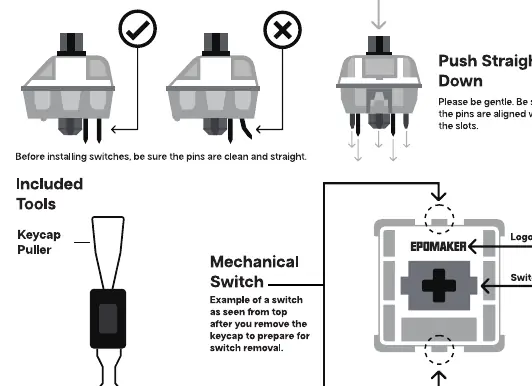
- Remove Switches: Use the included switch puller. Align the gripping teeth vertically at the center of the switch, apply pressure, and pull straight up.
- Install Switches: Ensure the metallic pins are straight and clean. Align the switch vertically with the PCB socket and press down until you hear a click.
Technical Specifications
- Model: Split65
- Layout: 68 Keys + 1 Knob
- Mounting: Gasket
- Connectivity: Type-C Wired, Bluetooth, 2.4GHz
- Battery: 3000mAh
- Polling Rate: 1000Hz (USB/2.4G), 125Hz (Bluetooth)
- Compatibility: Windows & Mac
Practical help
Common problems
Keyboard not connecting via Bluetooth
Ensure the toggle switch is set to the left (wireless mode) and hold Fn+Q/W/E for 3-5 seconds to re-enter pairing mode.
Switch not working after installation
Remove the switch and check if the metallic pins are bent. Straighten them carefully and reinstall, ensuring they align with the PCB socket.
Battery level unknown
Hold Fn + B. The keys 1 through 0 will light up to indicate the percentage (e.g., keys 1-6 lit = 60%).
Before use
- Charge the keyboard fully using the Type-C cable.
- Check the toggle switch position on the back for the desired mode (Wired/Wireless).
- Ensure all switches are firmly seated in the PCB sockets.
- Verify the OS mode (Windows or Mac) using Fn+A or Fn+S.
Specs in practice
- Gasket Mount
- A mounting style that provides a softer, more flexible typing feel.
- Hot-swappable
- Allows you to replace mechanical switches without soldering.
- Polling Rate
- The frequency at which the keyboard reports to the computer; higher is generally more responsive.
Images and diagrams
- The switch puller must be aligned vertically with the switch to avoid damaging the plastic clips.
- When installing switches, ensure the pins are straight and aligned with the holes in the PCB.
Model compatibility
- Compatible with both Windows and Mac operating systems.
- Supports 3-pin and 5-pin mechanical switches.

Manual page author
Michael Turner
Technical manual editor
Reviews PDF manuals for structure, safety notes, and practical product details so readers can find the right information quickly.