Computers / Keyboards Input
User Manual for Epomaker HACK 59 Mechanical Keyboard
Quick start guide and user manual for the Epomaker HACK 59 mechanical keyboard. Learn how to pair via Bluetooth and 2.4GHz, use function keys, configure with VIA software, and replace switches.
Quick answers from the manual
Quick answer
- The Epomaker HACK 59 is a hot-swappable mechanical keyboard supporting wired, Bluetooth, and 2.4GHz connections. Use Fn key combinations for media controls and mode switching. p. 1, 3
Key actions
- Pairing Bluetooth p. 3
- Pairing 2.4GHz p. 3
- Check Battery p. 3
First start
- Set the toggle switch on the side to the desired mode (BT, 2.4G, or USB) and connect. p. 3
Problems and fixes
Key not working after switch replacement
Remove switch, check for bent pins, straighten if necessary, and reinstall.
p. 5Maintenance and reset
- Reset the keyboard using Fn + Spacebar. p. 2
Technical specifications
| Parameter | Value | Meaning | Pages |
|---|---|---|---|
| Battery Capacity | 4000mAh | Internal rechargeable battery | p. 3 |
Where to find it in the PDF
- Quick Start Guide p. 1
- Function Keys p. 2
- Specs and Pairing p. 3
- VIA Configuration p. 4
- Switch Replacement p. 5
Table of contents
Manual images
Click an image to enlargeQuick guide from the manual
The Epomaker HACK 59 is a hot-swappable mechanical keyboard featuring QMK/VIA support, RGB lighting, and triple-mode connectivity (Wired, Bluetooth 5.0, and 2.4GHz). This guide covers basic operation, connectivity, and maintenance.
Function key combinations
The keyboard uses an Fn key to access secondary functions. Use Fn + Right Alt to swap the number row and F-row functionality.
- Fn + 1! to 10): F1 to F10 keys.
- Fn + -_ / +: F11 / F12 keys.
- Fn + Spacebar: Reset the keyboard.
- Fn + Z: Check battery level (indicated by keys 1-0).
- Fn + Win: Lock/Unlock Win key.
Connectivity modes
Ensure the toggle switch on the side of the keyboard is set to the correct mode before pairing.
- Bluetooth: Set switch to BT. Hold Fn + Q/W/E for 3-5 seconds until the indicator flashes. Search for "EPOMAKER Hack59 - 1/2/3" on your device.
- 2.4GHz: Set switch to 2.4G. Hold Fn + R for 3-5 seconds until the indicator flashes. Insert the 2.4G dongle into your computer.
- Wired: Set switch to USB mode and connect the cable.
Light effects
Adjust lighting using Fn combinations:
- Fn + Backspace: Turn On/Off Backlights.
- Fn + < / >: Decrease/Increase brightness.
- Fn + ; / ': Decrease/Increase hue.
- Fn + [ / ]: Decrease/Increase speed.
- Fn + \: Toggle RGB effects.
Battery check
Hold Fn + Right Shift. The keys 1 to 0 will light up to show the battery percentage. For example, if keys 1 to 6 light up, the battery is at 60%.
VIA software configuration
To customize your keyboard layout:
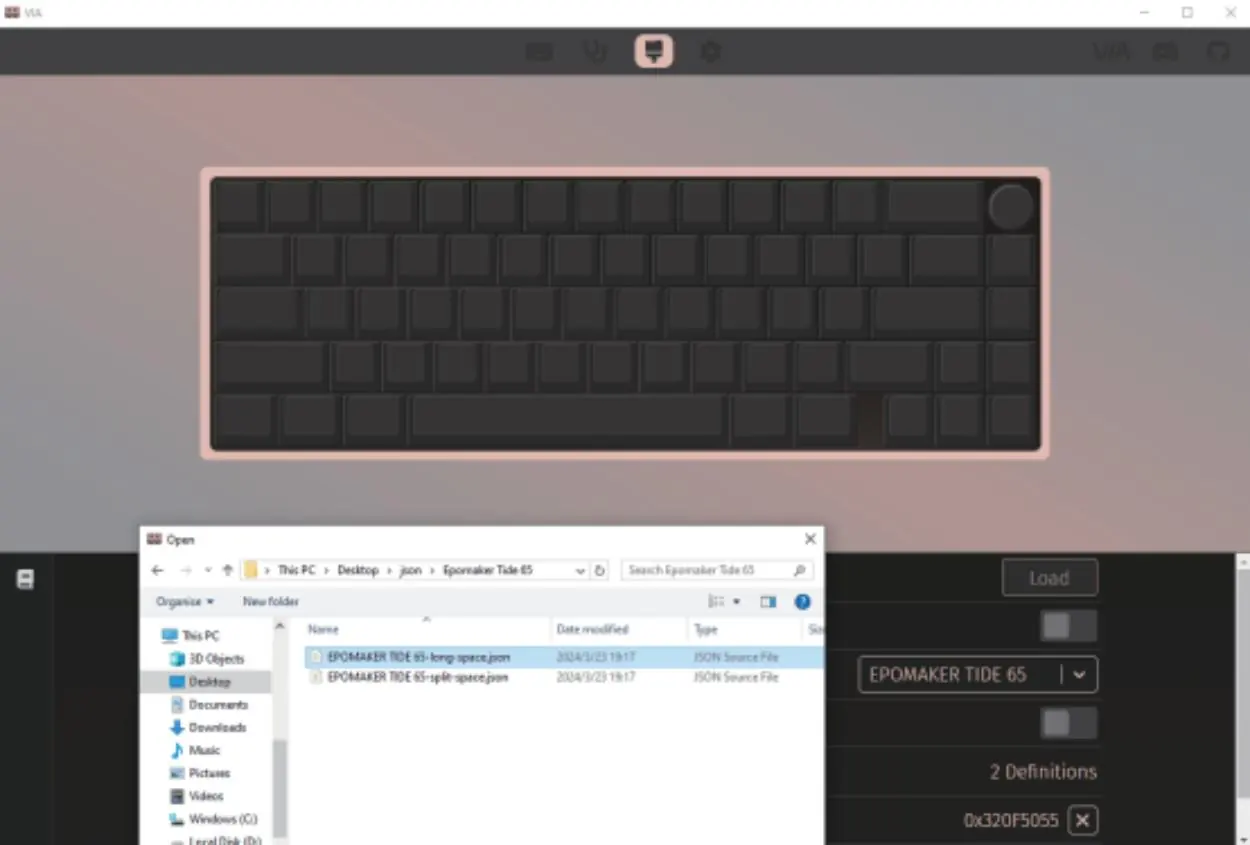
- Visit the official GitHub repository to download the latest VIA application.
- Download the Epomaker HACK 59 JSON file from the Epomaker website.
- In VIA, import the JSON file to load the keyboard definition.
- Use the "Configure" tab to modify layers and programmable functions.
Replacing keycaps and switches
The HACK 59 is hot-swappable, allowing you to change switches without soldering.
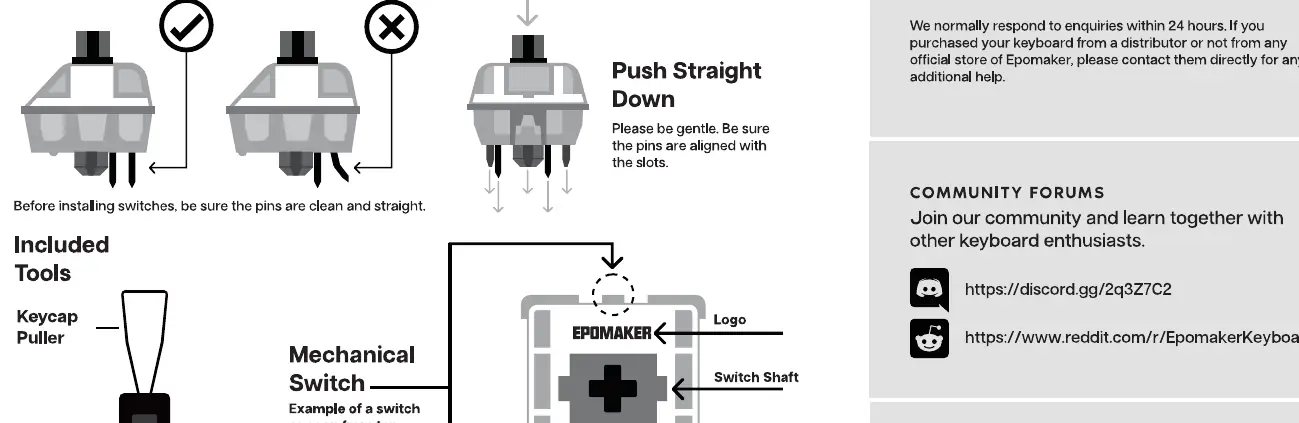
- Remove Switches: Use the included switch puller. Align the gripping teeth vertically at the center of the switch, press down, and pull straight up.
- Install Switches: Ensure pins are straight and clean. Align the switch vertically with the PCB socket and press straight down until you hear a click.
Technical specifications
- Model: Epomaker HACK 59
- Mounting: Gasket
- Connectivity: Type-C Wired, Bluetooth, 2.4GHz
- Battery: 4000mAh
- Compatibility: Windows/Mac
Warranty and support
Epomaker provides a 1-year warranty for products purchased from their official store. For technical assistance, email [email protected] with your order number and a detailed description of the issue.
Practical help
Common problems
Keyboard not connecting via Bluetooth
Ensure the switch is set to BT mode. Hold Fn+Q/W/E for 3-5 seconds until the indicator flashes, then initiate pairing on your device.
Keyboard not connecting via 2.4GHz
Ensure the switch is set to 2.4G mode. Hold Fn+R for 3-5 seconds until the indicator flashes, then insert the dongle.
Key not working after switch replacement
The switch pins may be bent. Remove the switch, straighten the pins carefully, and reinstall.
Before use
- Charge the keyboard fully
- Set the toggle switch to the desired mode (Wired, BT, or 2.4G)
- Download the VIA software for advanced customization
Specs in practice
- Gasket Mounting
- Provides a softer, more flexible typing feel compared to tray mounts.
- Hot-swappable
- Allows you to replace mechanical switches without soldering.
- Polling Rate
- 1000Hz in wired/2.4G mode for low latency; 125Hz in Bluetooth mode for power efficiency.
Images and diagrams
- Fn + Right Alt swaps the number row and F-row functionality.
- Fn + Z checks battery level via number keys 1-0.
Model compatibility
- Compatible with Windows and Mac operating systems.

Manual page author
Emily Carter
User documentation editor
Prepares concise manual descriptions and highlights the most useful setup, operation, and maintenance information for readers.