Electronics / Projectors
User Guide for Epson BrightLink Pro 1470Ui Interactive Laser Display
Quick start guide for the Epson BrightLink Pro 1470Ui. Learn how to use the interactive whiteboard, connect mobile devices, share notes, and interact with your computer.
Table of contents
Manual images
Click an image to enlargeQuick Start Guide
The Epson BrightLink Pro 1470Ui is a productivity tool designed for meeting rooms and classrooms. It allows you to create a digital whiteboard, project content from various sources, and interact with your computer directly on the projected screen.
Control Pad Functions
The Control Pad is the primary interface for operating the projector. Key functions include:
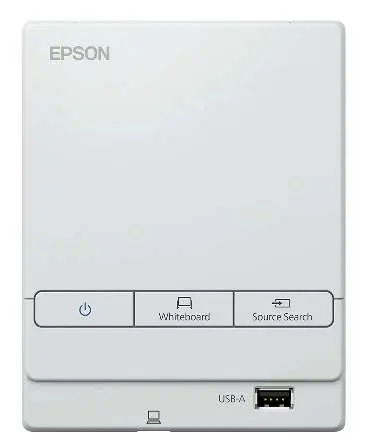
- Power: Turn the projector on or off.
- Whiteboard: Select whiteboard mode and turn on the projector if it is off.
- Source Search: Select from various input sources connected to the projector.
- USB-A Port: Connect a USB flash drive for opening or saving content.
- Additional Connections: Remove the top cover to access further connection ports.
Using the Whiteboard
To start writing on the projected screen:

- Press the Whiteboard button on the Control Pad to turn on the projector.
- Pick up the interactive pen or touch the board with your finger.
- Begin writing or drawing.
Whiteboard Tools:
- Add pages: You can add up to 50 new pages. Tap the thumbnails at the bottom of the screen to switch between them.
- Change pen color and thickness: Tap a pen color to select it. Use the down arrow for custom colors and the circle icons to adjust line thickness.
- Erase mistakes: Tap the eraser icon or press the button on the pen to enter eraser mode.
- Make a copy: Tap the duplicate page icon to create a copy of the current page.
- Get help: Tap the help icon for an on-screen guide to the whiteboard icons.
Connecting Devices and Sources
You can project content from mobile devices or other sources:
- Mobile Devices: Connect your Android or iOS device to the projector's wireless network. Download and launch the Epson iProjection app to display content.
- USB/Network Drive: Insert a USB flash drive into the Control Pad. Tap the Open icon to select and display JPG, PNG, PDF, or EWF files.
Saving and Sharing Notes
To save or share your whiteboard work:

- Tap the Mail or Save icon on the bottom toolbar.
- Select your desired settings (e.g., file format, destination).
- Tap Save to store your notes or Send to email them.
Interacting with Your Computer
You can use the projector as an interactive interface for your computer:

- Connect your computer to the Control Pad using the provided USB cable.
- Tap the Source Select icon to choose the computer source.
- Select the PC Interactive icon to use the pen or your finger as a mouse.
Note for Mac users: You must install the Easy Interactive Driver from the Epson support site to use the pen or finger as a mouse.
Support and Help
For technical assistance, you can contact the Epson PrivateLine service at (800) 637-7661 (available during the warranty period). Projector support specialists are also available at (562) 276-4394 (U.S.) or (905) 709-3839 (Canada). For additional resources, FAQs, and the full User's Guide, visit www.epson.com/brightlinkdownloads (U.S.) or the respective regional support websites.
Official resources from the manual
Manufacturer information
Epson
Practical help
Common problems
Cannot use pen or finger as a mouse
Ensure the PC Interactive icon is selected on the screen and that the Easy Interactive Driver is installed (required for Mac users).
Cannot save or share notes
Verify that the USB drive is properly connected or that the network connection is active.
Projector does not turn on
Check the power connection and ensure the Control Pad is correctly connected to the projector.
Before use
- Connect the projector to a power source.
- Ensure the Control Pad is connected to the projector via USB.
- Download the Epson iProjection app for mobile device connectivity.
- Install the Easy Interactive Driver if connecting a Mac computer.
- Ensure the interactive pen is ready for use.
Specs in practice
- Whiteboard Mode
- Allows for real-time annotation and drawing on the projected surface.
- PC Interactive
- Enables the projector to act as a touch interface for a connected computer.
- Source Select
- The function used to switch between different input devices like computers or USB drives.
Images and diagrams
- The Control Pad features a power button, a Whiteboard mode button, a Source Search button, and a USB-A port for external storage.
Model compatibility
- Supports Android and iOS devices via the Epson iProjection app.
- Compatible with JPG, PNG, PDF, and EWF file formats for opening content.
- Requires specific drivers for full interactive functionality on Mac computers.

Manual page author
Michael Turner
Technical manual editor
Reviews PDF manuals for structure, safety notes, and practical product details so readers can find the right information quickly.