Computers / Printers
Epson Expression 13000XL Scanner Setup Guide
Quick setup guide for the Epson Expression 13000XL scanner. Learn how to unpack, install the cover, set up software, connect, and start scanning.
Table of contents
Manual images
Click an image to enlargeQuick Start Guide
This guide provides the essential steps to set up your Epson Expression 13000XL scanner. Important: Do not connect the USB cable to your computer until you are instructed to do so by the software installation process.
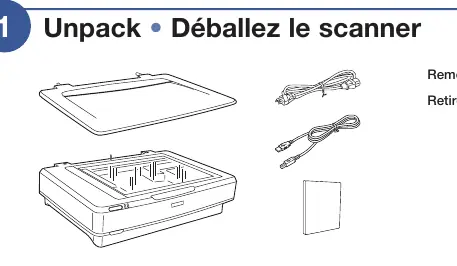
Unpacking
Carefully remove the scanner and all included accessories from the packaging. Ensure all packing materials are removed from the device before proceeding.
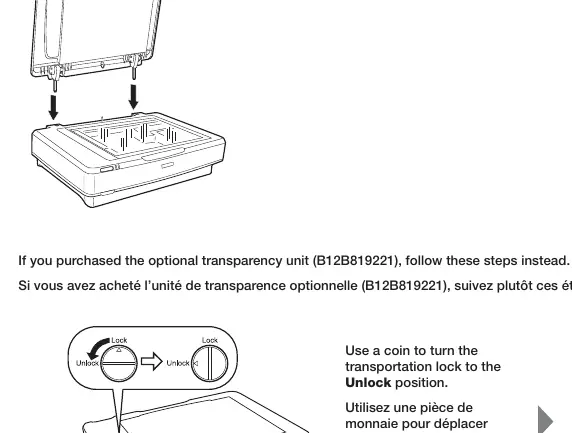
Installing the Cover
If you have purchased the optional transparency unit (B12B819221), follow the specific installation steps provided with that unit. Ensure the transportation lock is set to the Unlock position before use. You can use a coin to turn the lock mechanism to the unlocked position.
Software Installation
To ensure proper operation, you must install the required drivers and software before connecting the scanner to your computer:
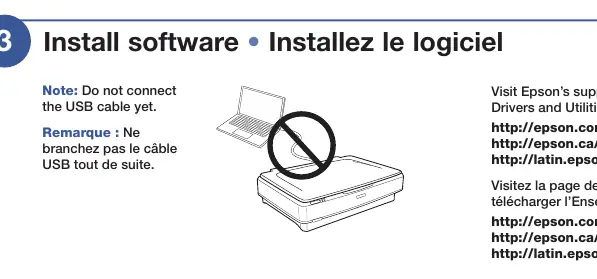
- Visit the Epson support website at http://epson.com/support/13000xl (U.S.), http://epson.ca/support/13000xl (Canada), or http://latin.epson.com/support/13000xl (Latin America).
- Download the Drivers and Utilities Combo Package.
- Double-click the downloaded file to begin the installation.
- Follow the on-screen instructions to configure the connection.
Turning on the Scanner
Once the software is installed and the connection is configured, you may connect the USB cable and power on the scanner. Ensure all cables are securely attached.
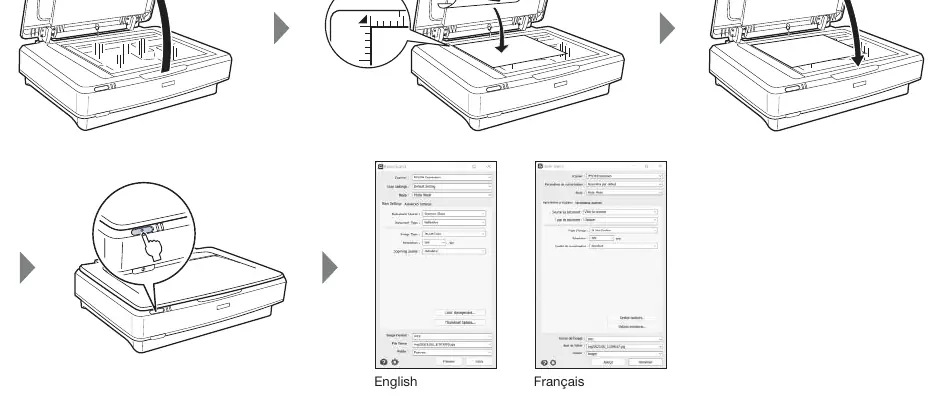
Scanning a Document
To scan a document, place your document on the scanner glass. Use the scanner software on your computer to initiate the scan. You can access the software help by clicking the Help or ? button within the scanner software interface.
Technical Support
If you encounter issues, you can access the online User's Guide via the icon on your desktop (Windows) or in the Applications/Epson Software/Guide folder (Mac). For further assistance, visit the Epson support website or contact a support representative at 562 276-4382 (U.S.) or 905 709-3839 (Canada), Monday through Friday, 7 a.m. to 4 p.m. Pacific Time.
Official resources from the manual
Manufacturer information
Epson
Practical help
Common problems
Scanner not detected by computer
Ensure you have installed the Drivers and Utilities Combo Package before connecting the USB cable.
Scanner does not move or scan
Check that the transportation lock is set to the 'Unlock' position.
Before use
- Remove all packing materials from the scanner.
- Unlock the transportation lock using a coin.
- Download the Drivers and Utilities Combo Package from the Epson support website.
- Do not connect the USB cable until the software installation prompts you to do so.
Specs in practice
- Transportation Lock
- A physical switch that must be set to 'Unlock' to allow the scanner mechanism to move.
- Drivers and Utilities Combo Package
- The essential software bundle required to operate the scanner and configure the connection.
Images and diagrams
- The transportation lock is located on the scanner body and requires a coin to rotate between 'Lock' and 'Unlock' positions.
Model compatibility
- Optional transparency unit (B12B819221) requires specific installation steps.

Manual page author
Emily Carter
User documentation editor
Prepares concise manual descriptions and highlights the most useful setup, operation, and maintenance information for readers.