Electronics / AV Splitters
User Manual for Gofanco 2-Port 8K60Hz HDMI Splitter
Quick guide for the Gofanco 2-Port 8K60Hz HDMI Splitter (HDsplit8K-2P). Learn how to install, configure EDID modes, and troubleshoot your HDMI splitter for optimal 8K/4K performance.
Quick answers from the manual
Quick answer
- The Gofanco 2-Port 8K60Hz HDMI Splitter distributes one HDMI source to two displays. It supports 8K@60Hz and 4K@120Hz/144Hz, with EDID management modes (Auto, Copy, Downscale) to handle mixed display resolutions. p. 3, 7
Key actions
- Install the splitter by connecting the HDMI source to the Input, displays to Outputs, and providing USB power. p. 5
- Switch EDID modes using the button on the front panel. p. 4, 7
First start
- Power off all devices, connect HDMI cables, connect USB power, then power on all devices. p. 5
Problems and fixes
Device not working or signal issues
Check cable connections, ensure power is supplied via USB, and try cycling EDID modes.
p. 2, 5, 7Maintenance and reset
- The device returns to Auto EDID mode after a power cycle. p. 7
Technical specifications
| Parameter | Value | Meaning | Pages |
|---|---|---|---|
| Resolution | Up to 8K@60Hz | Supports high-resolution video output. | p. 3, 8 |
| Power | 5V/1A | Required power input via USB. | p. 5, 8 |
Where to find it in the PDF
- Product Layout p. 4
- Hardware Installation p. 5
- EDID Management p. 7
- Specifications p. 8
Table of contents
Manual images
Click an image to enlargeQuick guide from the manual
The Gofanco 2-Port 8K60Hz HDMI Splitter allows you to distribute a single HDMI video and audio source to two HDMI displays simultaneously. It supports high-resolution formats including 8K at 60Hz and 4K at 120Hz/144Hz. Key setup requirements include using high-quality HDMI 2.1 cables and ensuring the device is powered via the included USB cable.
Package Contents
- 2-Port 8K60Hz HDMI Splitter
- USB-C to USB-A power cable
- User's guide
Hardware Installation
- Power off all devices, including your HDMI source and HDMI displays.
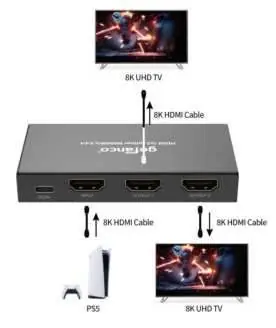
- Connect your HDMI source device to the HDMI In connector using an HDMI cable.
- Connect your HDMI displays to the Output 1 and Output 2 connectors using HDMI cables.
- Plug the included USB power cable into the splitter's power jack, then connect the other end to a USB 3.0 port or a 5V/1A wall charger.
- Power on all connected devices.
- The splitter is now ready for use.
Note: For best performance, use the latest HDMI 2.1 or later cables.
EDID Management
Press the EDID button on the front panel to cycle through the three available modes:
- Auto EDID: Reads the EDID of each display and uses the lowest resolution and audio format for both. This is the default mode and is restored after a power cycle.
- Copy EDID: Copies the EDID of the monitor connected to Output 1. Supports downscaling from 8K to 4K or 1080p on Output 2.
- Downscale EDID: Maximum resolution is 8K at 60Hz YUV 4:2:0. The EDID of the monitor on Output 1 is sent to Output 2 and downscaled accordingly. Note that this mode only supports 2-channel audio.
Important Safety Notices
- Do not expose the unit to rain, heavy moisture, or liquid.
- Keep the product in a well-ventilated location to prevent overheating.
- Do not repair or open the enclosure without professional guidance.
- Shut off power before installation.
- Do not plug or unplug HDMI cables while the device is in use.
Practical help
Common problems
No signal or display issues
Ensure all HDMI cables are securely connected and that you are using high-quality HDMI 2.1 cables.
Device overheating
Ensure the device is placed in a well-ventilated location.
Incorrect resolution on one display
Use the EDID button to switch between Auto, Copy, or Downscale modes to better match your display capabilities.
Before use
- Power off all connected devices before installation
- Ensure you have HDMI 2.1 cables for best performance
- Verify you have a USB 3.0 port or 5V/1A wall charger for power
- Confirm your HDMI source and display devices are compatible
Specs in practice
- Downscale EDID
- Automatically converts 8K signals to 4K or 1080p for compatible displays.
Images and diagrams
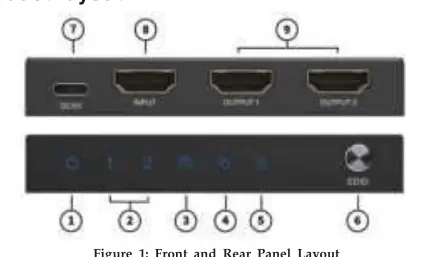
- Front panel: Contains Power LED, Output LEDs, EDID mode LEDs, and the EDID selection button.
- Rear panel: Contains the USB-C power jack, HDMI Input, and two HDMI Output ports.
Model compatibility
- Supports 8K@60Hz, 4K@120Hz, and 4K@144Hz.
- CEC is supported on Output 1 only.
- VRR and ALLM support recommended with identical monitors.

Manual page author
David Miller
Documentation analyst
Organizes user manual content into clear summaries, with attention to model details, product context, and everyday usability.