Electronics / AV Splitters
User Guide for Gofanco DisplayPort 1.4 MST 2-Port HDMI Hub
Learn how to install and use your Gofanco DisplayPort 1.4 MST 2-Port HDMI Hub. This guide covers system requirements, hardware installation, and technical specifications for dual monitor setups.
Quick answers from the manual
Quick answer
- The Gofanco DisplayPort 1.4 MST 2-Port HDMI Hub allows you to connect two external HDMI monitors to a single DisplayPort output. It requires an external power connection via the included Micro-USB cable to function. p. 3, 4, 5
Key actions
- Connect the hub to your PC's DisplayPort connector. p. 5
- Connect the Micro-USB power cable to a 5V/1A-2A power source. p. 4, 5
First start
- Power off devices, connect the hub to the PC and monitors, connect the power cable, then power on all devices. p. 5
Technical specifications
| Parameter | Value | Meaning | Pages |
|---|---|---|---|
| Output Ports | 2x HDMI | Supports two HDMI displays. | p. 6 |
| Audio Output | LPCM 7.1 | Supports 7.1 channel LPCM audio. | p. 6 |
Where to find it in the PDF
- Product Layout p. 4
- Hardware Installation p. 5
- Specifications p. 6
Table of contents
Manual images
Click an image to enlargeQuick guide from the manual
The Gofanco DisplayPort 1.4 MST 2-Port HDMI Hub allows you to connect two external HDMI monitors to a single DisplayPort output on your computer. Important: This device requires an external power connection via the included Micro-USB cable to function. macOS does not support MST (Multi Stream Transport) and will only mirror the displays.
Package Contents
- DisplayPort 1.4 MST 2-Port HDMI Hub
- Micro-USB Power Cable
- User's Guide
System Requirements
- PC with an available DisplayPort output (DP 1.4 recommended)
- Windows 11, 10, 8.1, 8, or 7 (32/64-bit)
Product Layout
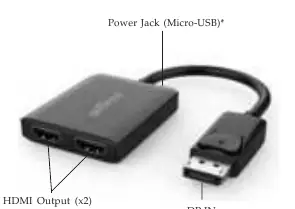
The device features a DisplayPort input (DP IN) for the computer, two HDMI output ports for monitors, and a Micro-USB port for power. The power connection is mandatory for the adapter to operate.
Hardware Installation
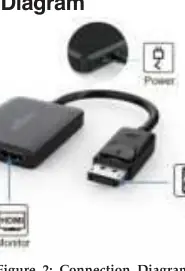
- Power off all devices you plan to connect to the unit.
- Connect the unit to your PC's DisplayPort connector.
- Connect your HDMI monitors to the unit's HDMI Outputs using HDMI cables (not included).
- Connect the unit's Power Jack to a USB 3.0 port or a 5V/1A to 5V/2A wall charger using the included Micro-USB power cable.
- Power on all connected devices.
- The MST hub is ready for use.
Important Notes
- DisplayPort 1.4 GPU: Required to support two displays up to 4K @60Hz.
- DisplayPort 1.2 GPU: Supports two displays up to 4K @30Hz.
- macOS: Does not support MST function; only supports display mirroring.
- Intel GPUs: Generally limited to 3 external displays total, including those connected to the MST hub.
Specifications
- Output Signal: HDMI
- Output Ports: 2x HDMI
- Audio Output: LPCM 7.1
- Cable Length: 6 inches (150mm)
- Operating Temperature: 32 to 158 F (0 to 70 C)
Practical help
Common problems
Displays are mirrored instead of extended.
macOS does not support MST function. Ensure you are using a compatible Windows OS and that your GPU supports DP 1.2/1.4.
Device is not working or not detected.
Ensure the Micro-USB power cable is connected to a 5V/1A to 5V/2A power source. This connection is required for operation.
Resolution is lower than expected.
Check if your PC's DisplayPort output is DP 1.2 or 1.4. DP 1.2 is limited to 4K @30Hz for dual displays.
Before use
- Verify your PC has an available DisplayPort output.
- Ensure you have two HDMI cables (not included).
- Have a 5V/1A to 5V/2A USB power source ready.
- Confirm your GPU supports DP 1.2 or 1.4.
Images and diagrams
- Figure 1 identifies the DP IN connector, HDMI outputs, and the Micro-USB power jack.
- Figure 2 illustrates the connection path from the PC to the Hub and then to the monitors.
Model compatibility
- Windows 7/8/8.1/10/11 supported.
- macOS does not support MST (mirroring only).
- Intel GPUs limited to 3 external displays total.

Manual page author
Emily Carter
User documentation editor
Prepares concise manual descriptions and highlights the most useful setup, operation, and maintenance information for readers.