Electronics / AV Splitters
User Manual for 18Gbps HDMI to DP Converter
Quick guide for the 18Gbps HDMI to DP Converter. Learn how to connect your devices, understand port functions, and check technical specifications for 4K@60Hz video output.
Quick answers from the manual
Quick answer
- This device converts an HDMI signal to a DisplayPort signal, supporting resolutions up to 4K@60Hz. It requires a 5V/1A power supply via the included USB cable. p. 3, 4
Key actions
- Connect the source device to the HDMI IN port. p. 5
- Connect the display device to the DP OUT port. p. 5
- Connect the USB power cable to the DC 5V port. p. 5
Technical specifications
| Parameter | Value | Meaning | Pages |
|---|---|---|---|
| Video Resolution | Up to 4K@60Hz 4:4:4 | Maximum supported video quality | p. 4 |
| Power Supply | 5V / 1A | Required power input | p. 4 |
Where to find it in the PDF
- Introduction and Features p. 3
- Specifications p. 4
- Operation Controls p. 5
- Application Example p. 6
Table of contents
Manual images
Click an image to enlargeQuick guide from the manual
This 18Gbps HDMI to DP Converter is designed to convert an HDMI signal into a DisplayPort signal. It supports high-resolution video up to 4K@60Hz 4:4:4 and includes an HDMI loop-out port for connecting an additional display. The device is plug-and-play but requires an external 5V/1A power supply via the included USB cable for operation.
Package Contents
- 1x HDMI to DP Converter
- 1x USB Shielded Cable (USB-A to Micro USB, 1m)
- 1x User Manual
Operation Controls and Functions
The device features several ports and indicators:
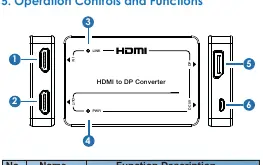
- HDMI IN: Connects to your video source device using an HDMI cable.
- HDMI OUT: Loop-out port to connect a secondary display (e.g., TV).
- DP OUT: Connects to your primary display device using a DisplayPort cable.
- DC 5V: Power input port; must be connected to a 5V/1A power source.
- LINK LED: Lights green when the HDMI LOOP OUT or DP port is outputting a signal.
- PWR LED: Lights green when the device is powered on.
Application Example
To set up the converter:
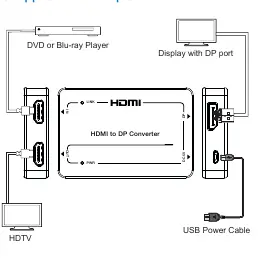
- Connect your source device (e.g., DVD or Blu-ray player) to the HDMI IN port.
- Connect your primary display to the DP OUT port.
- Optionally, connect a secondary display to the HDMI OUT port.
- Connect the provided USB cable to the DC 5V port and a suitable power source.
Specifications
Key technical parameters:
- HDMI Compliance: HDMI 2.0b, HDCP 2.2
- Video Bandwidth: 18Gbps
- Resolution: Up to 4K@60Hz 4:4:4
- Audio: Up to 7.1CH pass-through (PCM, Dolby TrueHD, DTS-HD Master Audio)
- Power Supply: 5V/1A
- Dimensions: 90mm x 60mm x 16mm
- Weight: 47g
Safety and Usage
The device contains sensitive electrical components. It is highly recommended to use a surge protection system to prevent damage from electrical spikes, surges, or lightning strikes. Ensure the device is operated within the temperature range of 0-40°C (32-104°F).
Practical help
Common problems
No signal on display
Ensure the USB power cable is connected to a 5V/1A power source and the LINK LED is illuminated.
Resolution issues
Verify that your source device supports 4K@60Hz and your display supports DP1.2.
Before use
- Verify package contents include the converter and USB power cable.
- Ensure you have a 5V/1A power source available.
- Check that your display device supports DisplayPort input.
- Ensure you have high-quality HDMI and DisplayPort cables.
Images and diagrams
- HDMI IN: Connects to the source device.
- HDMI OUT: Loop-out port for an additional display.
- DP OUT: Main output for the DisplayPort monitor.
- DC 5V: Power input port.
Model compatibility
- Supports 4K@60Hz 4:4:4 resolution.
- Supports 7.1CH audio pass-through.
- Requires 5V/1A power input.

Manual page author
Michael Turner
Technical manual editor
Reviews PDF manuals for structure, safety notes, and practical product details so readers can find the right information quickly.