Electronics / Microphones
User Guide for Hollyland LARK MAX 2 Wireless Microphone System
Comprehensive user guide for the Hollyland LARK MAX 2 wireless microphone system. Includes instructions for wearing, accessory installation, wireless monitoring setup, pairing, app synchronization, and device controls.
Quick answers from the manual
Quick answer
- To pair the microphones, power off the camera RX and press and hold the pairing button for 6 seconds. For 4 Mic & 1 RX mode, ensure all devices are upgraded first, then switch the mode in the Settings menu. p. 13
Key actions
- Pairing Microphones p. 13
- Time Synchronization p. 12
- Switching Monitoring Source p. 10
First start
- Install the LarkSound app and ensure all devices are updated to the latest firmware. p. 12, 24
Maintenance and reset
- Firmware updates are managed via the LarkSound app. p. 24
Technical specifications
| Parameter | Value | Meaning | Pages |
|---|---|---|---|
| Sampling Depth | 32-bit float | Required setting for editing software when using 32-bit recording. | p. 15 |
Where to find it in the PDF
- Wearing Method p. 4
- Wireless Monitoring Setup p. 10
- 4 Mic & 1 RX Pairing p. 13
Table of contents
Manual images
Click an image to enlargeQuick Guide
The Hollyland LARK MAX 2 is a professional wireless microphone system. This guide covers the essential setup procedures, including wearing methods, wireless monitoring configuration, pairing, and app integration. Ensure your devices are charged and the LarkSound app is installed for optimal performance.
Wearing Method
The microphone can be attached using the provided magnetic accessories. Place the magnetic back clip on the desired clothing area and attach the microphone to it securely.
Accessory Installation
To use the USB-C to 3.5mm adapter:
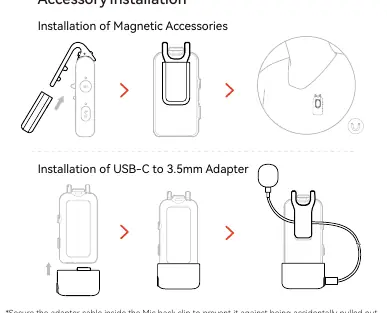
- Slide the adapter onto the microphone.
- Secure the adapter cable inside the microphone's back clip to prevent accidental disconnection.
Wireless Monitoring
The system supports wireless monitoring for mobile phones, cameras, and action cameras.
Connection Methods
- USB-C RX: Connects to mobile phones and action cameras. Supports monitoring of both microphone and phone audio.
- Camera RX: Connects to cameras, mobile phones, or action cameras.
Setup
Choose the monitoring source via the RX menu:
- RX: Monitor audio from the camera RX.
- Camera: Monitor audio captured directly by the camera.
Recommended Settings
The system provides recommended gain levels. The value "+16" indicates the current camera RX output gain level. Manually adjusting the gain will override these recommended settings.
Time Synchronization
- Connect the camera RX to your phone using a USB-C to USB-C or USB-C to Lightning cable.
- Launch the LarkSound app.
- The camera RX will automatically update the local real-time clock.
4 Mic & 1 RX Pairing
- Upgrade existing 2 Mic & 1 RX devices first.
- Switch the camera RX to "4 Mic & 1 RX" mode in the Settings menu.
- Power off the camera RX.
- Press and hold the pairing button for 6 seconds to pair the microphones.
- It is recommended to upgrade the entire system after pairing.
32-bit Full-Chain Recording
This feature is compatible only with 32-bit recording devices via USB-C connection. When using editing software, set the sampling depth to 32-bit float. No configuration is required when using the device's native recording app.
Device Controls
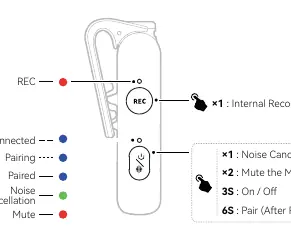
Microphone
- 1x Press: Internal Recording / Noise Cancellation.
- 2x Press: Mute the Mic.
- 3s Hold: On / Off.
- 6s Hold: Pair (after power off).
USB-C Receiver (RX)
- 1x Press: Noise Cancellation.
- 3s Hold: Pair with Mic.
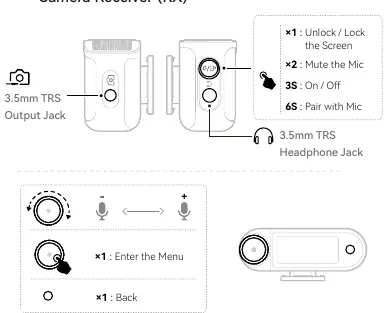
Camera Receiver (RX)
- 1x Press: Enter Menu / Back / Unlock or Lock Screen.
- 2x Press: Mute the Mic.
- 3s Hold: On / Off.
- 6s Hold: Pair with Mic.
App Information
The LarkSound app is available for iOS and Android. It allows for parameter configuration, firmware updates, and smart feature access. Requires iOS 12.0+ or Android 8.0+.
Support
For assistance, contact the Hollyland Support Team via [email protected] or visit www.hollyland.com.
Official resources from the manual
Practical help
Common problems
Microphone not pairing
Ensure the device is powered off, then press and hold the pairing button for 6 seconds.
Monitoring audio source incorrect
Access the Wireless Monitoring Setup menu on the RX and select the correct source (RX or Camera).
Gain settings not applying
Manual adjustment of the camera RX output gain overrides the system's Recommended Settings.
Before use
- Charge all devices fully.
- Install the LarkSound app on your smartphone.
- Ensure the correct cable (USB-C to USB-C or USB-C to Lightning) is used for your device.
- Upgrade firmware for all devices before attempting 4 Mic & 1 RX pairing.
Specs in practice
- 32-bit Full-Chain Recording
- Requires 32-bit compatible recording devices; set editing software to 32-bit float.
- 2.4 GHz Mode
- Standard wireless transmission mode for the OWS Monitor Earphone.
- Bluetooth Mode
- Used for connecting the OWS Monitor Earphone to the LarkSound app.
Images and diagrams
- Wearing Method: Shows magnetic clip attachment.
- Accessory Installation: Shows USB-C to 3.5mm adapter connection.
- Wireless Monitoring: Shows connection paths for phones and cameras.
- Pairing: Shows button interaction for 4 Mic & 1 RX mode.
Model compatibility
- USB-C RX supports mobile phones and action cameras.
- Camera RX supports cameras, mobile phones, and action cameras.
- Lightning connection compatible with iPhone 14 series and earlier models only.

Manual page author
Michael Turner
Technical manual editor
Reviews PDF manuals for structure, safety notes, and practical product details so readers can find the right information quickly.