Computers / Printer Accessories
Installation Guide for HP 1500-Sheet Feeder
A comprehensive installation guide for the HP 1500-sheet feeder. This manual provides step-by-step instructions for unpacking, preparing the printer, installing the feeder, loading paper, and configuring the printer driver for HP LaserJet...
Table of contents
Manual images
Click an image to enlargeQuick installation guide
This guide provides instructions for installing the optional 1500-sheet feeder for HP LaserJet printers. Before beginning, ensure you have a clear workspace and assistance for lifting the printer.
Unpacking and preparation
- Remove the 1500-sheet feeder from the packaging.
- Push down on the release lever to open the feeder door.
- Remove all orange tape and packing materials from inside the feeder.
- Important: You must remove the tray lock before operating the feeder. Turn the tray lock clockwise, then pull it up and out of the feeder.
- Turn off the printer and disconnect all cables from the rear.
Installing the feeder
- If other optional feeders are currently installed, separate them from the printer. Ensure the tray-lock lever is in the unlocked position.
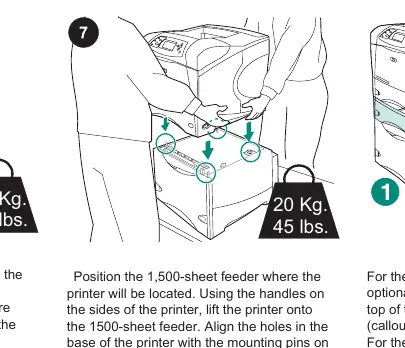
- Position the 1500-sheet feeder in the desired location.
- With the help of another person, lift the printer using the side handles and place it onto the 1500-sheet feeder.
- Align the holes in the base of the printer with the mounting pins on the feeder.
- Move the tray-lock lever on the feeder to the locked position.
- If installing multiple trays, ensure the 1500-sheet feeder is placed as the bottom tray.
Loading paper
- Open the feeder door.
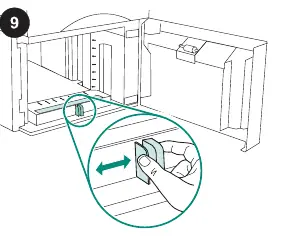
- Pinch the levers at the front of the feeder and slide them to the appropriate paper size setting: Letter (LTR), Legal (LGL), or A4.
- Note: Guides cannot be adjusted if paper is already in the feeder.
- Load paper into the feeder. Do not fan the paper, as this can cause misfeeds.
- Ensure the stack height does not exceed the fill marks on the paper guides and the front edge is aligned with the arrows.
- Close the feeder door.
Configuring the printer driver
- Reconnect all cables to the rear of the printer and turn the power on.
- On the host computer, open the printer Properties window.
- Navigate to the Device Settings tab.
- Select the check box for the 1500-sheet feeder to enable it.
Verifying installation
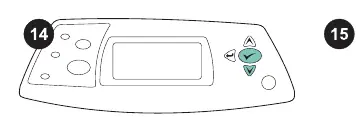
- Print a configuration page from the printer control panel to verify the feeder is recognized.
- Press the menu button, select INFORMATION, and then select PRINT CONFIGURATION.
- Ensure the 1500-sheet feeder is listed as an installed accessory on the printed page.
Manufacturer information
HP Inc.
Practical help
Common problems
Feeder not recognized by printer
Ensure the printer driver is configured to recognize the feeder in the Device Settings tab within the printer properties on your computer.
Paper misfeeds
Do not fan the paper before loading. Ensure the stack height does not exceed the fill marks and the front edge is aligned with the arrows.
Cannot separate printer from existing feeders
Ensure the tray-lock lever is in the unlocked position before attempting to lift the printer.
Before use
- Remove all orange tape and packing materials from inside the feeder.
- Remove the tray lock by turning it clockwise and pulling it up.
- Power off the printer and disconnect all cables.
- Ensure the printer is separated from any currently installed optional feeders.
- Verify the tray-lock lever is in the unlocked position.
Images and diagrams
- Step 4: Removing the tray lock.
- Step 6: Disconnecting printer cables.
- Step 7: Lifting the printer onto the feeder.
- Step 9: Adjusting paper guides.
Model compatibility
- Compatible with HP LaserJet 4250/4350 series.
- Compatible with HP LaserJet 4200/4300 series.
- If optional 500-sheet feeders are installed, the 1500-sheet feeder must be the bottom tray.

Manual page author
David Miller
Documentation analyst
Organizes user manual content into clear summaries, with attention to model details, product context, and everyday usability.