Electronics / Monitors
Smart Card Reader User Guide for HP 15-DY2071WM
A guide on how to connect and use a smart card reader with your HP 15-DY2071WM laptop. Includes instructions for driver installation, card insertion, and basic troubleshooting.
Table of contents
Manual images
Click an image to enlargeQuick guide from the manual
This guide provides instructions on connecting and using a smart card reader with your HP laptop. Ensure you have the correct drivers installed before attempting to use the device to ensure proper functionality.
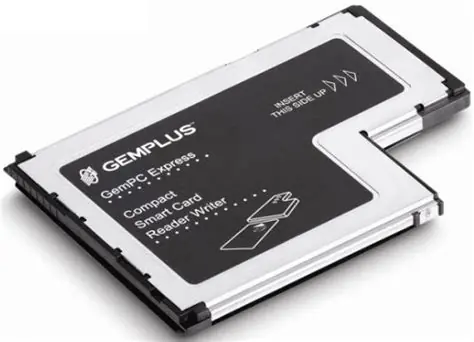
Installation and connection
Most smart card readers connect to the laptop via a USB data cable. Follow these steps to set up the device:
- Plug the card reader into an available USB port on your laptop.
- If a driver CD was provided, insert it into your computer and follow the on-screen instructions to install the necessary software.
- If the computer does not automatically detect the device, check the manufacturer's website for the latest drivers.
Using the smart card reader
Once the device is connected and drivers are installed, you can use the reader for various tasks, such as file transfers or secure access.
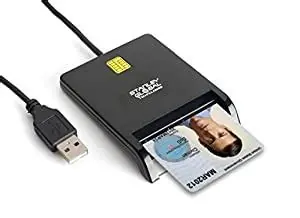
- Inserting the card: Hold the card with the gold stamp facing the correct direction (usually towards the reader's contact points) and insert it into the slot until it is fully seated.
- Accessing files: When a memory card is inserted, an auto-play window should appear. Click "Display files" to view the contents.
- If auto-play fails: Open "Workstation" (or "This PC") and double-click the card reader drive icon to access your files.
Troubleshooting
If you encounter issues with your smart card reader:
- Ensure the USB cable is securely connected to both the reader and the laptop.
- Verify that the card is inserted correctly.
- If the device is not recognized, try a different USB port.
- Check that the card format is supported by your specific reader model.
Manufacturer information
HP Inc.
Practical help
Common problems
Automatic window does not appear when card is inserted
Open 'Workstation' or 'This PC' on your computer and double-click the card reader drive icon to manually access the files.
Card not recognized by the laptop
Ensure the card is inserted with the gold stamp facing the correct direction and that the USB cable is securely connected.
Before use
- Ensure the smart card reader is connected via USB.
- Install the necessary drivers from the provided CD or manufacturer website.
- Verify the card type is supported (SD, memory card, etc.).
Model compatibility
- Supports various media cards including SD, memory cards, and smart cards.

Manual page author
Emily Carter
User documentation editor
Prepares concise manual descriptions and highlights the most useful setup, operation, and maintenance information for readers.