Computers / Laptops
User Manual for Hyundai 14CB12 Laptop
Quick guide for the Hyundai 14CB12 laptop. Learn how to set up your device, navigate Windows 11, and troubleshoot common issues like charging, Wi-Fi connectivity, and power settings.
Table of contents
Manual images
Click an image to enlargeQuick Start Guide
Before using your laptop for the first time, ensure you charge the battery for at least 3 hours. Connect the power adapter to the charging port and a power outlet; the charging indicator should illuminate red.
Getting Started
To turn on the laptop, press the power button. If this is the first time the device is powered on, follow the on-screen prompts to complete the Windows 11 setup. It is recommended to log into your Microsoft account to ensure full compatibility for programs.
Using Windows 11
The laptop runs on Windows 11. Key features include:
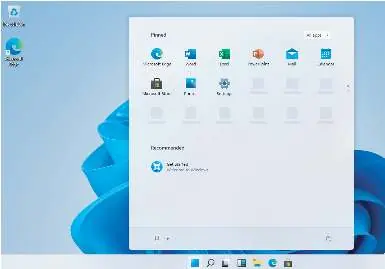
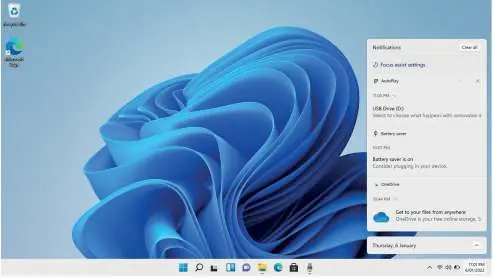
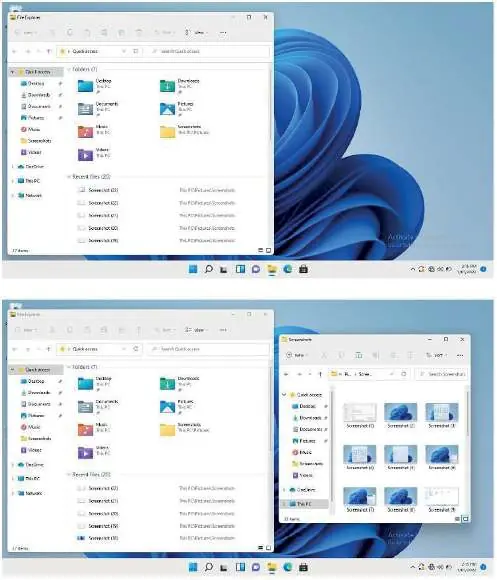
- Desktop: Access applications via shortcuts on the desktop by double-clicking them.
- Start Menu: Click the Windows icon at the bottom of the screen to access installed apps and the Microsoft Store. Recently used apps appear under the 'Recent' heading.
- Notification Menu: Click the time/date in the lower-right corner to view notifications and access quick settings like Wi-Fi, Bluetooth, and brightness.
- Multitasking: Drag a window to the left or right side of the screen to snap it to half the screen, allowing you to fill the remaining space with another open window.
- Sleep, Restart, and Shut Down: Click the Windows icon, then the power icon to select the desired action. To wake the laptop from sleep, press the power button. If the laptop becomes unresponsive, press and hold the power button to force a shutdown.
Troubleshooting
If you encounter issues, refer to the following solutions:
- Laptop not turning on: The battery may be depleted. Charge for at least one hour before attempting to turn it on again. Check if any lights or internal components (like fans) activate.
- Laptop not charging: Inspect the laptop, charging port, and power adapter for physical damage. If damage is found, stop use immediately and contact support.
- Wi-Fi connectivity issues: Restart your modem/router and the laptop. Ensure the Wi-Fi password is correct and move the laptop closer to the router. If the signal is weak or slow, disconnect and reconnect to the network.
- Screen goes dark when unplugged: This is likely due to power plan settings. Adjust these settings in the Control Panel to keep the screen on while running on battery.
- Forgotten password: Options include using a password reset disc via USB, resetting the Microsoft account password online from another device, or resetting Windows 11 to factory defaults (note: this deletes personal data).
Contact Information
For technical support or sales inquiries, contact Hyundai Technology:
U.S. and Worldwide: (800) 560-0626 (Monday-Friday 8:00am-5:00pm PST) or email [email protected]
Mexico (Spanish): 81 5030-7375 (Lunes-Viernes 8:00am-5:00pm CST) or email [email protected]
Manufacturer information
Hyundai
Practical help
Common problems
Laptop will not turn on
Charge the battery for at least one hour before attempting to power on.
Laptop is not charging
Inspect the charging port and power adapter for physical damage. If damaged, stop use and contact support.
Wi-Fi connection issues
Restart the modem/router and the laptop. Ensure the password is correct and move closer to the router.
Screen turns dark when unplugged
Go to the Control Panel and adjust the power plan settings to prevent the screen from turning off.
Forgotten password
Use a password reset disc, reset the Microsoft account online, or perform a factory reset (data loss will occur).
Before use
- Charge the laptop for at least 3 hours before the first use.
- Connect the power adapter to a power outlet.
- Verify that the charging indicator light is red.
Images and diagrams
- Desktop: Shows icons and shortcuts for quick application access.
- Start Menu: Provides access to installed apps and the Microsoft Store.
- Notification Menu: Allows quick access to Wi-Fi, Bluetooth, and brightness settings.
Model compatibility
- Logging into a Microsoft account is recommended for full program compatibility.

Manual page author
Emily Carter
User documentation editor
Prepares concise manual descriptions and highlights the most useful setup, operation, and maintenance information for readers.