Computers / Laptops
User Manual for Hyundai 14CB10 Notebook
Quick guide for the Hyundai 14CB10 notebook. Learn how to set up Windows 11, manage power settings, use the Start menu, and troubleshoot common issues like Wi-Fi connectivity and charging.
Table of contents
Manual images
Click an image to enlargeQuick guide from the manual
Before using your Hyundai 14CB10 notebook for the first time, it is essential to charge the battery for at least 3 hours. To begin, plug one end of the power adapter into the charging port and the other into a power outlet. The charging indicator should illuminate red. Once charged, press the power button to turn on the laptop and follow the on-screen prompts to complete the Windows 11 setup.
Using Windows 11
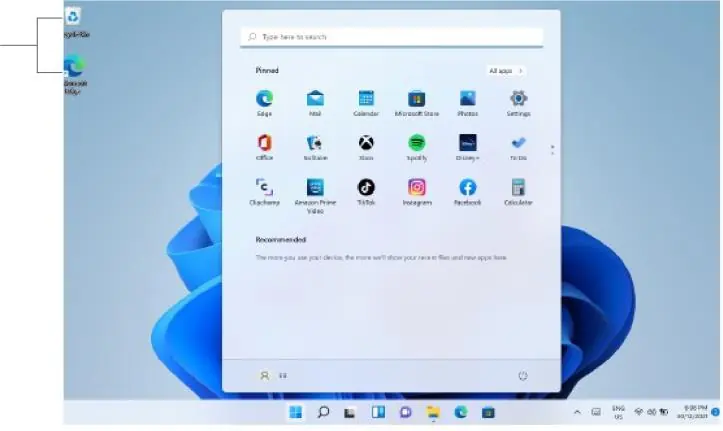
Once the setup is complete, the laptop will boot to the desktop. You can access applications via shortcuts on the desktop or by using the Start menu.
Start menu
Click on the Windows icon at the bottom of the screen to open the Start menu. Recently used apps are listed under the 'Recent' heading. You can install additional applications via the Microsoft Store.
Notification menu
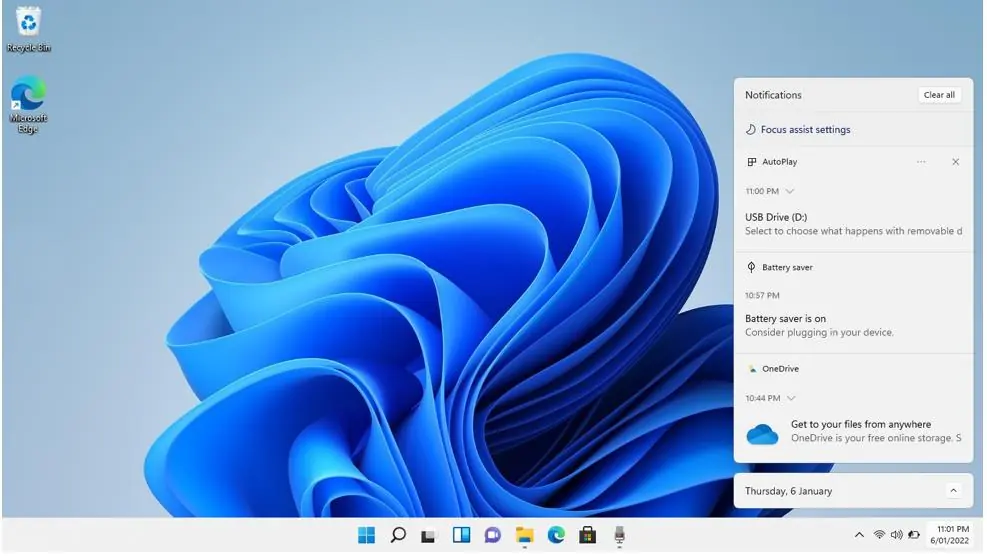
Access the notification menu by clicking on the time/date in the lower-right corner of the screen. This menu provides quick access to settings such as Wi-Fi, Bluetooth, brightness, and displays notifications like emails and calendar reminders.
Multitasking
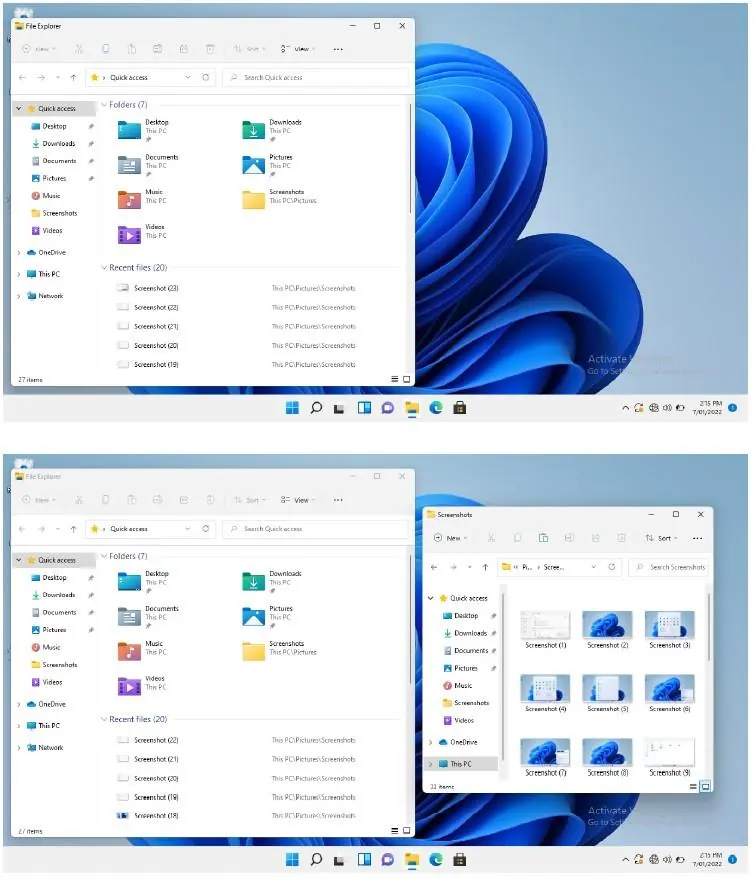
Windows 11 allows for easy window management. Drag one window to the left or right side of the screen until you see an overlay, then release it. You can then select another open window to fill the remaining space on the other half of the screen.
Sleep, restart and shut down
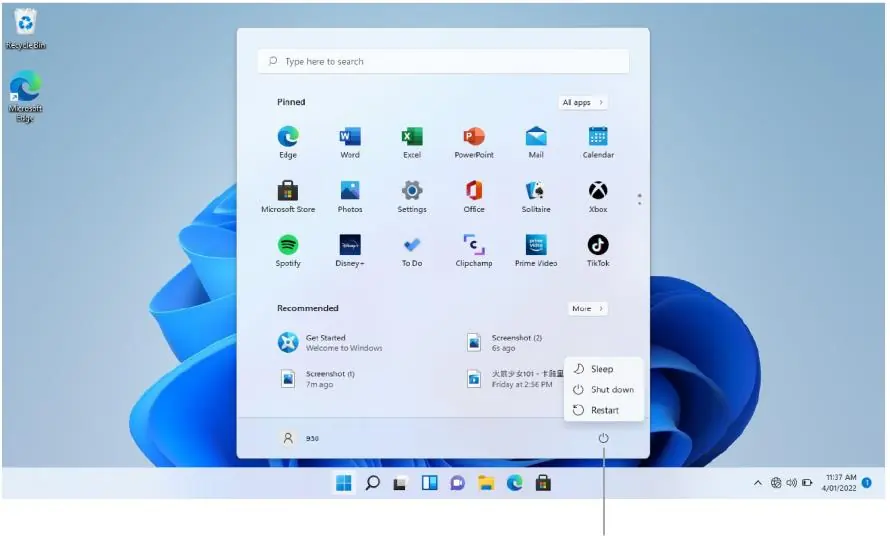
To manage power options, click the Windows icon at the bottom of the screen, then click the power icon. From here, you can select 'Sleep', 'Restart', or 'Shut Down'. To wake the laptop from sleep, press the power button. If the laptop becomes unresponsive, press and hold the power button to force a shutdown, then press it again to turn it back on.
Troubleshooting
If you encounter issues with your device, refer to the following solutions:
- Laptop not turning on: The battery may be depleted. Charge for at least an hour before attempting to turn it on. Check if any lights or internal components (like fans) activate.
- Laptop not charging: Inspect the charging port and power adapter for physical damage. If damage is found, stop use immediately and contact support.
- Wi-Fi connectivity issues: Restart your modem/router, reconnect any range extenders, restart the laptop, or move the laptop closer to the router. Ensure the Wi-Fi password is correct.
- Screen dark when unplugged: This is likely due to power plan settings. Go to the Control Panel to adjust your power plan to keep the screen on when the laptop is not charging.
- Forgotten password: You can reset a Microsoft password using a password reset disc via USB, resetting the account online with another device, or resetting Windows 11 to factory defaults (note: this will delete personal data).
Manufacturer information
Hyundai
Practical help
Common problems
Laptop will not turn on
Charge the battery for at least one hour. Check if any indicator lights or fans turn on.
Laptop is not charging
Inspect the charging port and power adapter for physical damage. If damaged, stop use and contact support.
Wi-Fi connection issues
Restart the router/modem, move the laptop closer to the router, or verify the Wi-Fi password.
Screen goes dark when unplugged
Adjust the power plan settings in the Control Panel to prevent the screen from turning off.
Before use
- Charge the laptop for at least 3 hours before the first use.
- Ensure the power adapter is securely connected to a power outlet.
- Check the charging port and adapter for any physical damage.

Manual page author
David Miller
Documentation analyst
Organizes user manual content into clear summaries, with attention to model details, product context, and everyday usability.