Computers / Laptops
User Manual for Hyundai 14CC4 Laptop
Quick start guide and user manual for the Hyundai 14CC4 laptop. Learn about setup, charging, Wi-Fi connection, Windows interface navigation, and technical specifications.
Table of contents
Manual images
Click an image to enlargeQuick guide from the manual
This guide provides essential information for setting up and using your Hyundai 14CC4 laptop. Before first use, ensure the laptop is fully charged. The initial charging time is at least 6 hours, with 4 hours required for subsequent charges. Use only the standard 12V/2A power adapter provided. Ensure you have a stable Wi-Fi connection and your network credentials ready for the initial setup wizard.
Precautions before use
- Operate the device in non-tropic areas below 2,000 meters.
- Avoid exposing the device to extreme temperatures (too cold or too hot), high humidity, dust, or direct sunlight.
- Keep the device away from strong magnetic or static environments.
- If liquid spills on the device, close it immediately and do not use until completely dry.
- Clean only with a dry, soft cloth; do not use chemical detergents.
- Do not disassemble the device, as this will void the warranty.
- Regularly back up important data to prevent loss.
Product overview
The laptop features a power button, built-in camera, touchpad, and keyboard. Connectivity options include USB 2.0 and 3.0 ports, a Mini HDMI port, a headphone jack, and a Micro SD card slot. The device is equipped with dual speakers and a DC charging base.
Using the laptop
To turn the laptop on, press and hold the power key until the screen illuminates. To turn it off, use the Windows start menu to select the power icon and choose shutdown, sleep, or restart. You can conserve battery power by configuring the screen timeout settings in the display menu, which allows the screen to turn off automatically after a period of inactivity.
Windows interface and settings
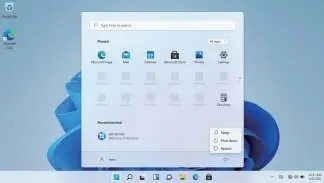
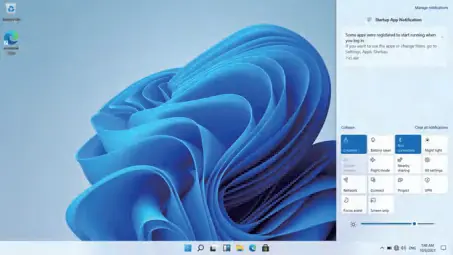
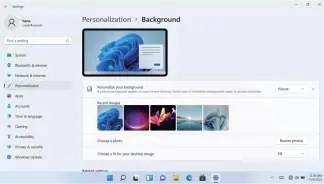
The laptop runs on Windows 11. You can access the Start Menu to view pinned apps, search for files, and manage system settings. The Action Center, located in the bottom right corner, provides quick access to notifications and system settings like Wi-Fi, Bluetooth, and brightness. You can personalize your experience by changing wallpapers, themes, and accent colors through the personalization menu in settings.
Technical specifications
- Processor: Intel Dual Core N4000
- RAM: 4 GB
- Storage: 128GB eMMC and 2.5 Slot Solid State Drive
- Display: 14 inch, 1366x768 resolution
- Connectivity: Wi-Fi 802.11 b/g/n, Bluetooth 4.0
- Ports: 1x USB 2.0, 1x USB 3.0, 1x Mini HDMI, 3.5mm Headphone jack, Micro SD card slot
- Power: Rechargeable Li-Polymer Battery, 12V/2A DC Adapter
Manufacturer information
Hyundai
Practical help
Common problems
Laptop will not turn on
Ensure the device is fully charged. Connect the 12V/2A power adapter and charge for at least 6 hours if it is the first time.
Screen turns off automatically
This is a power-saving feature. You can adjust the screen timeout duration (between 1 minute and 5 hours) in the display menu.
Cannot connect to Wi-Fi
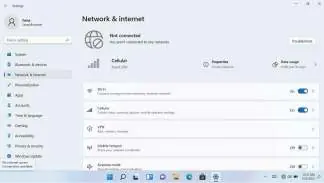
Open the Settings menu, navigate to Network and Internet, and ensure Wi-Fi is enabled. Select your network from the list and enter the password if required.
Before use
- Ensure the laptop is fully charged (6 hours for first use).
- Have your Wi-Fi network name and password ready.
- Ensure the operating environment is non-tropic and below 2,000 meters.
- Back up important data regularly.
- Do not disassemble the device.
Specs in practice
- Power Adapter
- Standard 12V/2A DC charger
Images and diagrams
- The laptop includes a power button, camera, touchpad, and keyboard.
- Ports include USB 2.0/3.0, Mini HDMI, headphone jack, and Micro SD card slot.
- Charging is performed via the DC charging base.
Model compatibility
- Requires standard 12V/2A power adapter.
- Operating system: Windows 11.

Manual page author
Michael Turner
Technical manual editor
Reviews PDF manuals for structure, safety notes, and practical product details so readers can find the right information quickly.