Computers / Laptops
User Manual for LG 14T90R Series Notebook
Quick guide for the LG 14T90R Series Notebook. Learn about setup, stylus pen usage, tablet mode, power connection, safety precautions, and troubleshooting common issues.
Table of contents
Manual images
Click an image to enlargeQuick guide from the manual
This manual provides essential information for the safe and convenient use of your LG 14T90R Series Notebook. Before using the product, ensure you charge the battery completely. Always back up critical data to an external storage device, as SSD malfunctions can lead to data loss. If the system does not shut down properly, wait until it is fully loaded before attempting to power off.
Product Overview
The notebook features a variety of ports and components:
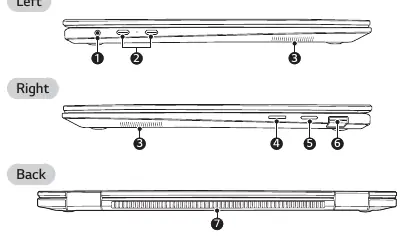
- Front: Built-in microphone, webcam, IR camera, IR LED, webcam status lamp, keyboard, touchpad, and power button.
- Left/Right/Back: Headphone port (4-pole), USB-C ports (supporting USB 4.0, Thunderbolt, LAN/HDMI adapters, and Power Delivery), microSD card slot, sleep button, USB 3.2 Gen 2x1 port, and ventilation.
Using the Stylus Pen
The stylus pen buttons function similarly to a mouse. To use the pen:
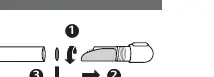
- Remove the battery anti-discharge insulator before first use.
- The pen uses a 1.5 V AAAA battery.
- If the pen is not used for 10 minutes, it enters sleep mode. Touch the screen or click a button to wake it.
- Do not apply excessive force to the pen tip.
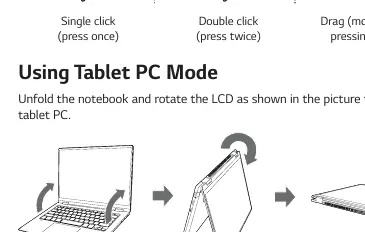
Tablet PC Mode
You can use the notebook as a tablet by unfolding it and rotating the LCD panel. Be careful not to pinch your fingers between the main body and the LCD panel. Do not rotate the panel with excessive force to avoid damaging the hinge. In tablet mode, the keyboard faces the bottom; ensure the area is clean to prevent damage.
Power Connection
Use only the provided AC adapter. The adapter is compatible with 100 V to 240 V power outlets. Connect the adapter to the USB-C port on the PC. The power lamp indicates the status: white means connected and charging/charged, orange means charging, and off means not connected.

Safety Precautions
- Battery Safety: Use only certified batteries. Keep the battery away from heat and metallic objects. Do not use the product on soft surfaces like carpets or blankets, as this may cause overheating.
- Environment: Avoid high humidity and temperatures above 60 °C.
- Maintenance: Use a dedicated PC cleaning agent. Do not use thinner, benzene, or alcohol.
Troubleshooting
If you encounter issues, check the following:
- Screen Color: If colors look wrong, turn off 'Reader Mode' in the LG Smart Assistant display settings.
- System Hangs: If the system stops responding, press the power button for approximately 6 seconds to reset.
- Touchpad: If the touchpad is unresponsive, check the settings in LG Smart Assistant > Dashboard > Touchpad.
- Wireless Network: Press Fn + F6 to toggle airplane mode and wireless connectivity.
Manufacturer information
LG Electronics
Practical help
Common problems
Screen color distortion
Turn off 'Reader Mode' in the LG Smart Assistant > Display Setting menu.
System stops responding or won't turn off
Press and hold the power button for approximately 6 seconds to reset the system.
Touchpad not functioning
Check if the touchpad is disabled in LG Smart Assistant > Dashboard > Touchpad.
Wireless network not connecting
Press Fn + F6 to check if the wireless device is turned off or if airplane mode is active.
Before use
- Charge the battery completely before first use.
- Remove the battery anti-discharge insulator from the stylus pen.
- Back up critical data to an external storage device.
- Ensure the AC adapter is connected firmly to the USB-C port.
- Check that the power outlet is between 100 V and 240 V.
Specs in practice
- Stylus Battery
- Requires 1.5 V AAAA type battery.
- Operating Temperature
- Stylus pen is rated for +5 °C to +40 °C.
Images and diagrams
- The front view identifies the webcam, microphone, and power button location.
- Side views illustrate the location of the headphone jack, USB-C ports, microSD slot, and vents.
- The stylus pen diagram shows how to detach the cap to remove the battery insulator.
Model compatibility
- Use only the provided AC adapter.
- The 4-pole ear microphone port supports US type standards; European standards may not work properly.
- Recommended network cable for LAN adapter is CAT5 or higher.

Manual page author
Michael Turner
Technical manual editor
Reviews PDF manuals for structure, safety notes, and practical product details so readers can find the right information quickly.