Computers / Laptops
User Manual for LG 14Z90P Series Notebook
Comprehensive user guide for the LG 14Z90P Series Notebook. Includes setup instructions, Windows 11 navigation, software features like LG Control Center, system recovery, and safety precautions.
Table of contents
Manual images
Click an image to enlargeQuick guide from the manual
This guide provides essential information for operating your LG 14Z90P Series Notebook. For detailed troubleshooting, use the built-in LG TroubleShooting app, and for a comprehensive user guide, access LG Easy Guide via the Start menu under [LG Software].
Safety Precautions
Always operate the device in a clean, dust-free environment. Keep at least 6 inches of clearance around the PC for ventilation to prevent overheating. Avoid placing the PC near magnetic objects, as this may damage the storage device. If the system becomes too hot, the protection feature will automatically switch the power mode to Hibernate or Off.
Using the PC
- Battery and Power: Use only the provided AC adapter. Keep the battery level at about 50% if not used for an extended period.
- Touchpad: Use the touchpad for cursor movement, clicking, and gestures. Multi-touch gestures (two fingers) allow for scrolling and zooming.
- Keyboard: Use hot keys (Fn + F1-F12) for quick adjustments like brightness, volume, and keyboard backlight.
- External Connections: The USB-C port supports charging, data transfer, and external displays (via Alternate Mode). Use a LAN adapter for wired internet.
Software Features
- LG Control Center: Manage system settings, cooling modes (Silent, Optimal, Performance), and keyboard backlight.
- LG Update Center: Install and update drivers and applications.
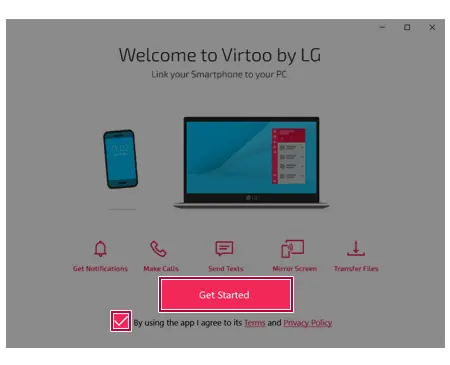
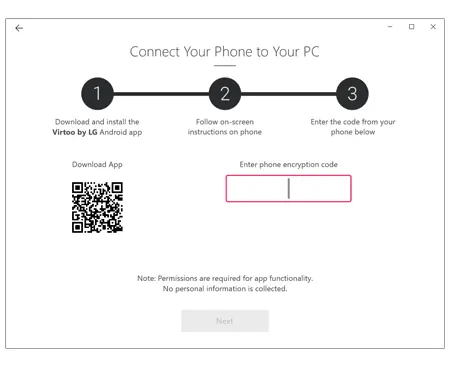
- Virtoo by LG: Connect your smartphone to the PC to manage notifications, calls, messages, and file sharing.
- DTS:X Ultra: Enhance audio quality for music, movies, and games.
System Setup and Recovery
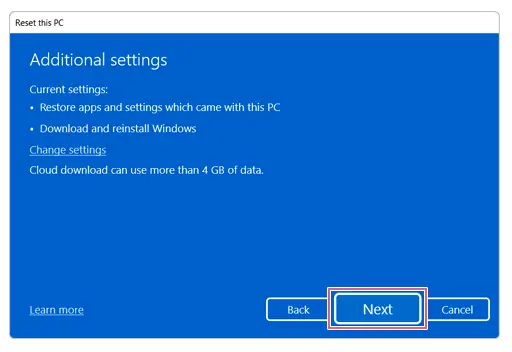
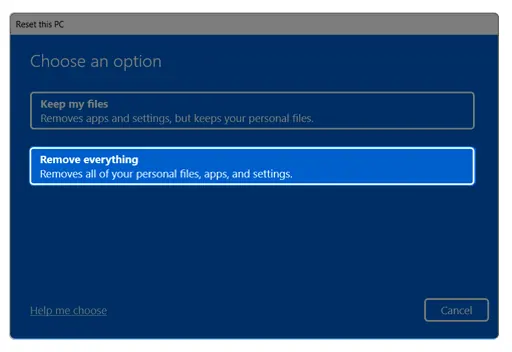
Access the system setup (BIOS/UEFI) by restarting the PC and immediately pressing [F2]. You can set supervisor and user passwords, change the boot order, or restore factory default settings. If the system encounters errors, use the Windows recovery function (Settings > System > Recovery > Reset this PC) to restore the system to its initial state.
Manufacturer information
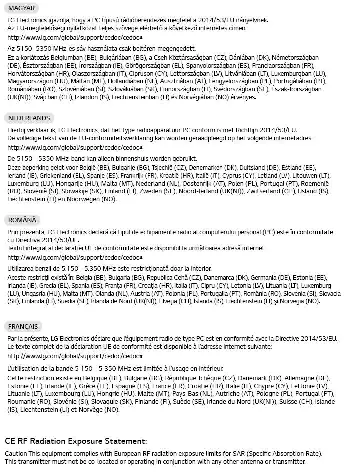
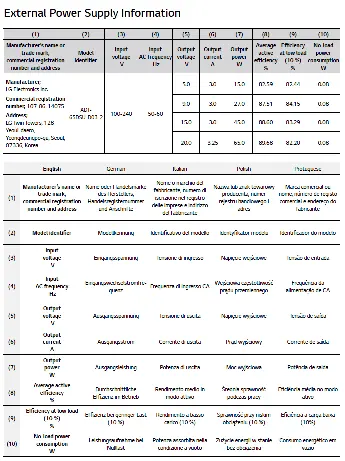
LG Electronics
Practical help
Common problems
System overheating
System protection feature stops recharging and switches to Hibernate/Off. Ensure proper ventilation.
Battery not charging
Check if AC adapter is connected; if the lamp blinks 3 times, charge the battery sufficiently.
No sound via HDMI
Set Speaker as the default value after disconnecting the HDMI cable.
Touchpad not working
Check if the touchpad is disabled (Fn+F5).
Before use
- Check battery charge level
- Ensure proper ventilation (6 inches clearance)
- Avoid magnetic objects near PC
- Connect AC adapter for initial setup
Specs in practice
- Performance Mode
- Optimizes for CPU-intensive tasks.
Images and diagrams
- Operation Status Lamps (AC adapter, Caps Lock, Power, Webcam)
- Touchpad gestures (scroll, zoom)
- Connecting external display via HDMI
- Connecting wired LAN adapter
Model compatibility
- Supports Windows 11
- Supports UFS and Micro SD cards
- USB-C port supports USB 4.0 Gen 3x2

Manual page author
Michael Turner
Technical manual editor
Reviews PDF manuals for structure, safety notes, and practical product details so readers can find the right information quickly.