Computers / Laptops
Owner's Manual for LG 14Z90P Notebook
Quick guide for the LG 14Z90P notebook. Learn about safety precautions, battery care, initial setup, system shutdown, and troubleshooting common issues like power or wireless connectivity.
Table of contents
Manual images
Click an image to enlargeQuick guide from the manual
This document provides essential safety and operational guidelines for your LG 14Z90P notebook. Before using the device, ensure you charge the battery completely. Always use the provided adapter and avoid using the laptop on soft surfaces like blankets or beds to prevent overheating. If you encounter issues, the manual provides specific troubleshooting steps for power, wireless connectivity, and driver management.
Important Safety Precautions
To prevent damage or injury, observe the following safety rules:
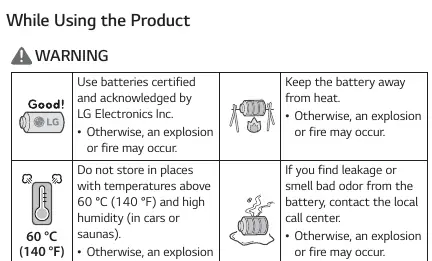
- Battery Safety: Use only batteries certified by LG Electronics. Keep the battery away from heat sources and do not store in temperatures above 60 °C (140 °F). Do not allow metallic objects (keys, paper clips) to touch the battery terminals.
- Charging: Charge the battery only with the provided instrument.
- Usage Environment: Do not use the product on carpets, blankets, or beds, as this can cause overheating. Ensure adequate ventilation.
- Cable Care: Do not bend the power cable excessively to avoid wire breakage, electric shock, or fire.
- Glass Surfaces: For models with Corning Gorilla Glass, handle with care. If the glass is broken, stop using the device immediately and contact the service center.
Battery Usage Guide
To extend the lifespan of your battery:
- If the PC is not used for an extended period, keep the battery level at 50%.
- Use the Extend Battery Life function in the LG Smart Assistant to limit charging to 80%.
- Avoid keeping the battery completely charged or completely discharged for long periods.
Precautions before Product Use
Protect your data and hardware by following these guidelines:
- Data Backup: Always back up critical data to an external storage device (USB HDD, memory card, etc.) to prevent loss due to SSD malfunctions.
- Shutdown: Wait for the system to load completely before shutting it down. Shutting down prematurely may cause system errors.
- Updates: Keep your system updated by running the LG PC Manuals app and checking for updates via the Windows taskbar.
Connecting and Turning On the PC

- Connect the provided adapter to the appropriate charging port on the PC (USB-C port or standard power port).
- Press the power button to turn on the device.
- Caution: Do not use any adapter other than the one provided with the PC.
Troubleshooting
If you experience technical issues, try these steps before contacting support:
- Power Issues: If the PC does not turn on, disconnect the power cord, reconnect it, and press the power button. If it still fails, remove the adapter and hold the power button for at least 6 seconds to reset the system.
- System Freezes: If the system stops, hold the power button for 6 seconds to reset. Note that unsaved data may be lost.
- Wireless Network: Ensure Airplane Mode is turned off. Check the Wi-Fi icon on the taskbar or reinstall the wireless network driver.
- Screen Brightness (AMD Models): If brightness changes automatically, disable the Vari-Bright function within the AMD Software settings.
Manufacturer information
LG Electronics
Practical help
Common problems
The power does not turn on
Check the power cord connection. If it fails, disconnect the power, then hold the power button for at least 6 seconds to reset the system.
System stops or does not turn off properly
Remove the adapter and hold the power button for approximately 6 seconds to force a system reset.
Wireless network is not connected
Check if Airplane Mode is on and turn it off. Verify the Wi-Fi icon on the taskbar or reinstall the wireless network driver.
Screen brightness changes automatically
This is likely the Vari-Bright function. Open AMD Software and turn off Vari-Bright in the Gaming > Display tab.
Before use
- Charge the battery pack completely before using it for the first time.
- Back up all critical user data to an external storage device.
- Ensure you are using the adapter provided with the PC.
- Check that the power cord is securely connected to the adapter and the wall outlet.
Specs in practice
- USB-C Power Cable
- Supports power supply and USB 2.0 specifications only.
Images and diagrams
- The manual illustrates the difference between the USB-C charging port and the standard power port.
- Safety diagrams show the dangers of heat, metallic objects, and improper cable bending.
Model compatibility
- Use only LG-certified batteries and adapters.
- Some models may include additional components like LAN or HDMI adapters.

Manual page author
Emily Carter
User documentation editor
Prepares concise manual descriptions and highlights the most useful setup, operation, and maintenance information for readers.