Computers / Laptops
User Manual for LG 14Z90R Series Laptop
Quick guide and user manual for the LG 14Z90R Series laptop. Includes setup instructions, safety precautions, battery maintenance, and troubleshooting tips.
Table of contents
Manual images
Click an image to enlargeQuick guide from the manual
This document provides essential information for the safe and efficient use of your LG 14Z90R Series laptop. Before using the device, ensure you have all components, including the AC adapter and power cable. Always back up critical data to an external storage device, as SSD malfunctions can lead to data loss. When shutting down, ensure the system is completely loaded before powering off to prevent improper shutdown.
Product Overview
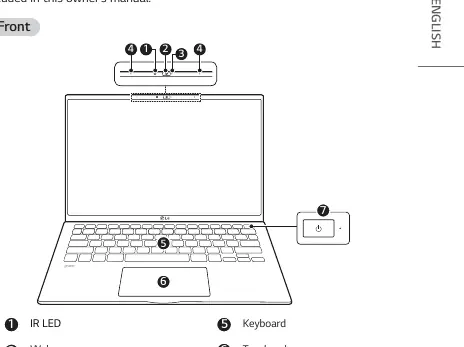
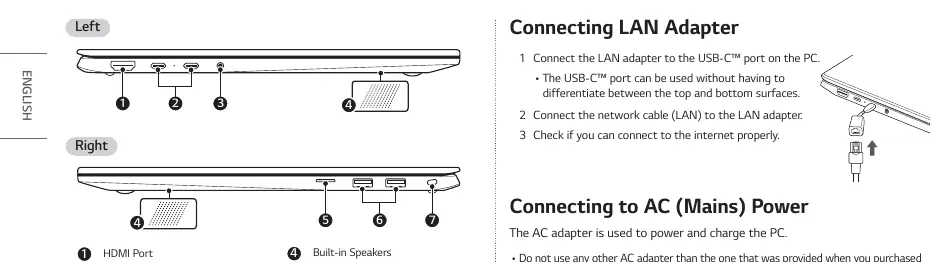
The laptop features a front-facing webcam, built-in microphone, and IR LED. The keyboard and touchpad are located on the main deck, with the power button positioned on the top right. The sides of the device house various ports, including HDMI, USB-C/Thunderbolt, a headphone port (4-pole), a microSD card slot, and a security keyhole.
Setup and Connections
To connect to the internet, plug the LAN adapter into the USB-C port and connect your network cable (CAT5 or higher recommended). For power, connect the provided AC adapter to a power outlet (100 V to 240 V) and plug the jack into the PC's USB-C port. Ensure the connection is firm. The USB-C port supports Quick Charging and Always-On Charging for compatible devices.
Battery Care and Usage
To maximize battery lifespan, keep the battery level at 50% if the PC will not be used for an extended period. You can use the 'Extend Battery Life' function in the LG Smart Assistant to limit charging to 80%. Avoid keeping the battery fully charged for long periods. The internal battery is not user-replaceable; contact a designated service center for replacements.
Troubleshooting
If you encounter issues, check the following before seeking service:
- Screen color issues: Disable 'Reader Mode' in the LG Smart Assistant or adjust 'Night light' settings in Windows.
- Power won't turn on: Disconnect the power cord, hold the power button for at least 6 seconds to reset the system, then try again.
- Touchpad not working: Check the LG Smart Assistant dashboard to ensure the touchpad is not disabled.
- Wireless network issues: Press Fn + F6 to toggle airplane mode and ensure the wireless device is enabled.
Safety Precautions
Follow these safety guidelines to prevent injury or damage:
- Use only batteries certified by LG Electronics.
- Keep the battery away from heat sources and do not expose it to temperatures above 60 °C.
- Do not use the laptop on soft surfaces like beds or carpets, as this can block ventilation and cause overheating.
- Do not bend the power cable excessively to avoid electric shock or fire.
- If you detect leakage or a bad odor from the battery, contact an authorized service center immediately.
Manufacturer information
LG Electronics
Practical help
Common problems
Screen color does not display properly
Check if Reader Mode is on and turn it off via LG Smart Assistant. Also, check Windows Night light settings.
Laptop does not power on
Disconnect the power cord, remove the adapter, hold the power button for 6 seconds to reset, then reconnect and try again.
Touchpad is not functioning
Run LG Smart Assistant, go to Dashboard, and check Touchpad settings to ensure it is not disabled.
Wireless network not connected
Press Fn + F6 to check if the wireless device is turned off or if airplane mode is active.
Before use
- Charge the battery completely before first use.
- Back up all critical user data to an external storage device.
- Ensure the AC adapter is connected firmly to the PC.
- Verify that the environment is well-ventilated.
- Check that you are using the provided AC adapter.
Specs in practice
- 4-pole Earset Port
- Supports headsets with microphones; does not support standalone external microphones.
- AC Adapter Input
- Compatible with 100 V to 240 V power outlets.
Images and diagrams
- Front view: Identifies IR LED, webcam, microphone, keyboard, touchpad, and power button.
- Side views: Identifies HDMI, USB-C/Thunderbolt, headphone port, microSD slot, and security keyhole.
Model compatibility
- European 4-pole ear microphones may not work properly with the 4-pole port.
- Recommended network cable for optimal environment is CAT5 or higher.
- Some Windows functions may require separate hardware or drivers.

Manual page author
David Miller
Documentation analyst
Organizes user manual content into clear summaries, with attention to model details, product context, and everyday usability.