Computers / Laptops
User Manual for LG 13U70P Series Notebook
Comprehensive user guide for the LG 13U70P Series notebook. Includes safety precautions, Windows 10 operation, system settings, software configuration, and troubleshooting.
Table of contents
Manual images
Click an image to enlargeQuick Guide
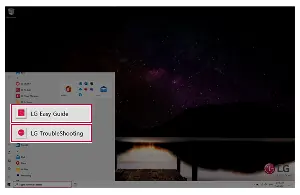
For immediate assistance, LG provides the LG Easy Guide and LG TroubleShooting software. To access these, press the Windows key, select the [LG Software] folder, and run the desired application.
Safety Precautions
To ensure safe operation and extend the lifespan of your notebook, please observe the following:
- Ventilation: Do not place any objects within 6 inches of the PC to prevent overheating.
- Surface: Do not use the PC on soft surfaces like carpets, blankets, or beds, as this may cause overheating.
- Magnetic Objects: Keep the PC away from magnetic objects (wallets, memo boards, speakers) to protect the storage device.
- Power: Use only the provided AC adapter. Do not use loose plugs or damaged cords.
- Battery: If the PC is not used for an extended period, keep the battery level at approximately 50%.
Using the PC
The notebook features various built-in tools for enhanced usability:
- Touchpad: Supports multi-touch gestures. Use two fingers to scroll or zoom.
- Hot Keys: Use the [Fn] key in combination with F1-F12 keys for quick access to settings like brightness, volume, and Airplane Mode.
- USB-C Charging: The USB-C port supports charging in Automatic, Sink, and Source modes. Use LG Control Center to configure these settings.
- External Display: Connect via HDMI or use the USB-C port (requires Alternate Mode support).
Software Utilities
Your notebook comes with several pre-installed utilities:
- LG Control Center: Manage system settings, cooling modes (Silent, Optimal, Performance), and keyboard backlight.
- LG Update Center: Install and update essential drivers and applications.
- Virtoo by LG: Connect your smartphone to the PC to manage notifications, calls, and messages.
- DTS:X Ultra: Optimize audio settings for music, movies, or games.
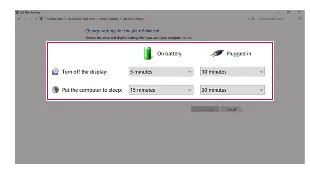
- LG Power Manager: Monitor battery health and configure power-saving modes.
System Setup and Recovery
If you encounter system errors, you can restore the PC to its initial state using Windows 10 recovery features.
- System Setup (BIOS): Reboot the system and press [F2] to access BIOS settings. Use [F10] to save changes.
- Boot Order: Press [F10] during reboot to select a specific booting device.
- Factory Reset: Navigate to Settings > Update & Security > Recovery to reset the PC.
Manufacturer information
LG Electronics
Practical help
Common problems
System overheating
Ensure 6 inches of clearance for ventilation; do not use on soft surfaces like blankets or beds.
Battery not charging
Check if the AC adapter is securely connected. If the lamp is blinking, charge the battery fully before use.
No sound via HDMI
Set Speaker as the default audio device after disconnecting the HDMI cable.
Before use
- Ensure the battery is charged.
- Check for proper ventilation (6 inches clearance).
- Do not use in damp environments like bathrooms.
- Use only a certified LG AC adapter.
- Back up important data frequently.
Specs in practice
- Power Rating
- 65.0 W.
Images and diagrams
- Operation Status Lamps: Explains the meaning of AC adapter, storage, power, caps lock, touchpad, reader mode, and webcam lamps.
- Touchpad Gestures: Explains two-finger scrolling and zooming.
Model compatibility
- Wired LAN requires a separate LAN adapter.
- USB-C port supports USB 3.2 Gen 2x1 standards.
- Virtoo by LG requires the app to be installed on both the PC and the smartphone.

Manual page author
David Miller
Documentation analyst
Organizes user manual content into clear summaries, with attention to model details, product context, and everyday usability.