Computers / Laptops
Owner's Manual for LG 15Z90RT Series Notebook
A comprehensive owner's manual for the LG 15Z90RT Series Notebook. Includes setup instructions, port connectivity, battery safety guidelines, power management, and troubleshooting steps for common issues.
Table of contents
Manual images
Click an image to enlargeQuick Start Guide
This manual provides essential information for the safe and efficient use of your LG 15Z90RT Series Notebook. Before using the device for the first time, ensure the battery is fully charged. Always back up critical user data to an external storage device, as SSD malfunctions can lead to data loss. When shutting down the system, wait until it has completely loaded to avoid improper shutdown issues.
Product Overview
The notebook features a front-facing webcam, IR LED, built-in microphone, keyboard, touchpad, and power button. The sides of the device house various ports:
- Left Side: USB-C port (USB 4.0 Gen 3x2 / Thunderbolt) and built-in speakers.
- Right Side: Headphone port (4-pole ear microphone) and USB-C port (USB 3.2 Gen 2x1).
Note that Thunderbolt devices are only supported on the left USB-C port. The 4-pole ear microphone port supports US 4-pole standards but does not support external microphones or European 4-pole headsets.
Connectivity and Ports
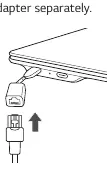
To connect to a wired LAN, you must purchase a separate LAN adapter. Connect the adapter to either of the USB-C ports on the PC, then connect the network cable to the adapter. The USB-C ports also support power delivery and charging.
Power and Battery Management
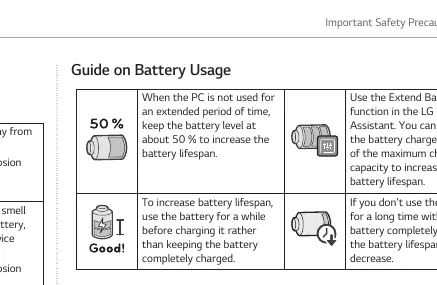
Use only the provided AC adapter for charging. The adapter is compatible with 100 V to 240 V power outlets. To extend battery lifespan, keep the battery level at approximately 50% if the device will not be used for an extended period. You can also use the 'Extend Battery Life' function in the LG Smart Assistant software to limit charging to 80% of maximum capacity.
Troubleshooting
If you encounter issues, check the following before contacting support:
- Screen Color Issues: Check if 'Reader Mode' is enabled. Disable it via LG Smart Assistant or turn off 'Night light' in Windows settings.
- Power Issues: If the system does not turn on, disconnect the power cord, then reconnect it. If it still fails, remove the adapter and hold the power button for at least 6 seconds to reset the system.
- Touchpad Issues: Ensure the touchpad is not disabled. Check settings in LG Smart Assistant under Dashboard > Touchpad.
- Wireless Network: Press [Fn] + [F6] to ensure the wireless device is not turned off or in airplane mode.
Manufacturer information
LG Electronics
Practical help
Common problems
Screen color does not display properly
Check if Reader Mode is on and turn it off. Also, check if Night light is enabled in Windows settings and turn it off.
The power does not turn on
Disconnect the power cord, reconnect it, and try again. If it fails, remove the adapter and hold the power button for at least 6 seconds to reset the system.
Touchpad is not functioning
Check if the touchpad is disabled. Go to LG Smart Assistant > Dashboard > Touchpad to verify settings.
Wireless network is not connected
Press [Fn] + [F6] to check if airplane mode is on. Ensure the wireless network device is enabled.
Before use
- Charge the battery completely before using the PC for the first time.
- Back up all critical user data to an external storage device.
- Use only the provided AC adapter.
- Ensure the system is fully loaded before shutting down.
- Check that the power cable is connected firmly to the AC adapter and the PC.
Specs in practice
- USB-C Port (Left)
- Supports USB 4.0 Gen 3x2, Thunderbolt, LAN adapter connection, and power delivery.
- USB-C Port (Right)
- Supports USB 3.2 Gen 2x1, LAN adapter connection, and power delivery.
Images and diagrams
- The front view identifies the webcam, IR LED, microphone, keyboard, touchpad, and power button.
- The side views illustrate the location of the USB-C/Thunderbolt ports, headphone jack, and speakers.
Model compatibility
- Thunderbolt devices are only supported on the left USB-C port.
- The 4-pole ear microphone port supports US 4-pole standards; European 4-pole headsets are not supported.
- The 4-pole ear microphone port does not support external microphones.

Manual page author
Emily Carter
User documentation editor
Prepares concise manual descriptions and highlights the most useful setup, operation, and maintenance information for readers.