Computers / Laptops
User Manual for LG Notebook 15Z90ST Series
Quick guide for the LG Notebook 15Z90ST Series. Learn about safety precautions, Windows 11 usage, system setup, recovery options, and software features like LG Smart Assistant and LG Security Guard.
Table of contents
Manual images
Click an image to enlargeQuick guide from the manual
This guide provides essential safety and operational information for the LG Notebook 15Z90ST Series. It covers basic usage, software features, system setup, and recovery procedures. Always refer to the full PDF for detailed information.
Safety Precautions
WARNING: Failure to follow instructions may cause serious injury or death. CAUTION: Failure to follow instructions may cause minor damage to the body or the machine.
- Do not place objects within 15 cm of the PC to ensure proper ventilation.
- Keep the PC away from magnetic objects (e.g., wallets, speakers, bracelets).
- Do not use the PC in damp environments like bathrooms.
- If the system overheats, it will automatically stop recharging and switch to Hibernate or Off.
- Do not touch the adapter or the bottom of the PC with bare skin for extended periods during operation to avoid burns.
- Disconnect power, LAN, and other connections during lightning storms.
Using the PC
The notebook is designed for use with Windows 11. The taskbar allows quick access to widgets, search, and settings. The touchpad supports multi-touch gestures for scrolling and zooming. The USB-C ports support charging and external display connections (Thunderbolt supported on the left port).
Using Software
The notebook includes several pre-installed utilities:
- LG Smart Assistant: Manage keyboard settings, power modes, display color temperature, and AI noise cancellation.
- LG Update & Recovery: Perform system updates, create recovery disks, and back up/restore data.
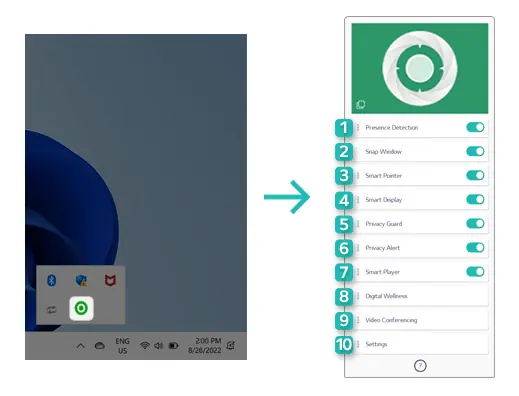
- LG Glance by Mirametrix: Uses AI to enhance security and productivity (e.g., presence detection, privacy alerts).
- LG Security Guard: Helps prevent theft when the user is away.
- PCmover Professional: Transfers files and settings from an old PC.
- Dolby Access: Optimizes sound effects for various content types.
- Intel Unison: Connects your smartphone to the PC for calls, messages, and file sharing.
System Setup
To access the system setup (BIOS), restart the PC and press [F2] repeatedly. You can set supervisor and user passwords, change the boot order, or restore default settings. CAUTION: Do not change system settings unless necessary, as incorrect configurations may cause system errors.
Recovery
The system provides tools to back up and recover Windows, disk partitions, or user data. These functions require the AC adapter to be connected. You can also perform a factory reset to restore the PC to its original state. If the system fails to boot, press [F11] during startup to access recovery options.
Manufacturer information
LG Electronics
Practical help
Common problems
System overheating
Ensure at least 15 cm of clearance around the PC for ventilation and do not block the ventilation holes.
Battery not charging
Use only the provided adapter. Ensure the temperature is within the operating range (10 °C to 35 °C).
Data loss
Frequently back up important data to an external disk using the LG Update & Recovery tool.
System freezes or won't turn on
Connect the AC adapter and charge the battery sufficiently. If the issue persists, try charging/discharging the battery 2-3 times at room temperature.
Before use
- Charge the battery completely before first use.
- Ensure the memory cover is securely closed.
- Keep the PC away from magnetic objects.
- Use only parts certified by LG Electronics.
- Keep the battery level at about 50% if storing for a long period.
Specs in practice
- 10 °C to 35 °C
- Recommended operating temperature range.
- 20% RH to 80% RH
- Recommended operating humidity range.
Images and diagrams
- Front view: IR LED, IR Camera, Webcam, Microphone, Keyboard, Touchpad, Power Button.
- Ports: USB-C/Thunderbolt (left side), Headphone port, USB-C (right side).
Model compatibility
- Thunderbolt devices are only supported on the USB-C port on the left side.
- The hearing protection feature is supported only for earphones/headphones connected to the headphone port.
- Windows 11 is the required operating system.

Manual page author
Michael Turner
Technical manual editor
Reviews PDF manuals for structure, safety notes, and practical product details so readers can find the right information quickly.