Smart Home / Smart Doorbells
User Manual for Mirabella Genio Mini 16S Indoor Wi-Fi Camera
Quick start guide and setup instructions for the Mirabella Genio Mini 16S Indoor Wi-Fi Camera. Learn how to connect to 2.4GHz Wi-Fi, install the app, insert a Micro SD card, and troubleshoot common pairing issues.
Quick answers from the manual
Quick answer
- To set up the Mirabella Genio Mini 16S, ensure your phone is on a 2.4GHz Wi-Fi network, download the Mirabella Genio app, power on the camera, and follow the in-app pairing process by scanning the QR code. p. 2, 4, 5
Key actions
- Pairing the camera p. 4, 5
- Resetting the camera p. 4
First start
- Power on and wait for the indicator light to blink red rapidly. If it doesn't, hold the reset button until you hear a sound. p. 4
Problems and fixes
Cannot find device during pairing
Disable 5GHz Wi-Fi on router, ensure 2.4GHz is on, check indicator is blinking red, verify Wi-Fi password.
p. 8Maintenance and reset
- To reset, press and hold the reset button on the back of the camera until you hear the 'bugu' sound. p. 4
Technical specifications
| Parameter | Value | Meaning | Pages |
|---|---|---|---|
| Micro SD Card | 8GB - 128GB | Storage capacity for recordings | p. 3 |
Where to find it in the PDF
- Product Overview p. 2
- Setup and Installation p. 3, 4
- Pairing Process p. 4, 5
- Usage Tips p. 6, 7
Table of contents
Manual images
Click an image to enlargeQuick guide from the manual
The Mirabella Genio Mini 16S is an indoor Wi-Fi camera designed for home security. To get started, ensure your smartphone is connected to a 2.4GHz Wi-Fi network, as 5GHz networks are not supported. Download the Mirabella Genio app, power on the camera, and follow the in-app instructions to pair the device by scanning a QR code.
Product details
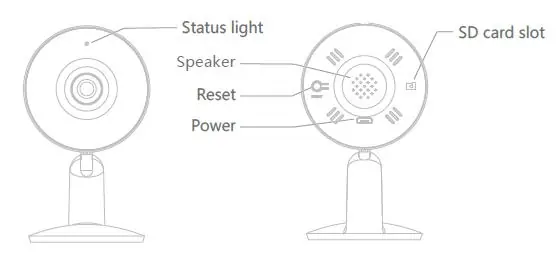
The package includes the Mini 16S camera, adhesive tape, an anti-slip pad, and a charging cable. The camera features a status light, speaker, reset button, power port, and a Micro SD card slot.
Connection preparation
Before pairing, verify your mobile device is connected to a 2.4GHz Wi-Fi network. If your router is dual-band, you must disable the 5GHz signal during the setup process to ensure a successful connection.
Installation and setup
- App Installation: Download the Mirabella Genio app from the App Store or Google Play and register an account.
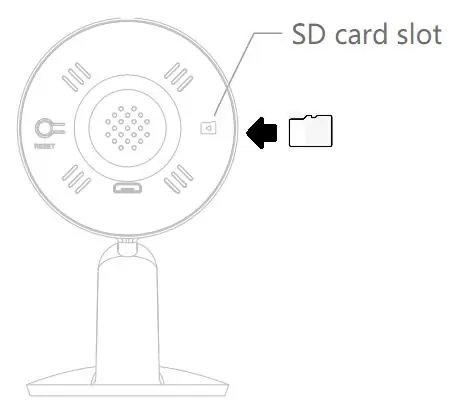
- Micro SD Card: Remove the rubber cap to expose the slot. Insert a Micro SD card (8GB-128GB, FAT32 format only). The camera does not support NTFS file systems.
- Physical Installation: Use the provided adhesive tape to secure the camera base in your preferred location. Ensure the location has a strong Wi-Fi signal (at least two bars).
Pairing the camera
- Connect the power adaptor and wait for the indicator light to blink red rapidly (1 blink per second).
- If the light does not blink red, press and hold the reset button on the back until you hear a sound.
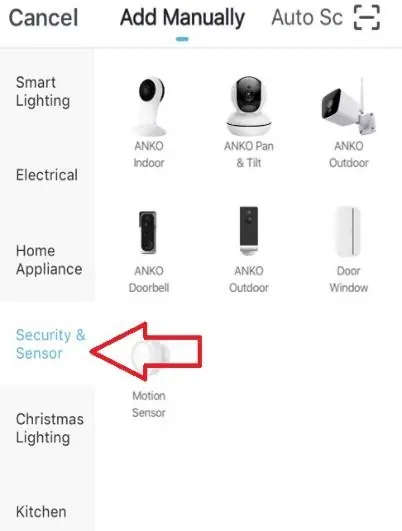
- Open the Mirabella Genio app, tap the '+' icon, select 'Security & Sensor', and choose your camera.
- Enter your 2.4GHz Wi-Fi credentials.
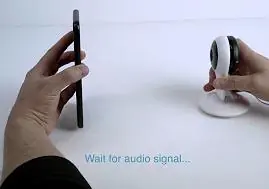
- A QR code will appear on your phone screen. Hold your phone 15-20cm in front of the camera until you hear a sound and the indicator light turns solid blue.
Camera usage and settings
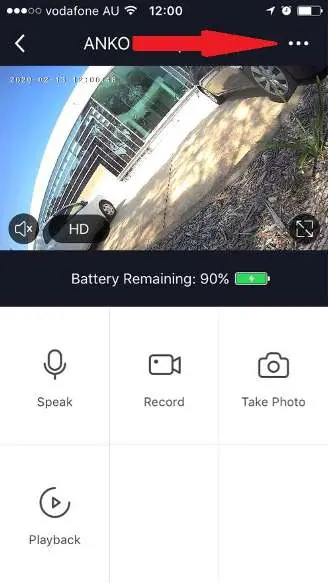
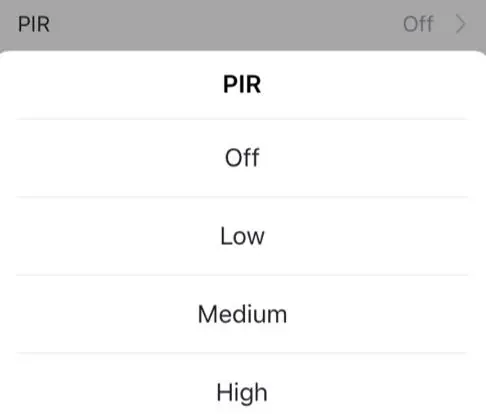
Access the camera's settings by tapping the pencil or '...' icon in the live view. You can enable two-way talk, record footage, take screenshots, and access playback. The settings menu allows you to customize the device name, share the device, manage power settings, and adjust PIR motion detection sensitivity.
Troubleshooting
If the camera fails to connect, ensure you are using a 2.4GHz network, check that the indicator light is blinking red, and verify your Wi-Fi password. If the camera goes offline, remove the device from the app, reset it, and re-pair it. For poor performance, check that the Wi-Fi signal strength is above 60%.
Practical help
Common problems
Cannot find device during pairing
Ensure 2.4GHz Wi-Fi is active, disable 5GHz on the router, check that the indicator light is blinking red rapidly, and verify the Wi-Fi password.
Poor performance or slow loading
Check Wi-Fi signal strength; if less than 60%, relocate the camera or use a Wi-Fi extender.
Camera goes offline
Go to the camera settings page, remove the device, reset the camera, and re-pair it through the app.
Before use
- Ensure your phone is connected to a 2.4GHz Wi-Fi network.
- Download the Mirabella Genio app.
- Check that the Wi-Fi signal strength is at least two bars.
- Insert a Micro SD card (8GB-128GB, FAT32) if recording is required.
Specs in practice
- 2.4GHz Wi-Fi
- The required frequency for the camera; 5GHz networks are not supported.
- Micro SD Card
- Required for local recording; must be FAT32 formatted.
Images and diagrams
- The manual includes diagrams for SD card insertion, the app pairing interface, and QR code scanning positioning.
Model compatibility
- Requires 2.4GHz Wi-Fi network.
- Does not support NTFS file system for SD cards.
- Most smart products in Australia only work on the 2.4GHz signal.

Manual page author
Michael Turner
Technical manual editor
Reviews PDF manuals for structure, safety notes, and practical product details so readers can find the right information quickly.