Power / Power Banks
User Manual for Omnicharge Omni Power Station 20C+
Comprehensive user guide for the Omnicharge Omni Power Station 20C+. Learn how to set up the base station, charge portable units, use various output ports, maintain battery health, and troubleshoot common issues.
Quick answers from the manual
Quick answer
- The Omni Power Station 20C+ is a plug-and-play charging system. Connect the base station to an AC outlet, insert the portable chargers, and press the power button on the back of the base station. p. 4, 5
Key actions
- Setup the Power Station p. 5
- Use DC Output p. 7
First start
- Plug the AC power cable into the base of the Power Station, and connect it to a power outlet. p. 5
Problems and fixes
Unit does not turn on or warning notification
Immediately stop using, do not place it back on the station, and inform your supervisor to replace the unit.
p. 9Maintenance and reset
- Factory Reset p. 8
Technical specifications
| Parameter | Value | Meaning | Pages |
|---|---|---|---|
| USB-C Output | 60W Max | PD enabled bidirectional charging | p. 9 |
| DC Output | 100W Max | Bidirectional Input/output charging | p. 9 |
| Wireless Charging | 10W Max | Wireless output | p. 9 |
Where to find it in the PDF
- Troubleshooting p. 10
Table of contents
Manual images
Click an image to enlargeQuick Guide
The Omni Power Station 20C+ is a plug-and-play charging system designed to distribute power to multiple portable chargers. To get started, place the base station on a stable surface, connect the AC power cable, insert the portable chargers into the bays, and press the power button on the back of the base station.
Getting to Know the Power Station
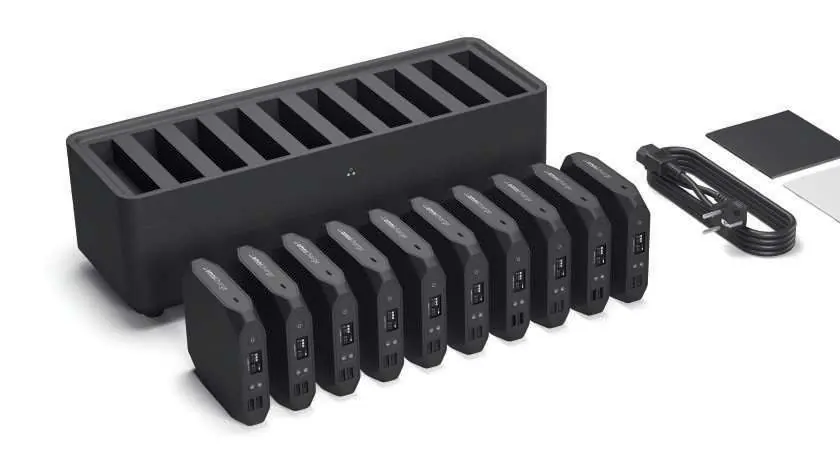
The system consists of a base station and multiple portable chargers. The base station features a power switch, power plug, and Ethernet port on the rear panel. The portable chargers feature an OLED screen, USB-C ports, DC port, USB-A ports, and wireless charging capabilities.
Setting Up
Follow these steps to set up your power station:
- Place the portable chargers into the open bays with the AC port facing upwards and the screen facing front.
- Plug the AC power cable into the base of the power station and connect it to a power outlet.
- Press the power button on the back side of the power station to turn it on.
- Wait until the charging icon displays on all portable charger screens, indicating they are connected and charging.
Note: Connecting the portable chargers should require no force. Ensure they are level when inserting them into the slot.
Portable Charger Features
The portable charger offers five different charging methods:
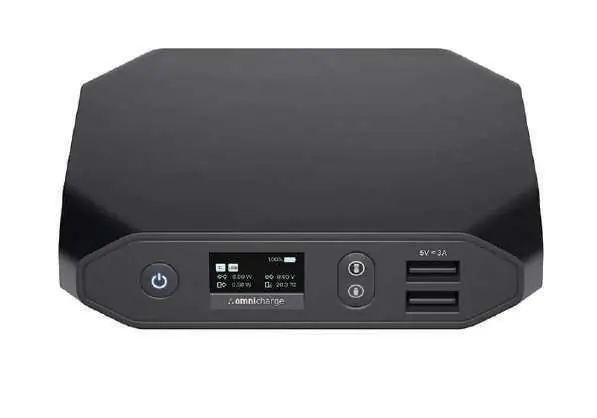
- USB-C Port 1 & 2: High-powered 60W PD output for laptops and mobile devices.
- DC Port: 5V-25V output, 100W max. Requires a compatible cable and knowledge of your device's voltage/amperage.
- USB-A Ports: Quick Charge QC3.0 compatible, 18W max.
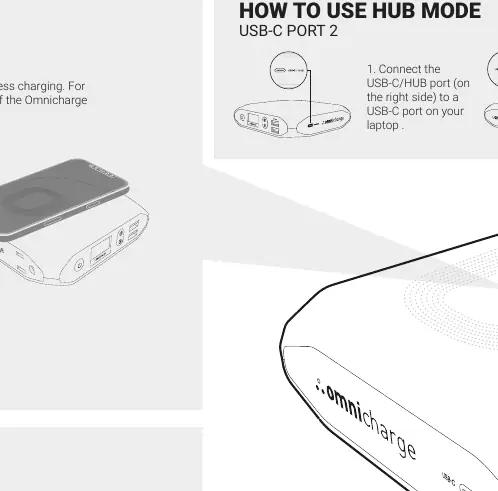
- Wireless Charging: 10W max output. Place your phone horizontally on top of the charger.
Battery Maintenance
To maximize battery life:
- Balance the usage of your portable chargers; excessive use of a single battery can shorten its lifespan.
- Do not leave batteries charging on the station constantly if not in use.
- If the station is not in use for more than a week, turn the station and chargers off and top them up every 3-4 months.
- Store in a cool, dry location (10°C-35°C, 40-70% humidity).
Safety and Handling
For safe operation, ensure the power station is placed on a hard, flat surface with at least 10cm of ventilation space from walls. Keep the unit in a dry location (0°C-40°C). The power station must be grounded. Avoid using damaged power cables or non-original accessories.
Troubleshooting
If you encounter technical issues, contact support at [email protected]. When contacting support, have the following information ready: Station PI Address, Station Serial Number, Portable Charger Serial Number, and purchasing information (receipt, PO, or Order ID).
Practical help
Common problems
Portable charger not charging
Ensure it is properly inserted into the bay and the base station is powered on.
Wireless charging not working
Align phone horizontally with the back edge of the charger; ensure USB-A mode is ON.
USB-C not connecting
Try reconnecting the USB-C cable.
Before use
- Check for physical damage before use
- Ensure base station is on a hard, flat surface
- Verify ventilation space (minimum 10cm from walls)
- Ensure proper grounding
- Use only the original power cable
Specs in practice
- Wireless Charging
- 10W max output.
Images and diagrams
- Base station rear panel shows power switch, power plug, and Ethernet port.
- Portable charger screen displays status icons, power output, temperature, and battery percentage.
Model compatibility
- DC output requires knowledge of device voltage and amperage.
- USB-C/HUB port can be used to transfer files from smartphones, flash drives, or cameras.

Manual page author
David Miller
Documentation analyst
Organizes user manual content into clear summaries, with attention to model details, product context, and everyday usability.