Computers / Storage
User Manual for OWC Express 1M2 NVMe SSD Enclosure
Comprehensive user guide for the OWC Express 1M2 NVMe SSD enclosure. Includes setup instructions, drive installation steps, compatibility notes, and troubleshooting tips.
Quick answers from the manual
Quick answer
- The OWC Express 1M2 is a high-performance NVMe SSD enclosure. To set it up, install your NVMe M.2 SSD (2280, 2242, or 2230) into the enclosure, connect the included USB4 cable to your host, and format the drive for your operating system. p. 4, 5, 6, 7
Key actions
- Install NVMe SSD p. 6, 7, 8, 9
- Connect to host p. 4, 13
- Format drive p. 5, 13
First start
- Connect the OWC Express 1M2 to a Mac or iPad to begin using immediately (pre-formatted as APFS). p. 5
Problems and fixes
Slow read/write speeds
Change Windows disk removal policy from 'Quick removal' to 'Better performance'.
p. 13
Connection issues
Verify cable connection, try a different cable, or try a different host.
p. 14, 15Maintenance and reset
- Always eject or unmount the drive from the operating system before disconnecting. p. 13, 14
Technical specifications
| Parameter | Value | Meaning | Pages |
|---|---|---|---|
| Interface | USB4 40Gb/s | High-speed data connection. | p. 3, 4 |
| Supported SSDs | NVMe M.2 | Compatible with 2280, 2242, 2230 form factors. | p. 2, 6 |
Where to find it in the PDF
- System Requirements p. 1, 2
- Assembly Steps p. 5, 6, 7, 8
- Device Management p. 13, 14
Table of contents
Manual images
Click an image to enlargeQuick guide from the manual
The OWC Express 1M2 is a high-performance NVMe SSD enclosure. To begin, ensure your host system is equipped with a USB4 or Thunderbolt (USB-C) port. The device comes pre-formatted as APFS for Mac systems. Windows, ChromeOS, and Android users will need to reformat the drive to use it with their respective operating systems. Always eject or unmount the drive before disconnecting it to prevent data loss.
System Requirements
- Operating System & Hardware: Works with any USB4 or Thunderbolt (USB-C) equipped device.
- Mac: macOS 10.13 or later.
- PC: Windows 10 or later.
- Supported Drives: NVMe M.2 SSDs with 2280, 2242, or 2230 form factors.
Assembly Steps
Opening the Enclosure:
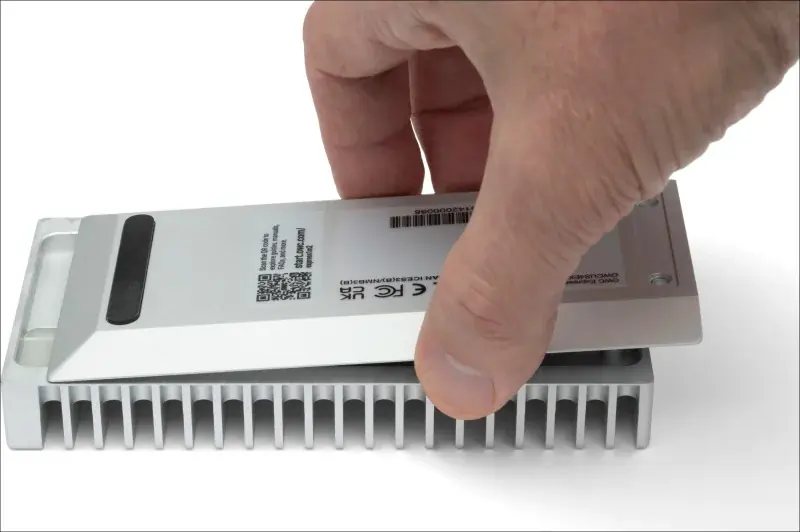
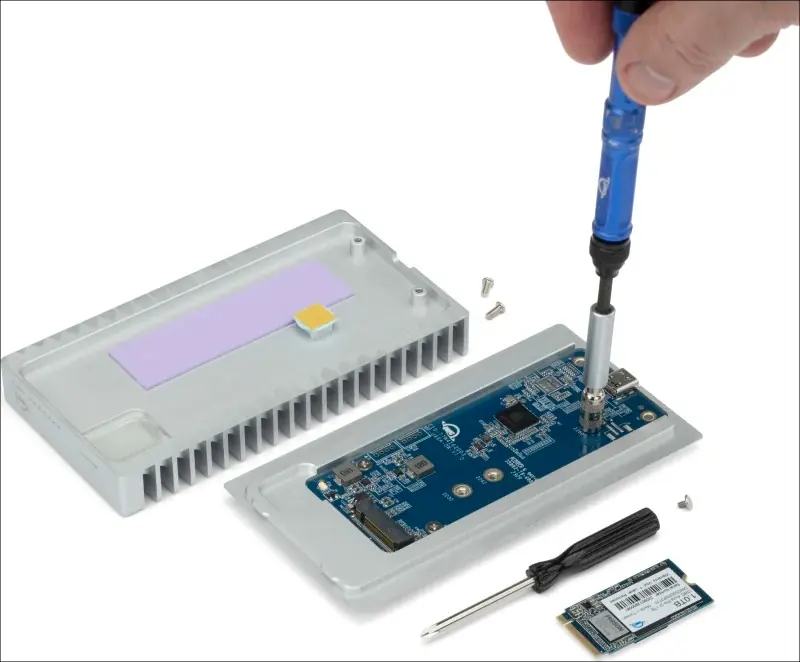
- Place the OWC Express 1M2 upside down on a flat, static-free surface.
- Remove the two exposed case screws using the included driver.
- Push the bottom tray away from the rubber foot to separate it from the top cover.
Installing the Drive:
- The drive post is pre-installed for a 2280 NVMe M.2 SSD. For 2242 or 2230 form factors, use a 5mm hex socket (not included) to move the drive post to the correct position.
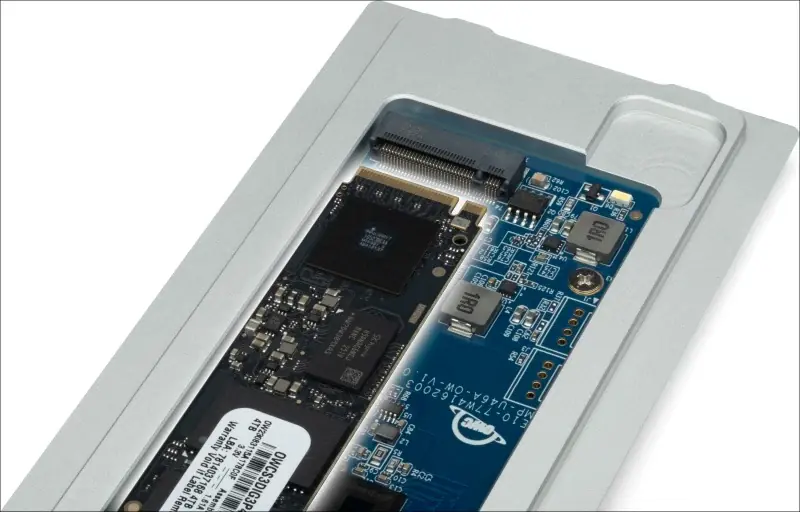
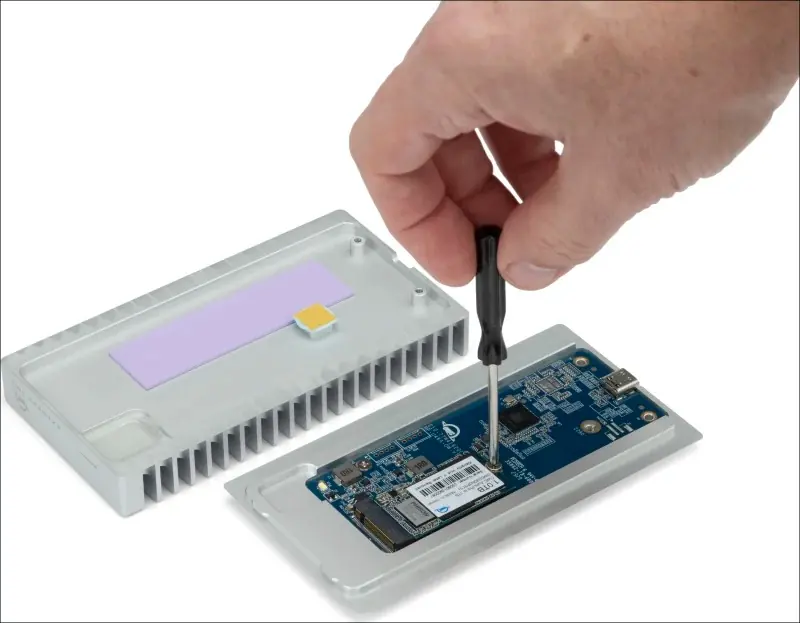
- Carefully align the drive at a slight angle into the board connection and slide it forward until fully seated.
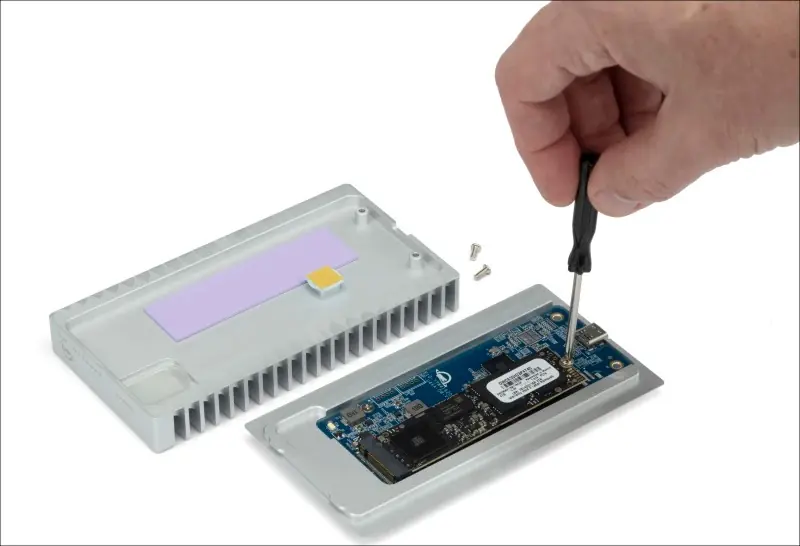
- Use the included drive screw to secure the drive to the post.
Closing the Enclosure:
- Align the bottom tray and top cover so the thermal pad rests over the NVMe M.2 SSD.
- Slide the pieces together and press down to ensure a strong bond.
- Secure the cover using the two case screws removed earlier.
- Peel the back of the rubber foot to expose the adhesive and press it into the notch housing the case screws.
Device Management
Performance: If experiencing slow read/write speeds on Windows 10 (v. 1809 or later), check the Disk Removal Policy. Changing from 'Quick removal' to 'Better performance' can increase disk performance.
Unmounting: Always eject or unmount the drive from your operating system before disconnecting the cable to ensure no data is lost.
Usage Notes
- Opening a pre-built OWC Express 1M2 (with factory-installed drive) voids the warranty.
- NVMe SSDs with heat sinks will not fit and are not supported.
- Hosts with Thunderbolt 3 ports will experience performance up to 10Gb/s.
- Not compatible with the front USB-C or USB-A ports of a Sony Playstation 5.
Safety Precautions
- Read the user guide carefully and follow recommended assembly steps.
- Use proper anti-static precautions when installing drives.
- Do not disassemble or modify the device.
- Keep away from water, damp conditions, and liquids.
- Do not block ventilation openings.
Practical help
Common problems
Slow read/write speeds on Windows
Check the Windows disk removal policy. Change from 'Quick removal' to 'Better performance' manually or using the OWC Disk Performance application.
Drive not recognized or connection issues
Verify the USB4 cable is securely connected to both the enclosure and the host. Try using a different USB4 cable or a different host port.
Before use
- Ensure your host system has a USB4 or Thunderbolt (USB-C) port.
- Verify your NVMe M.2 SSD is a supported form factor (2280, 2242, or 2230).
- If installing a 2242 or 2230 drive, ensure you have a 5mm hex socket to move the drive post.
- Prepare a flat, static-free surface for assembly.
- If using Windows, ChromeOS, or Android, be prepared to reformat the drive.
Specs in practice
- USB4 40Gb/s Port
- The primary data and power connection port for the enclosure.
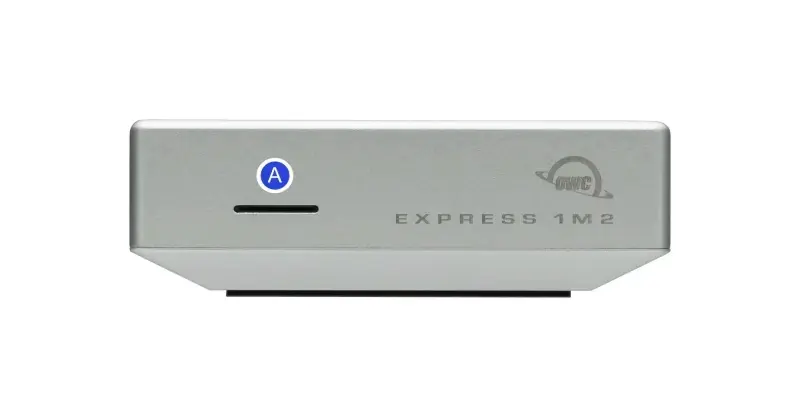
- LED Indicator
- Solid White indicates power/connection; Blinking White indicates data activity.
- NVMe M.2 Support
- Compatible with 2280, 2242, and 2230 form factor SSDs.
Images and diagrams
- The enclosure features a USB4 40Gb/s port on the rear for data and power.
- The internal PCB has clearly marked positions for 2280, 2242, and 2230 SSD form factors.
Model compatibility
- Not compatible with NVMe SSDs that have pre-installed heat sinks.
- Thunderbolt 3 hosts are limited to 10Gb/s performance.
- Not compatible with front USB ports on Sony Playstation 5.

Manual page author
David Miller
Documentation analyst
Organizes user manual content into clear summaries, with attention to model details, product context, and everyday usability.