Home / Security
User Guide for Ring Alarm Kit 1st Gen
A comprehensive setup and usage guide for the 1st Gen Ring Alarm Kit. Includes instructions for connecting the Base Station, pairing devices, configuring security modes, and troubleshooting common issues.
Quick answers from the manual
Quick answer
- The Ring Alarm Kit is a home security system. Setup involves downloading the Ring app, connecting the Base Station to Wi-Fi or Ethernet, and pairing individual sensors and the keypad. p. 3, 4, 6
Key actions
- Connect Base Station p. 5
- Pair Devices p. 10
First start
- Download the Ring app, create an account, and follow the in-app setup wizard to connect your Base Station. p. 5
Where to find it in the PDF
- Base Station Setup p. 5, 6
- Device Setup p. 10, 11
Table of contents
Manual images
Click an image to enlargeQuick Start Guide
The Ring Alarm Kit is designed to be set up using the Ring app. Before beginning, ensure you have your Wi-Fi password ready. Download the Ring app from the App Store or Google Play, create a Ring account, and follow the in-app instructions to add your Base Station and create a location.
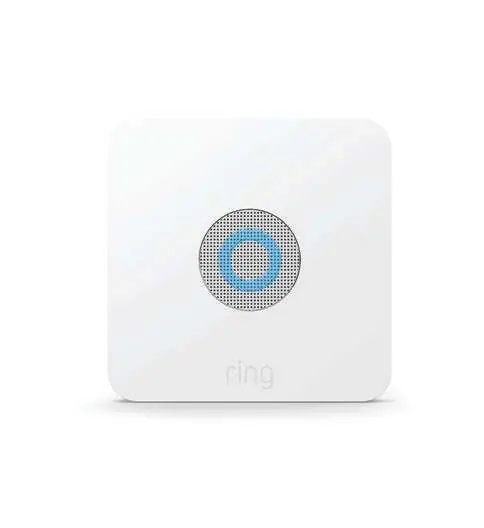
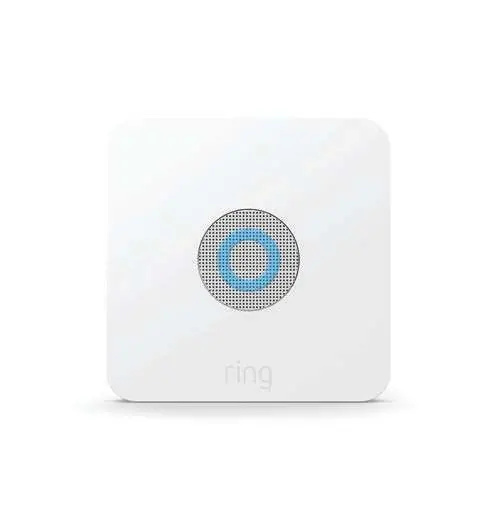
Connecting the Base Station
To connect your Base Station:
- Download and open the Ring app.
- Create an account or log in.
- Tap Set Up Device to begin the setup process.
- Press the Pairing button on the Base Station until the blue ring begins spinning.
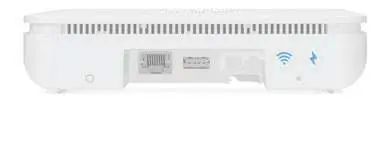
- Connect to the internet via Wi-Fi or Ethernet cable.
LED Patterns (Pairing):
- Blue Spinning: Ready to pair.
- Blue Solid: Pairing successful.
- Blue Flashing: Pairing failed.
LED Patterns (Internet Connection):
- White Climbing: Connecting to Wi-Fi.
- White Solid: Connected to Wi-Fi or Ethernet.
- White Flashing: Connection failed.
Connecting and Placing Devices
Once the Base Station is set up, add your devices in the app:
- Range Extender: Plug directly into an outlet.
- Keypad: Plug into an outlet using the included USB cable and wall adapter.
- Motion Detector & Contact Sensor: Pull the battery tab out of the back to activate.
Placement Tips:
- Contact Sensor: Use adhesive or screws to attach the bracket to a door or window, then place the sensor on the bracket.
- Motion Detector: Mount in a corner or flush on a wall, approximately 7 feet above ground level for the best view.
- Keypad: Can be placed on a table or mounted on the wall using the reversible bracket.
Security Modes
Ring Alarm features three security modes:
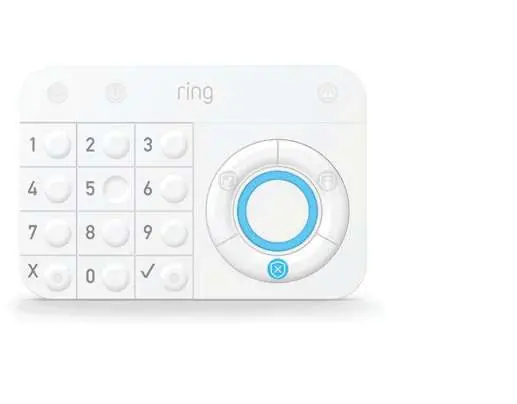
- Disarmed: No sensors are monitored.
- Away: All sensors are monitored.
- Home: Monitors perimeter sensors while leaving indoor sensors disarmed.
Troubleshooting
If you encounter issues:
- Base Station Reset: Use a pin to press the Reset button on the Base Station for 20 seconds.
- Wi-Fi Issues: If your network is not visible, select Add Hidden Network in the app and enter your credentials.
- Placement: Ensure the Motion Detector has a clear, unobstructed view.
- Power Outage: The Base Station includes a battery backup that lasts up to 24 hours.
Manufacturer information
Ring
Practical help
Common problems
Base Station not connecting to Wi-Fi
Ensure you are entering the correct password. If the network is hidden, use the 'Add Hidden Network' option in the app.
Base Station needs a factory reset
Use a pin to press and hold the Reset button on the Base Station for 20 seconds.
Motion detector placement
Mount approximately 7 feet above ground level to avoid interference from pets or accidental bumps.
Before use
- Download the Ring app
- Create a Ring account
- Have your Wi-Fi password ready
- Confirm all kit components are present
Specs in practice
- Cellular Radio
- Provides backup alarm signals to the monitoring center if the internet connection fails.
- Battery Backup
- Keeps the Base Station operational for up to 24 hours during a power outage.
Images and diagrams
- LED ring patterns indicate pairing status and internet connectivity.
- Device connection involves pulling battery tabs for sensors or plugging in the Keypad and Range Extender.
Model compatibility
- Requires the Ring app for setup and management.
- Professional monitoring requires a Ring Protect Plus subscription.

Manual page author
David Miller
Documentation analyst
Organizes user manual content into clear summaries, with attention to model details, product context, and everyday usability.