Smart Home / Smart Relays
User Manual for SwitchBot Air Purifier Table PT 2034C
Quick guide for the SwitchBot Air Purifier Table (PT 2034C). Includes assembly instructions, wireless charging setup, filter maintenance, and troubleshooting.
Quick answers from the manual
Quick answer
- The SwitchBot Air Purifier Table (PT 2034C) requires assembly of the table to the main body, connection of the internal cable, and installation of the filter before first use. It features wireless charging, app control, and multiple purification modes. p. 4, 5, 6
Key actions
- Assemble the table to the main body p. 5, 6
- Replace the filter p. 10
First start
- Remove protective vinyl, connect the internal cable, assemble the table, and install the filter. p. 5, 6
Problems and fixes
Product does not operate
Check power cord, air intake cover installation, and device status.
p. 11Maintenance and reset
- Reset filter life via the app or by pressing the Timer button for 3s. p. 10
Technical specifications
| Parameter | Value | Meaning | Pages |
|---|---|---|---|
| Power | 100-240 V AC | Input voltage | p. 12 |
| Connectivity | 2.4 GHz Wi-Fi + Bluetooth 4.2 | Wireless standards | p. 12 |
Where to find it in the PDF
- Components p. 4
- Installation p. 5, 6
- Specifications p. 12
Table of contents
Manual images
Click an image to enlargeQuick guide from the manual
The SwitchBot Air Purifier Table (PT 2034C) combines air purification with a functional table and wireless charging. Before using the device, ensure you remove all protective vinyl from the main body, table, and filter. The device requires assembly of the table to the main body and connection of the internal cable. It is compatible with the SwitchBot app for advanced controls and firmware updates.
Product Overview
The device consists of several key components:
- Table: Supports up to 5 kg. Avoid placing liquids on it.
- Wireless Charging Unit: Located on the table surface.
- Control Panel: Used to set modes, fan speed, and timers.
- Filters: Includes a pre-filter, HEPA filter, and activated carbon filter.
- Sensors: PM2.5 sensor for air quality and a light sensor for ambient light adjustment.
- Aroma Pad Box: Allows for the addition of essential oils.
Installation and Assembly
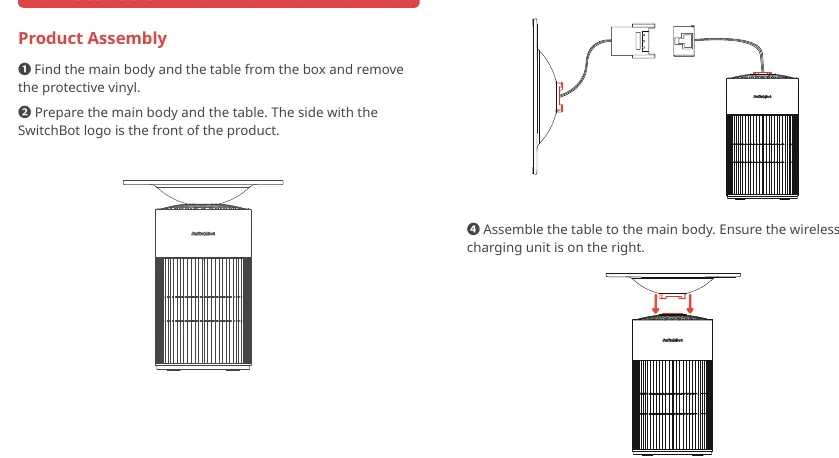
- Remove the protective vinyl from the main body and the table.
- Identify the front of the product (side with the SwitchBot logo).
- Connect the cable between the main body and the table.
- Assemble the table to the main body, ensuring the wireless charging unit is on the right.
- Rotate the table 30° counterclockwise to position it, then clockwise to fasten.
- Secure the connection by installing the screws on both sides.
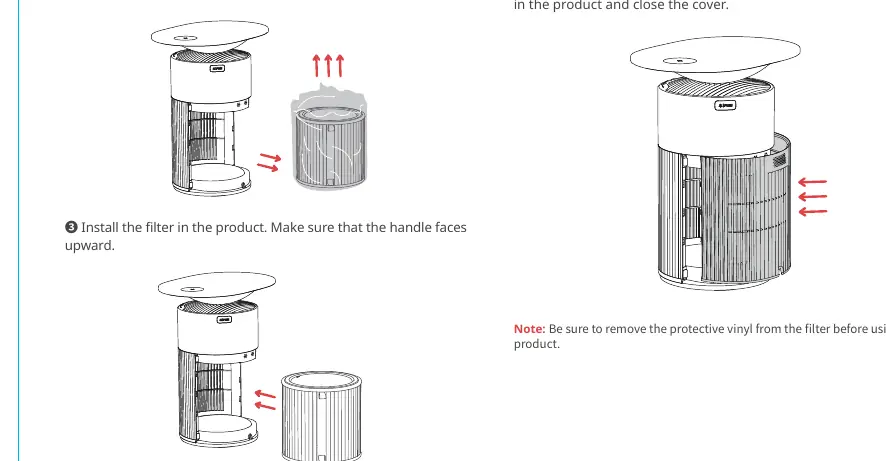
- Remove the back cover, unwrap the filter, and install it with the handle facing upward.
- Reattach the back cover.
Using the Product
The control panel allows you to manage the device:
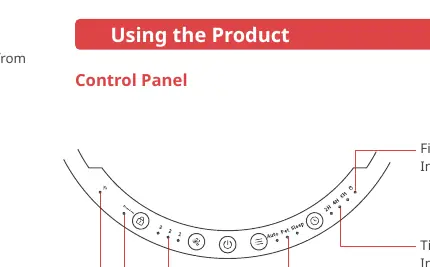
- Power Button: Turns the device on/off.
- Mode Switch Button: Cycles between Auto, Sleep, and Pet modes.
- Fan Speed Button: Adjusts between three fan speed levels.
- Timer Button: Sets operation timers.
- Child Lock Button: Locks the control panel.
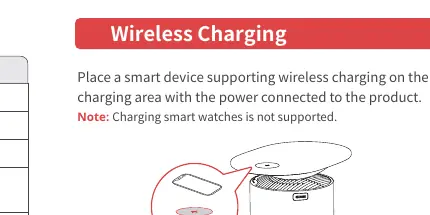
Wireless Charging: Place a compatible smart device in the center of the charging area. Note that smartwatches are not supported, and metallic objects may interfere with charging.
Care and Maintenance
Regular maintenance ensures optimal performance:
- Main Unit: Wipe the exterior with a dry soft cloth. Use a vacuum cleaner to clean the interior. Do not use alkaline detergents.
- Pre-filter: Clean every 2 to 4 weeks.
- Filter Replacement: Replace the filter approximately every year, or sooner if the filter life indicator turns orange or if you notice increased noise or odors.
Troubleshooting
If you encounter issues:
- Product does not operate: Check power connection, ensure the air intake cover is installed correctly, and check for damage.
- Noise: Ensure the filter is properly installed and the device is on a flat surface.
- Strange odor: Replace the filter if necessary; avoid using in areas with strong, persistent odors.
- Air not purified: Check that the filter wrapper is removed, ensure no blockages at the inlet/outlet, and clean the sensors.
Practical help
Common problems
Product does not operate
Check if the power cord is connected and undamaged. Confirm the air intake cover is installed correctly.
Noise occurs during operation
Ensure the filter is installed correctly and the device is placed on a hard, flat, and level surface.
Strange odor from the product
Check the filter and replace it if necessary. Avoid using the device in areas with strong odors (e.g., smoke, cooking) as they may persist.
Air not purified
Ensure the filter wrapper is removed. Check for blockages at the air inlet/outlet. Clean the pre-filter and sensors.
Before use
- Remove protective vinyl from the main body and table.
- Connect the internal cable between the main body and the table.
- Ensure the wireless charging unit is positioned on the right.
- Remove the protective plastic wrapper from the filter.
- Install the filter with the handle facing upward.
- Download the SwitchBot app and create an account.
Specs in practice
- Connectivity
- 2.4 GHz Wi-Fi and Bluetooth 4.2.
- Operating Temperature
- 0°C to 40°C (32°F to 104°F).
- Max Load (Table)
- 5 kg (11 lb).
Images and diagrams
- Assembly: Connect the cable, rotate the table 30° counterclockwise to seat it, then clockwise to lock.
- Filter: Ensure the handle faces upward when inserting into the main unit.
Model compatibility
- Wireless charging does not support smartwatches.
- Requires a smartphone or tablet with Bluetooth 4.2 or later.
- The device may not operate effectively in rooms larger than 40 square meters.

Manual page author
Michael Turner
Technical manual editor
Reviews PDF manuals for structure, safety notes, and practical product details so readers can find the right information quickly.