Electronics / Networking
User Manual for StarTech.com Thunderbolt 3 to 10GBase-T Ethernet Network Adapter (TB310G2)
Quick-start guide for the StarTech.com TB310G2 Thunderbolt 3 to 10GBase-T Ethernet Network Adapter. Includes setup instructions, LED indicator meanings, and Windows/macOS configuration steps.
Table of contents
Manual images
Click an image to enlargeQuick guide from the manual
This guide provides instructions for setting up and using the StarTech.com Thunderbolt 3 to 10GBase-T Ethernet Network Adapter. The device is designed for plug-and-play operation, meaning no driver installation is required for Windows or macOS. Ensure you have a Thunderbolt 3 compatible host computer and a Cat6 or better Ethernet cable for optimal performance.
Product overview
The adapter features a front-facing Thunderbolt 3 host port and a rear-facing Ethernet port with status LEDs.
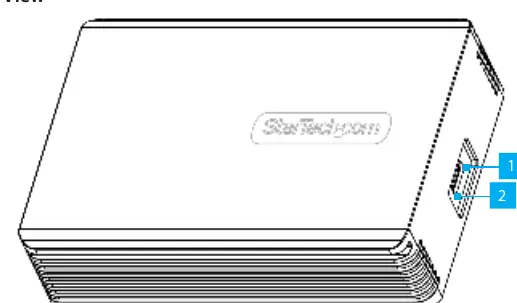
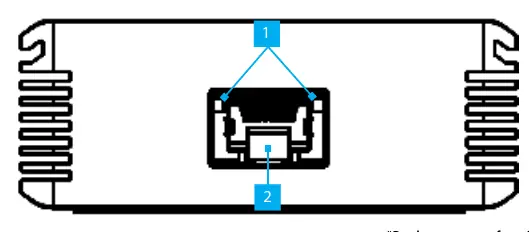
- Left LED (Link Speed): Solid Green indicates 10 Gbps. Solid Amber indicates 5 Gbps, 2.5 Gbps, 1 Gbps, or 100 Mbps.
- Right LED (Link Status): Solid Green indicates an active link. Flashing Green indicates data activity.
Requirements
- Thunderbolt 3 compatible host computer.
- Ethernet Cable (Cat6 or better recommended for 10 Gbps speeds).
Operation
Connecting the device: Connect the included Thunderbolt 3 cable to the Thunderbolt 3 Host Port on the adapter and to a Thunderbolt 3 port on your host computer.
Windows Thunderbolt Approval: When connected to a Windows host, a pop-up message will appear. To authorize the device:
- In the New Thunderbolt devices have been connected pop-up, click OK.
- In the User Account Control pop-up, click Yes.
- In the Approve Thunderbolt Devices pop-up, select Connect Only Once or Always Connect from the drop-down list, then click OK.
macOS: No drivers or additional steps are required to use the adapter in macOS.
Safety and warranty
This product is backed by a two-year warranty. For safety, if the product has an exposed circuit board, do not touch the product while it is powered on. Refer to the official StarTech.com website for full warranty terms and conditions.
Official resources from the manual
Practical help
Common problems
Adapter not recognized by the computer
Ensure the Thunderbolt 3 cable is securely connected to a Thunderbolt 3 port on the host computer. On Windows, ensure you have approved the device in the Thunderbolt pop-up messages.
Slow network speeds
Ensure you are using a Cat6 or better Ethernet cable. Lower category cables may not support 10 Gbps speeds.
Before use
- Verify the host computer has a Thunderbolt 3 port.
- Obtain a Cat6 or better Ethernet cable for 10 Gbps speeds.
- Connect the included Thunderbolt 3 cable to the adapter and the host computer.
- For Windows, be prepared to approve the device in the pop-up messages.
Specs in practice
- Left LED (Green)
- Indicates a 10 Gbps link speed.
- Left LED (Amber)
- Indicates 5 Gbps, 2.5 Gbps, 1 Gbps, or 100 Mbps link speed.
- Right LED (Green)
- Indicates an active link.
- Right LED (Flashing Green)
- Indicates data activity.
Images and diagrams
- Front View: Shows the Thunderbolt 3 Host Port and the connection status LED.
- Rear View: Shows the Ethernet Port and the Link Speed/Status LEDs.
Model compatibility
- Requires a Thunderbolt 3 compatible host computer.
- No driver installation is required for Windows or macOS.

Manual page author
Emily Carter
User documentation editor
Prepares concise manual descriptions and highlights the most useful setup, operation, and maintenance information for readers.