Electronics / Networking
User Manual for TP-LINK AP300 and AP500 Wireless Access Point
Quick setup guide and configuration manual for TP-LINK AP300 and AP500 wireless access points. Learn how to set up AP, Repeater/Bridge, and Client modes, understand LED indicators, and troubleshoot connectivity issues.
Table of contents
Manual images
Click an image to enlargeQuick guide from the manual
This document provides installation and configuration instructions for the TP-LINK AP300 and AP500 Wireless Gigabit Access Points. The device supports three primary operating modes: AP Mode (converts wired network to wireless), Repeater/Bridge Mode (extends existing Wi-Fi range), and Client Mode (connects wired devices to wireless networks). For initial configuration, use the default credentials found on the product label and access the web interface at http://tplinkap.net using the username and password 'admin'.
Operating Modes
Choose the mode that fits your needs:
- AP Mode (Default): Best for creating a wireless network from a wired connection.
- Repeater/Bridge Mode: Best for extending the range of an existing Wi-Fi network in dead zones.
- Client Mode: Best for connecting wired devices like Smart TVs or game consoles to a wireless network.
Configuration Steps
For all modes, the general configuration process is as follows:
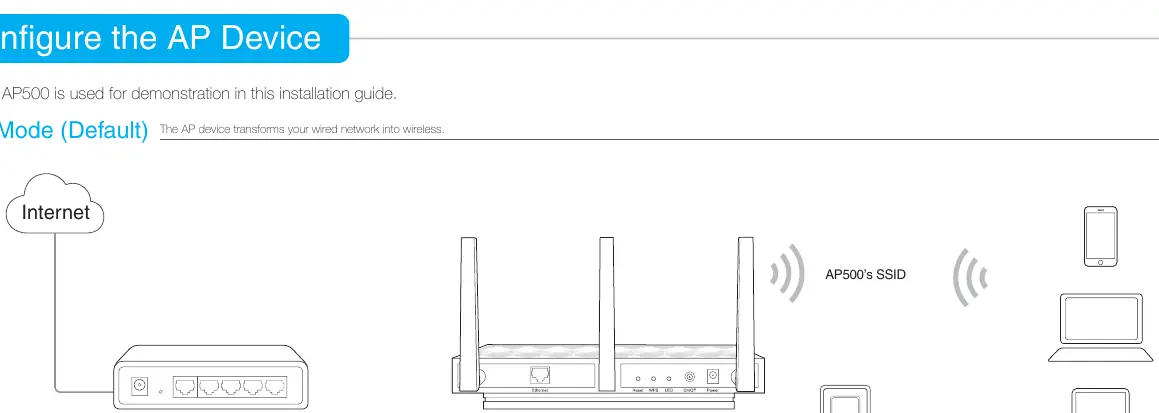
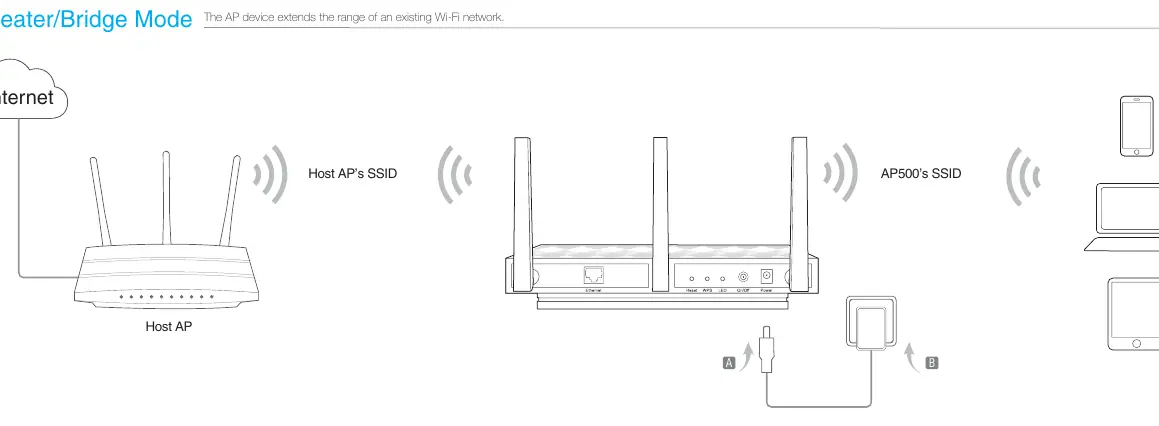
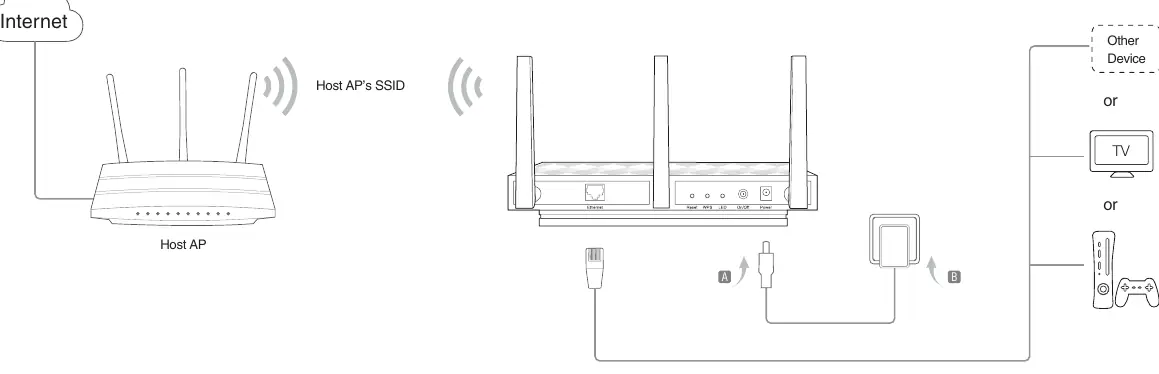
- Connect the AP device to your network or device using an Ethernet cable as shown in the specific mode diagram.
- Power on the device and wait for the Power and Wireless LEDs to become stable.
- Join the AP device's default Wi-Fi network using the SSID and password printed on the product label.
- Launch a web browser and navigate to http://tplinkap.net.
- Log in using 'admin' for both the username and password.
- Follow the Quick Setup wizard, select your region, and choose the desired operating mode to complete the configuration.
Hardware Information
The device features several LED indicators to help you monitor its status:
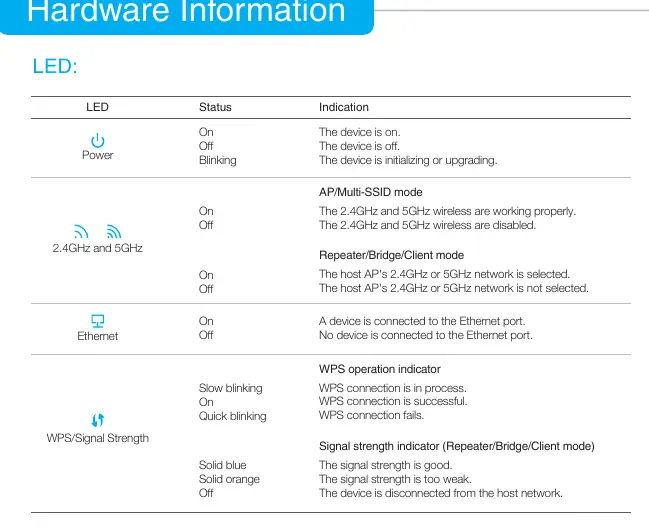
- Power: Indicates if the device is on, off, or initializing/upgrading.
- 2.4GHz and 5GHz: Shows if the wireless bands are active or disabled.
- Ethernet: Indicates if a device is connected to the Ethernet port.
- WPS/Signal Strength: Displays WPS status (in process, successful, failed) or signal strength (good, weak, disconnected) depending on the mode.
There is also a physical LED button on the device to turn the LED indicators on or off.
Troubleshooting and Maintenance
If you encounter issues, consider the following:
- Factory Reset: If you forget your password, use a pin to press and hold the Reset button for five seconds while the device is powered on. Note that this clears all previous configurations.
- Login Issues: If the login window does not appear, ensure you are using the correct URL (http://tplinkap.net or http://192.168.0.254), try a different browser, or reboot the device.
- Signal Stability: If the wireless connection is unstable, try changing the wireless channel or moving the device away from sources of interference like Bluetooth devices, microwaves, or cordless phones.
- Optimal Placement: For Repeater/Bridge mode, the ideal location is halfway between your wireless router and your wireless clients.
Official resources from the manual
Practical help
Common problems
Login window does not appear
Verify the URL (http://tplinkap.net or http://192.168.0.254), try a different web browser, or reboot the AP device.
Wireless connection is unstable
Change the wireless channel or relocate the device away from interference sources like microwaves, Bluetooth devices, or baby monitors.
Forgot password
Restore the device to factory default settings by holding the Reset button for five seconds.
Before use
- Identify the required operating mode (AP, Repeater/Bridge, or Client).
- Ensure you have an Ethernet cable for the initial setup.
- Locate the default SSID and password on the product label.
- Ensure the device is powered on and LEDs are stable before configuration.
Specs in practice
- Repeater/Bridge Mode
- Extends the range of an existing Wi-Fi network.
Images and diagrams
- The diagrams illustrate the physical cabling required for each mode, connecting the Internet source, router, and the AP device.
- The LED table explains the status of Power, Wireless, Ethernet, and WPS/Signal Strength indicators.
Model compatibility
- AP500 is used for demonstration in the guide, but instructions apply to AP300 as well.
- Resetting the device clears all previous configurations and reverts to default AP Mode.

Manual page author
Michael Turner
Technical manual editor
Reviews PDF manuals for structure, safety notes, and practical product details so readers can find the right information quickly.