Electronics / Monitors
User Guide for Uniview 0235C9KR Network Video Recorder
Quick guide for the Uniview 0235C9KR Network Video Recorder. Includes installation steps, HDD setup, connection instructions, web login details, and network security recommendations.
Table of contents
Manual images
Jump to the sectionQuick guide from the manual
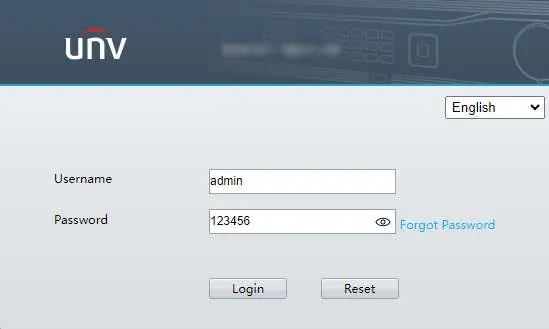
This guide provides essential information for setting up and operating the Uniview 0235C9KR Network Video Recorder (NVR). Before starting, ensure you have a monitor, a mouse, and a stable network connection. The default IP address for the device is 192.168.1.30, and the default login credentials are username admin and password 123456. For security, it is strongly recommended to change the default password immediately upon first login to a strong password of at least nine characters, including uppercase and lowercase letters, digits, and special characters.
Packing List
Ensure your package contains the following items:
- Device (NVR)
- HDD power cable
- HDD data cable
- Screw components
- Power adapter
- Mouse
- Product documents
Note: Package contents may vary by model and version.
Interfaces
The rear panel of the device includes the following ports and indicators:
- Grounding terminal
- DC input
- Network interface
- Network indicator
- HDMI video output
- VGA video output
- USB 2.0 port
- Audio output
Indicator Status
The front panel indicators provide status updates:
- Operation: Steady on means normal operation; blinking means starting up.
- Network: Steady on means connected to the network; off means disconnected.
- Cloud status: Steady on means connected to the cloud server; off means disconnected.
- HDD: Steady on means no disk installed or starting; blinking (1s on, 0.5s off) means normal operation; fast blinking (0.3s on, 0.3s off) indicates a faulty disk.
Device Installation
To install a hard disk drive (HDD):
- Unscrew the four corner screws on the base and remove the bottom cover.
- Screw the two screws (3-5 turns) into the middle of the hard disk. Do not tighten completely.
- Install the hard disk into the chassis and tighten the screws.
- Connect the power cable and data cable to the HDD.
- Reattach the cover and fasten the four corner screws.
Device Connection
- Connect the NVR to a monitor using either a VGA or HDMI cable.
- Connect the provided mouse to the USB port.
- Connect the camera and NVR to the mains power supply using their respective power adapters.
App and Web Configuration
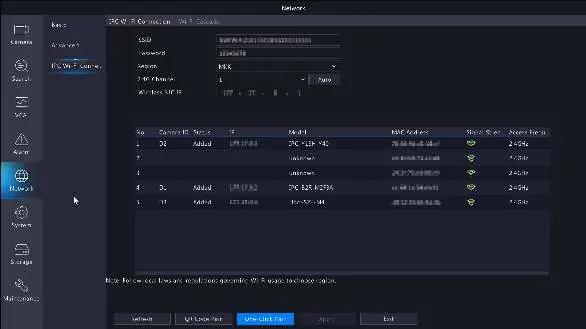
To add the device to the mobile app, download and install UNV-Link, then scan the QR code or search in app stores. Tap the '+' icon in the app and follow the on-screen instructions. For web access, enter the default IP address (192.168.1.30) in a web browser and log in with the default credentials.
Network Security
To enhance device security, follow these recommendations:
- Change the default password regularly.
- Keep firmware up to date.
- Enable HTTPS/SSL for encrypted communication.
- Enable IP address filtering to allow access only from specified IPs.
- Disable automatic login and save password features.
- Disable UPnP if not required.
- Check device logs regularly for unauthorized access.
- Isolate the video surveillance network from other service networks.
Manufacturer information
Uniview
Practical help
Common problems
HDD indicator is fast blinking (0.3s on, 0.3s off)
The disk is faulty. Check the connection or replace the hard drive.
Network indicator is off
The device is not connected to the network. Check your Ethernet cable and router connection.
Cloud status indicator is off
The device is not connected to the cloud server. Verify your internet connection and network settings.
Cannot log in via web interface
Ensure you are using the correct default IP (192.168.1.30) and credentials (admin/123456). If changed, use the new password.
Before use
- Verify package contents against the packing list.
- Ensure the power supply provides stable voltage and meets device requirements.
- Prepare a monitor (HDMI or VGA) and a mouse.
- Ensure the device is placed on a flat surface with adequate ventilation.
- Do not cover the vents on the device.
- Ensure the device is properly installed before connecting to power.
Specs in practice
- Default IP Address
- 192.168.1.30 - Use this to access the web management interface.
- Default Login
- Username: admin, Password: 123456. Change immediately for security.
- Password Requirement
- At least 9 characters, including uppercase, lowercase, digits, and special characters.
Images and diagrams
- Interfaces: 1 (Grounding), 2 (DC Input), 3 (Network), 4 (Network Indicator), 5 (HDMI), 6 (VGA), 7 (USB), 8 (Audio).
- Indicators: 9 (Operation), 10 (Network), 11 (Cloud), 12 (HDD).
Model compatibility
- Use only the power adapter supplied with your device.
- Use a UL certified power supply that meets LPS requirements if an adapter is used.
- Ensure the power supply's output power exceeds the total maximum power of all connected devices.

Manual page author
Michael Turner
Technical manual editor
Reviews PDF manuals for structure, safety notes, and practical product details so readers can find the right information quickly.